English
30
3. Printing on Selected Media
E. Printing with a Label Cartridge
1. Select “Label” on the printer.
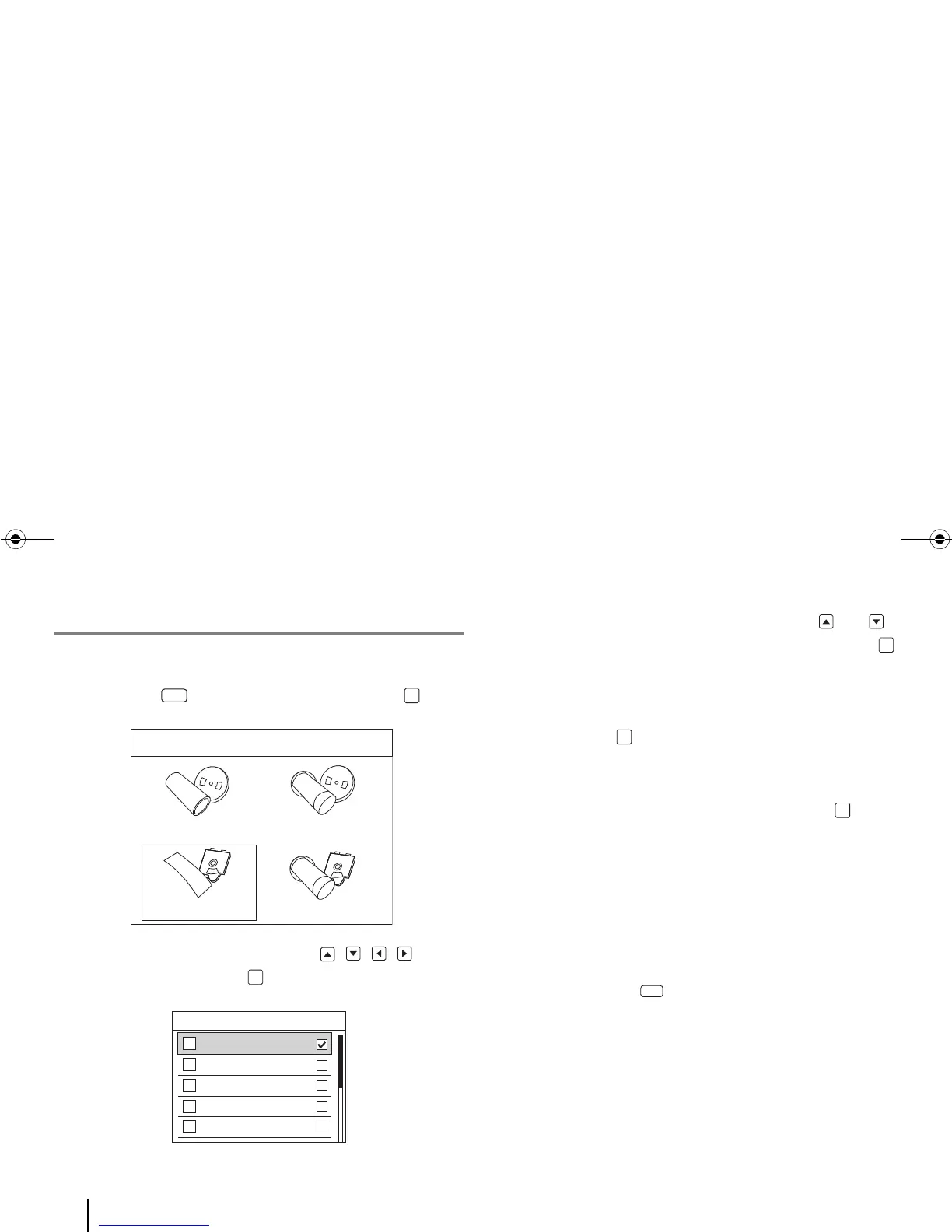
a. Press the [Media] quick key and then press [OK].
Four media types appear on the LCD screen.
b. Using the printer’s navigation keys , , , , select
“Label” and then press [OK].
A list of label diameters appears on the screen.
c. Using the printer’s vertical navigation keys and ,
select your label width on the screen and then press
[OK].
d. In the Application screen, select an application
(“General”, “Vertical”, “Patch Panel” or “Terminal Block”)
and press [OK]. For more options and detailed
instructions, see the “F. Changing the Medium and Its
Application” section.
e. Select “Auto-sized” or “Fixed-size”, and press [OK].
The screen returns to the main tag editor.
2. Enter and print the text/symbols.
a. Enter and edit the text/symbols. (For detailed instructions,
refer to “4. Entering & Editing Text/Symbols.”)
b. To see how the entered text/symbols look like when
printed, press [Preview].
Media
OK
Choose Media Type
Tube
Heat - Shrink Roll
Heat - Shrink Cartridge
Label
CB-DWT3
CB-DWT3
CB-DWT3
CB-DWT3



 To Next Page