49
5. Advanced Functions
C. Multiprint vs. Continuous Print
A print job is a tag or set of tags that has been submitted
to be printed. For detailed explanation on what a tag is,
please see “4. Entering and Editing Text/Symbols”.
In normal printing, a print job is printed only once. You can print
multiple copies in two different types of sequences via:
• Multiprint: A [PRINT] setting whereby the entire print job is
printed multiple times.
• Continuous Print (also known as Contiprint): A Tag Properties
setting whereby each tag in the job will be printed multiple
times before the next tag once [PRINT] is pressed.
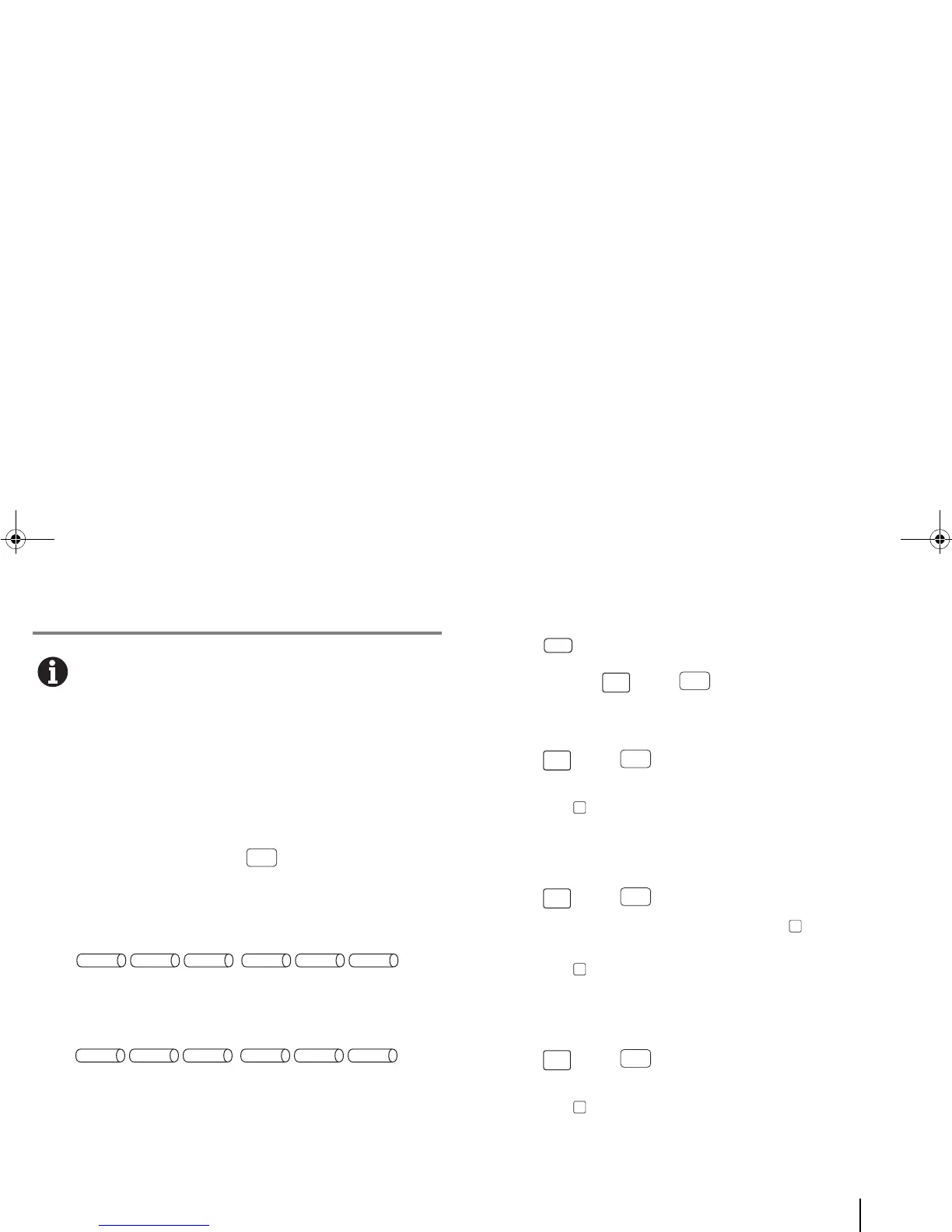
For example, supposing you have three tags (A1, A2, A3) in a
print job. If you choose Multiprint and two copies, the tags will be
printed in this order: A1, A2, A3, A1, A2, A3.
On the other hand, if you choose Contiprint and two copies, the
tags will be printed in this order: A1, A1, A2, A2, A3, A3.
To open the Multiprint menu:
1 Enter [Menu] > Quick Keys > “Multiprint”.
Shortcut: Press the [Fn] + [PRINT] quick keys.
To print multiple copies of the current tag via Multiprint:
1 Enter [Fn] + [PRINT] > “Current Tag”.
2 In the Number of Copies box, enter your preferred number
and press [OK].
The printer prepares to print the current tag multiple times.
To print multiple copies of a range of tags via Multiprint:
1 Enter [Fn] + [PRINT] > “Range”.
2 Type the “from” and “to” numbers and press [OK].
3 In the Number of Copies box, enter your preferred number
and press [OK].
The printer prepares to print the selected tags multiple times.
To print multiple copies of all tags via Multiprint:
1 Enter [Fn] + [PRINT] > “All Tags”.
2 In the Number of Copies box, enter your preferred number
and press [OK].
The printer prepares to print all tags multiple times.



 To Next Page