53
5. Advanced Functions
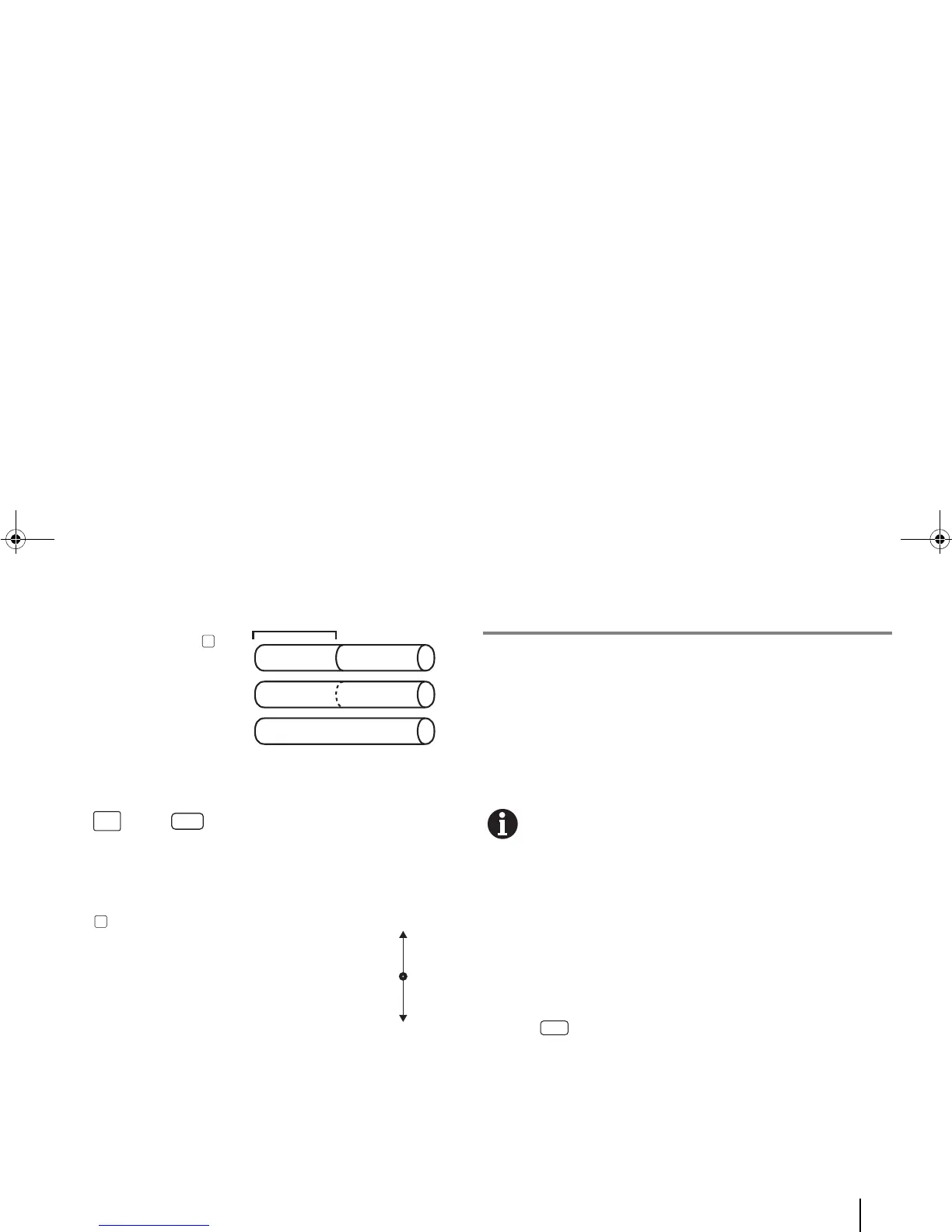
2 Select “Solid” or ”Dotted”
(or “None”) and press
[OK].
Note: This option is
available only when the
cutter action is off.
To change the cut depth of the half cuts:
1 Enter [Fn] + [Seg Length] > Half Cut > “Cut
Depth”.
The “Cut Depth” options appears.
2 Select a setting (“1” to ”8”) and
press [OK].
Note: The lower the Cut Depth
setting, the deeper the cut.
F. Barcode Settings
You can add numbers, text, symbols, barcodes and even
serialization on a tag. You can also change the size, spacing,
alignment and even orientation of the text.
You can print barcodes only when these conditions are satisfied:
• Labels are used, and
• General (horizontal) text orientation is chosen.
9 mm labels support only 1 line while 12 mm labels
support up to 2 lines. Depending on the barcode type
selected, the valid data range may vary. The segment has
to be auto-sized or >25 mm (if fixed size). Only upper-
case characters and digits 0-9 are allowed.
For step-by-step instructions, refer to “G. Formatting the
Font in a Tag” and “L. Changing the Properties of Tags” in
the chapter, “4. Entering Text & Symbols”.
To add a barcode:
• Enter [Menu] > “Barcode”.
• Select “Set Barcode” and select the “type option”.
• Select “Barcode Data” and enter the data.



 To Next Page