English
86
7. Troubleshooting
D. If the tube/label is jammed...
During printing, if and when the tube/label is jammed, the
printing will stop. The LCD screen will also display a message
indicating where the jam has occured.
Do NOT pull the tube/label to remove it.
When the jam message appears:
1. Perform preliminary checks.
a. Press [OK] to continue.
If you happen to have turned off the printer after the
message was displayed and as a result cannot clear the
jam according to the messages, switch on the printer
again by pressing [Power].
b. Pull the cover latch and open the printer cover.
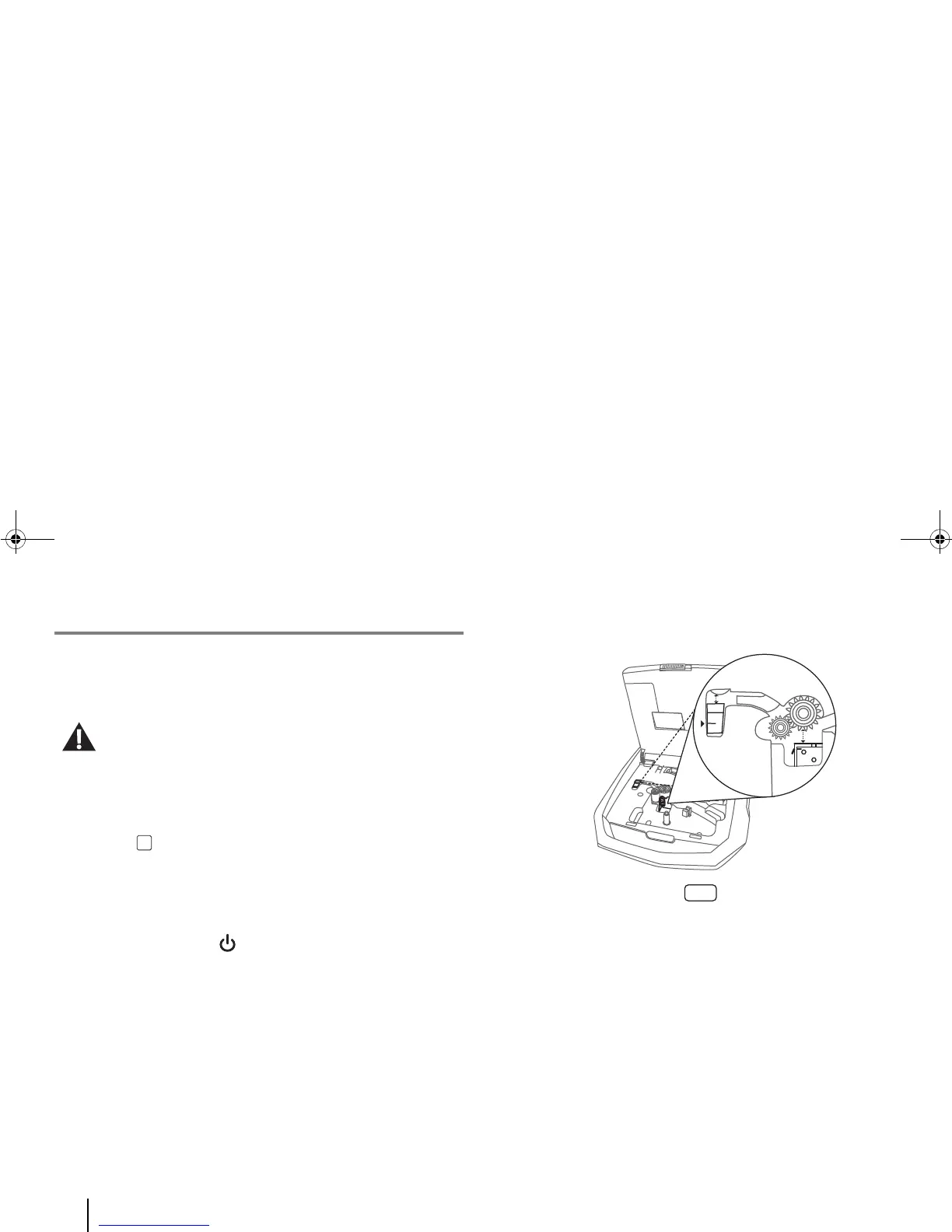
c. Check if the cutter and the printhead are in Home
positions.
If they are not, press [Maintain] to force them to
Home positions. If they still do not home, contact the Brady
Tech Support.
d. Check whether the printer ribbon is jammed.
If it is jammed, go to the next section “E. If the printer
ribbon is jammed...”
If the ribbon is not jammed but cannot be removed easily
(e.g. it winds itself around some parts inside the printer),
proceed to the next step without pulling the ribbon.
OK
Maintain
BMP91UG.book Page 86 Friday, October 14, 2011 7:56 PM



 To Next Page