EasyManua.ls Logo

Brady BMP 91 - G. Formatting the Font in a Tag

Brady BMP 91
106 pages
Print Icon
To Next Page IconTo Next Page
To Previous Page IconTo Previous Page
Loading...
33
3. Printing on Selected Media
4. Select an application type and press [OK].
If “General” or “Vertical” is entered:
a. To let the printer set the segment length, select “Auto-
sized” and press [OK].
The Tag Editor appears.
b. To set the segment
length yourself, select
“Fixed-size” and press
[OK].
Confirm or change the
number in the “Length”
text box and press
[OK].
The Tag Editor
appears.
If “Patch Panel” is entered:
a. Confirm or change the
number in the “No. of
Ports” text box and
press [OK].
The Set Width screen
appears.
b. Confirm or change the
number in the “Set
Width” text box and
press [OK].
The tags will be
created, then the Tag
Editor appears.
OK
OK
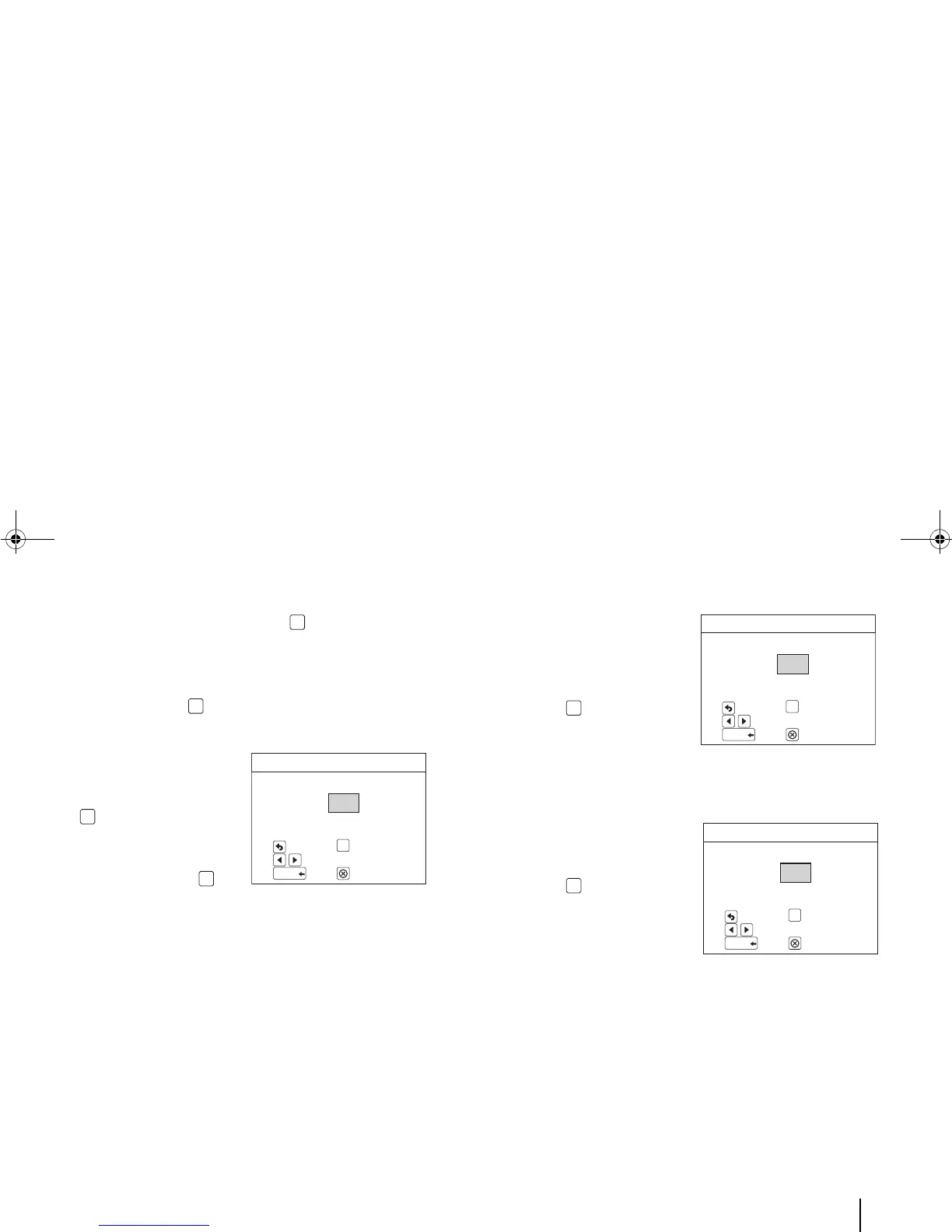
Set Length
/
Move Cursor
Confirm
OK
Return Menu
Length mm
Return EditorDelete
Backspace
30
OK
OK
No. of Ports
/
Move Cursor
Confirm
OK
Return Menu
No. of Ports
Return EditorDelete
Backspace
30
OK
Set Width
Set Width
/
Move Cursor
Confirm
OK
Return Menu
mm
Return EditorDelete
Backspace
30
OK
BMP91UG.book Page 33 Friday, October 14, 2011 7:56 PM

Table of Contents

Related product manuals