www.bresser.de
you select one of the support options, the software will assess whether the
existing supports need to be deleted. This decision is made on the basis of the
type of support selected. You can confirm this decision in a pop-up window.
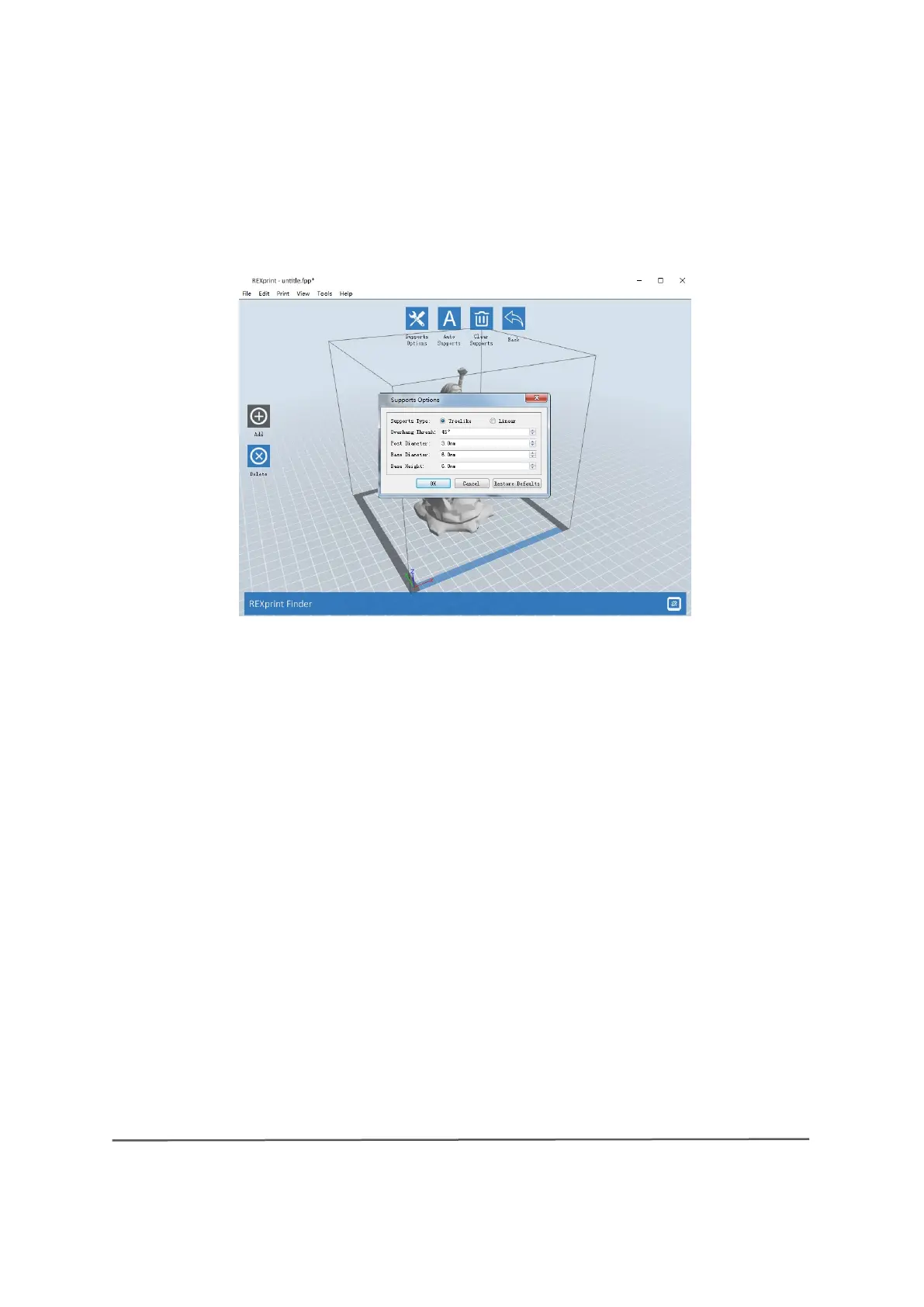
② Automatic supports
Click the [Auto Supports] button. The software evaluates the positions where
supports are required and creates corresponding supports in tree format or
linear format. For a model with supports, the existing supports are removed and
new ones are created.
③ Adding supports
Supports are added when you click the [Add] button. Position the mouse pointer
at the point where a support is required, click the left mouse button to select the
starting point for the support, hold down the left mouse button and drag the
mouse. The column preview opens (if no column is required for the area or if
the angle of the column is too large, this is highlighted in the column view).
Release the left mouse button. If the support column is not suitable for a model,
the support is created at the starting and end points (the highlighted support in
the preview does not create a support structure).



 To Next Page