www.bresser.de
7-8
④ If your computer is connected to REXprint, you can see the nozzle
temperature in real time in the status field in the lower rightcorner. After the
warm-up process is completed, the printer immediately starts the print job.
7.2.2 Printing from the computer
No WIFI connection
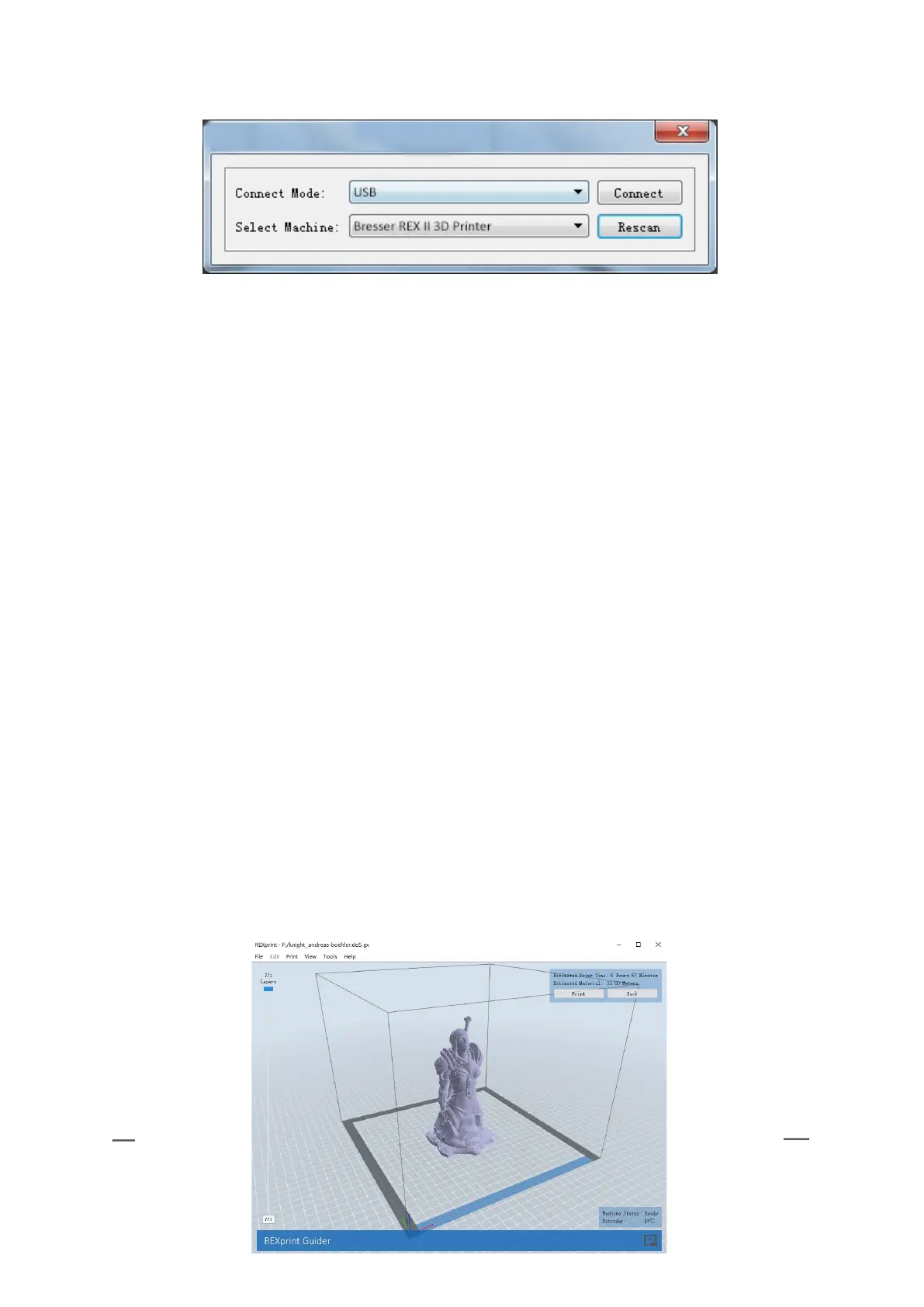
① Connect the 3D Printer to the computer via wireless LAN. (Cf. Section 6.1.13)
② Turn on the 3D printer, adjust the height of the printing plate and insert the
filament.
③ Click[Print] and send the Gcode file to the 3D printer. After the transfer is
completed, the printer will warm up automatically. When the warm-up is
completed, the printer starts to create the model.
To print a Gcode file from a local folder, simply load the file into REXprint via a
USB or W-LAN connection and then click the [Print] button in the upper right
corner.
● Download the desired Gcode file into REXprint


 To Next Page