www.bresser.de
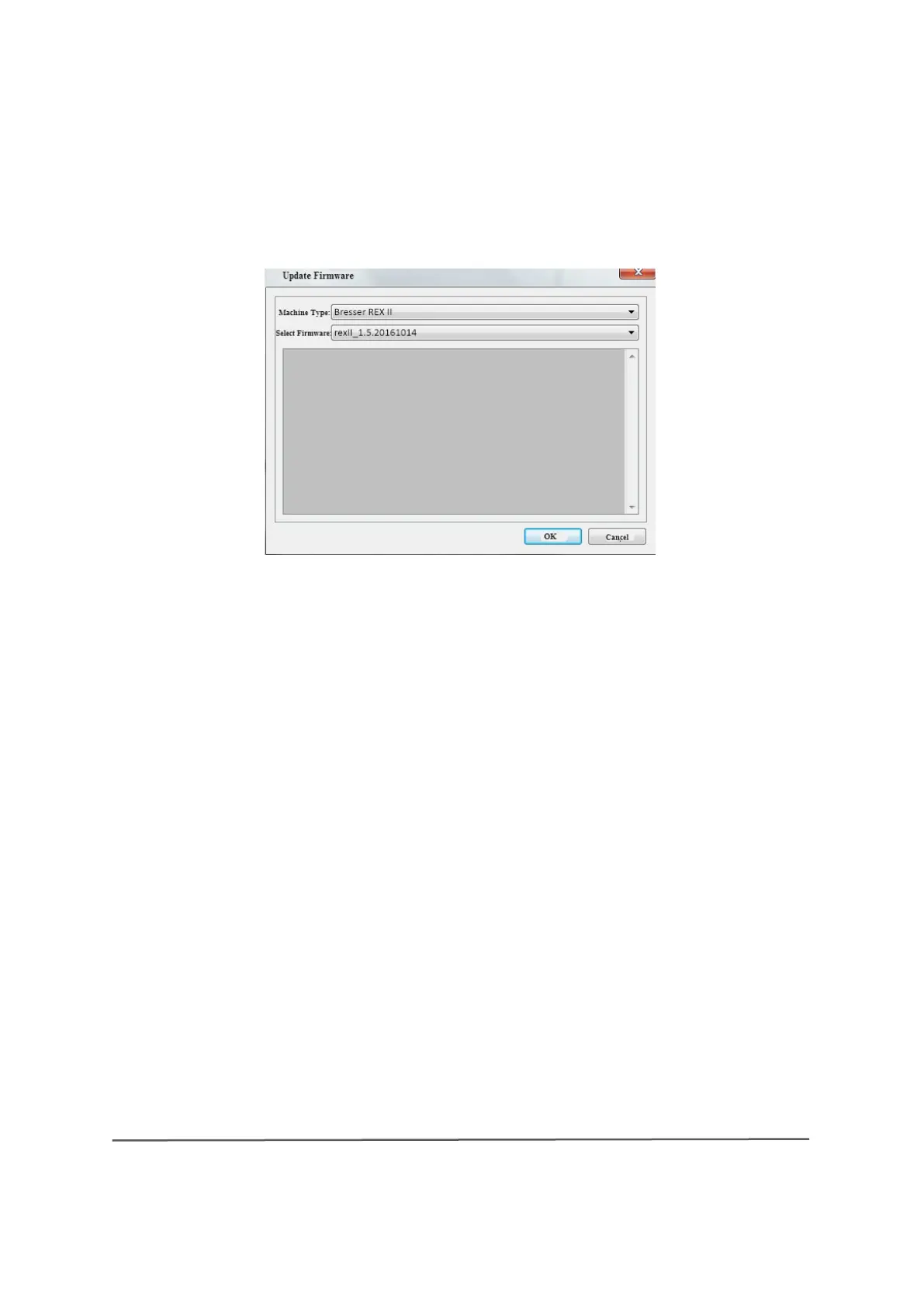
Step 2: Select the appropriate printer type and firmware version, and then click
[OK] in the Firmware Update box. When you have confirmed that the printer is
not in use, the current firmware version is automatically updated.
Step 3:
Restart the 3D Printer and wait 4-5 seconds. Then the progress bar of the
update is displayed. After the update is completed, the main menu is automatically
displayed again.
Step 4: Touch [Tools]--[About] to check that the correct version number of the
updated software is displayed.
③ On Board Preferences
When the computer and printer are connected, you can check the printer name
by clicking [Tools] > [On Board Preferences] .
④ Machine Information
When the computer and printer are connected, you can check the device type,
device name, firmware, etc. by clicking [Tools] > [ Machine information].
6.2.15 Help menus
① Help Contents: Click [Help] > [ Help Contents] to read the contents of the
help.
② Check for updates: Click [Help] > [ Check for Update] to check online for
6-23


 To Next Page