Style Programming
SMART MATRIX FEEDER 2-28
Style Programming
This function allows you to program the operation parameters of ULTRAFEEDER/ROLLING
FEEDER/UNIFEEDER devices.
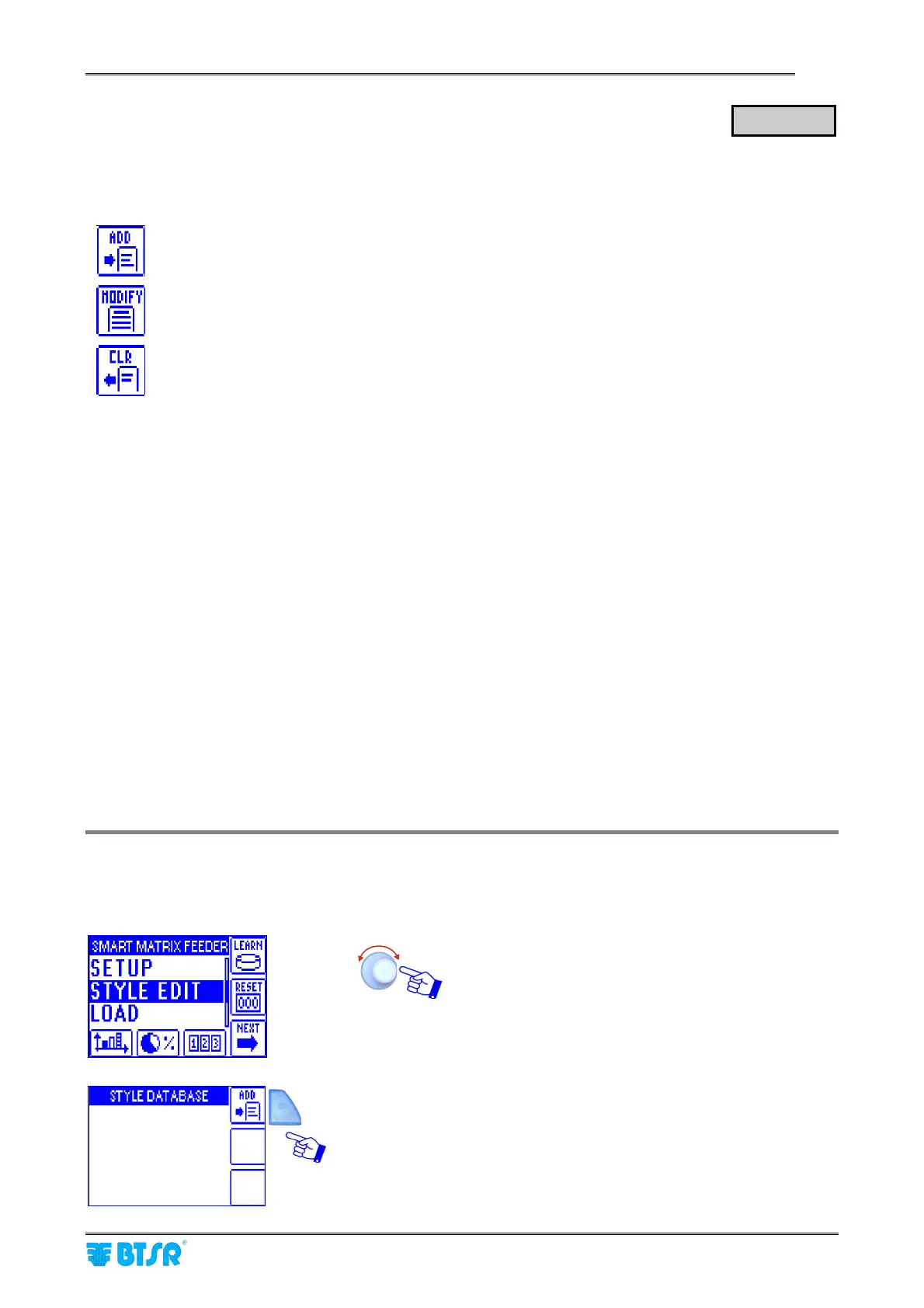
The STYLE EDIT function provides 3 options selectable using the immediate activation buttons.
To create a “new” style and add it to the style database.
To either change the parameters of an existing style, or to create a new style starting from a
similar already existing style.
To remove a style from the database.
All the connected ULTRAFEEDER/ROLLING FEEDER/UNIFEEDER devices can be configured with the
same parameters or, (to increase the system flexibility) you may create multiple device groups, up to a
maximum of 12 groups, assigning different parameters to each group.
In case of single group (all devices configured with the same parameters) you may choose the identification
number of the first and last group devices.
In case of multiple groups, the identification number of the first device belonging to the first group (GROUP
#1) will always be 001 and you will have the possibility to setup only the identification number of the last
device belonging to the first group; the first device of the second group will be automatically set with the
number of the last device belonging to the first group + 1 …. and so on.
Example: 12 ULTRAFEEDER/ROLLING FEEDER/UNIFEEDER devices grouped into 4 groups (GROUP #1
~ GROUP #4) with 3 devices per group:
GROUP #1: 001/003 – GROUP #2: 004/006 – GROUP #3: 007/009 – GROUP #4: 010/012
There can be 3 types of device groups (ULTRAFEEDER, ROLLING FEEDER or UNIFEEDER).
The setting parameters change depending on the type selected.
For each group, you will have to set the devices (ULTRAFEEDER, ROLLING FEEDER or
UNIFEEDER) operation parameters using the SETUP option.
For more details about the various operating parameters, please refer to ULTRAFEEDER,
ROLLING FEEDER or UNIFEEDER manuals.
Programming a New Style
This example shows how to create a new style (FEEDER) with 2 ULTRAFEEDER devices, 1 ROLLING
FEEDER device and 1 UNIFEEDER device.
Select STYLE EDIT.
Press ADD
STYLE EDIT



 To Next Page