Accessing from a NFS Client
Use the following procedure congure the TeraStation for access from UNIX with NFS.
Note: This section is for information only. Unix and NFS are not supported by Bualo. If you choose to congure your
TeraStation this way, it does not void your warranty, but you are on your own for tech support.
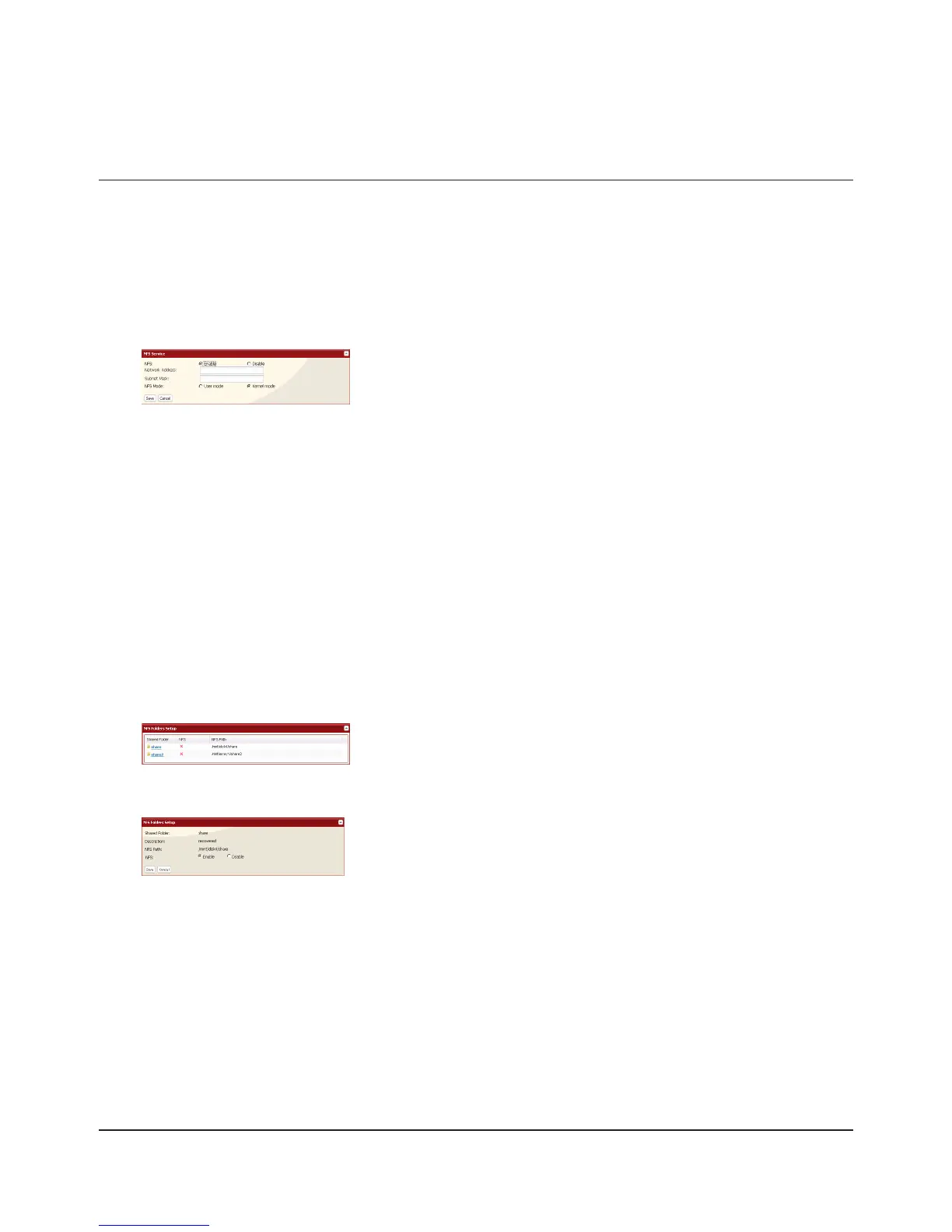
In the 1 Web Admin interface, select [Network] - [NFS] - [NFS Service], and click [Modify Settings].
2
Note:
• If you use a public folder of the TeraStation set by NFS as a hard drive for VMware ESX/ESXi, it is required to set
[NFS Mode] to [Kernel mode] in order to use it (It is set to [User mode] by default).
• To set access restrictions by IP addresses, specify a [Network Address] and [Subnet Mask] from the screen
above.
(e.g.) To allow access from a client with the IP address 192.168.11.xxx:
[Network Address]: 192.168.11.0
[Subnet Mask]: 255.255.255.0
xxx can be 1 to 254. Enter 0 (zero) for the [Network Address].
(e.g.) To allow access from a client with the IP address 192.168.xxx.xxx:
[Network Address]: 192.168.0.0
[Subnet Mask]: 255.255.255.0
xxx can be 1 to 254. Enter 0 (zero) for the [Network Address]
Click [NFS Folders Setup].3
4
5
Click [Enable].1
Click [Save].2
Write down the NFS public path.1
Click [Enable].2
Click [Save].3
Choose a shared folder.













 To Next Page