Your PC can access les from the TeraStation even when it’s not connected to the network if Oine Files are enabled.
Oine Files are updated and saved on the computer when it’s online. Oine Files work with Windows 2000, Windows
XP Professional, Vista, and Windows 7. Windows Me and XP Home Edition are not supported.
Congure your PC to use les oine as follows:
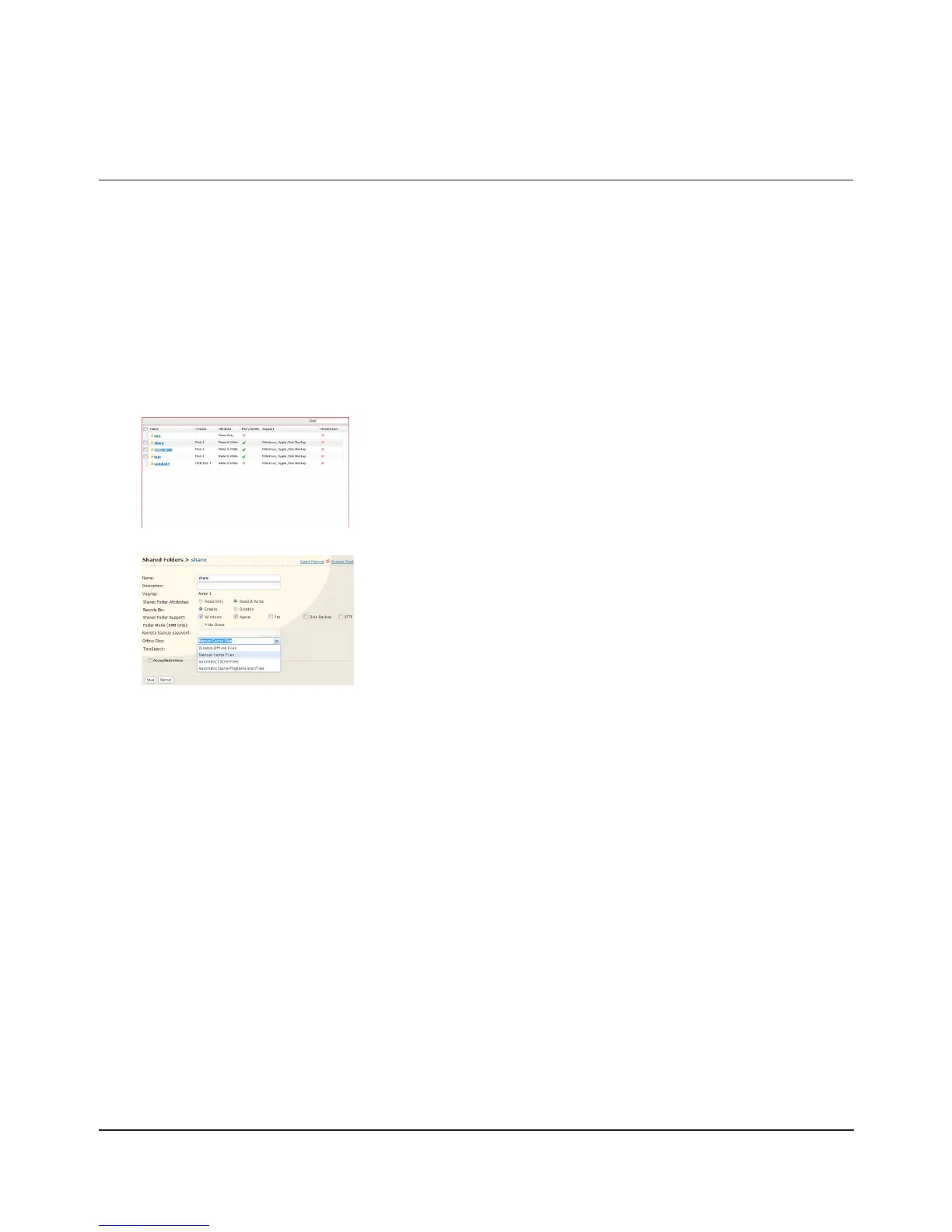
In the Web Admin interface, select [Shared Folders] - [Folder Setup].1
2
3
If you're running Windows 7, skip steps 4 & 5 and move to step 6.
To check if Oine Files are enabled, follow the instruction below.
Open the Windows folder, press [Alt] on the keyboard, and select [Tool] - [Open Sync Center] from the 1
popup menu.
Click [Manage oine les] on the left side of the [Sync Center] screen.2
If you see [Oine Files is enabled] on the [General] tab, Oine Files are enabled. 3
Click [Disable oine les] to disable Oine Files.
If Oine Files are disabled, click [Enable oine les] to enable them.
From the [Oine Files] dropdown, select [Manual Cache Files], [Automatic
Cache Files] or [Automatic Cache Programs and Files].
[Manual Cache Files] - Manually select the les to be available oine.
[Automatic Cache Files] - Opened les are cached locally and may
be used oine. Old les that cannot be synchronized will be deleted
automatically and replaced by new ones.
[Automatic Cache Programs and Files] - Opened les are cached locally
and may be used oine. Old les and network applications that cannot be
synchronized will be deleted automatically and replaced with new ones.
Select a folder to be available oine. Double-click on the folder’s name.
Oine Files













 To Next Page