TeraStation User Manual 139
You can easily map the TeraStation’s shared folder as a network drive by using NAS Navigator2 included in the package.
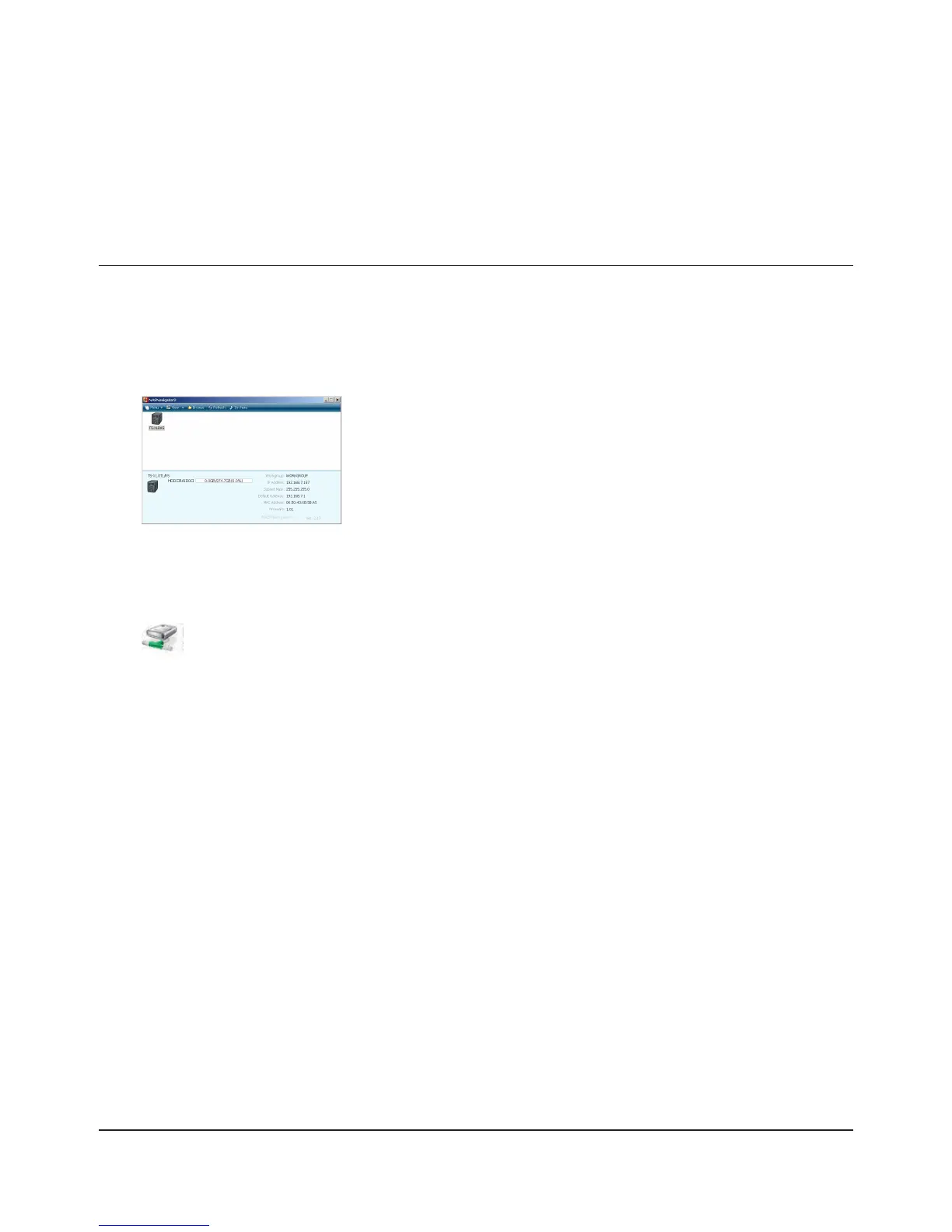
Click [BUFFALO NAS Navigator2] icon on your Desktop.1
NAS Navigator2 launches.
2
TeraStation’s network drive icon should be added into [Computer] or [My Computer] .You can use this network 3
drive just like other hard disks.
Note:
If TeraStation is not connected to the network or is OFF at the time your computer is booted, “The network path
could not be found. The connection was not established” is displayed.
If you want to assign a folder other than the shared folder as a network drive manually using the function built into your
OS, refer to OS’s help le.
Appendix
Assign as Network Drive (Windows)
Right-click on TeraStation’s icon and click [Map remote default share to
drive letter].
The example shows the display of TS-XL Series.













 To Next Page