Erase Data on the TeraStation Completely
Data on the hard drive is not completely erased by just performing “Delete” or “Format”. If you want to completely
delete data from a TeraStation that you are going to donate, give away, or send in for repairs, do the following.
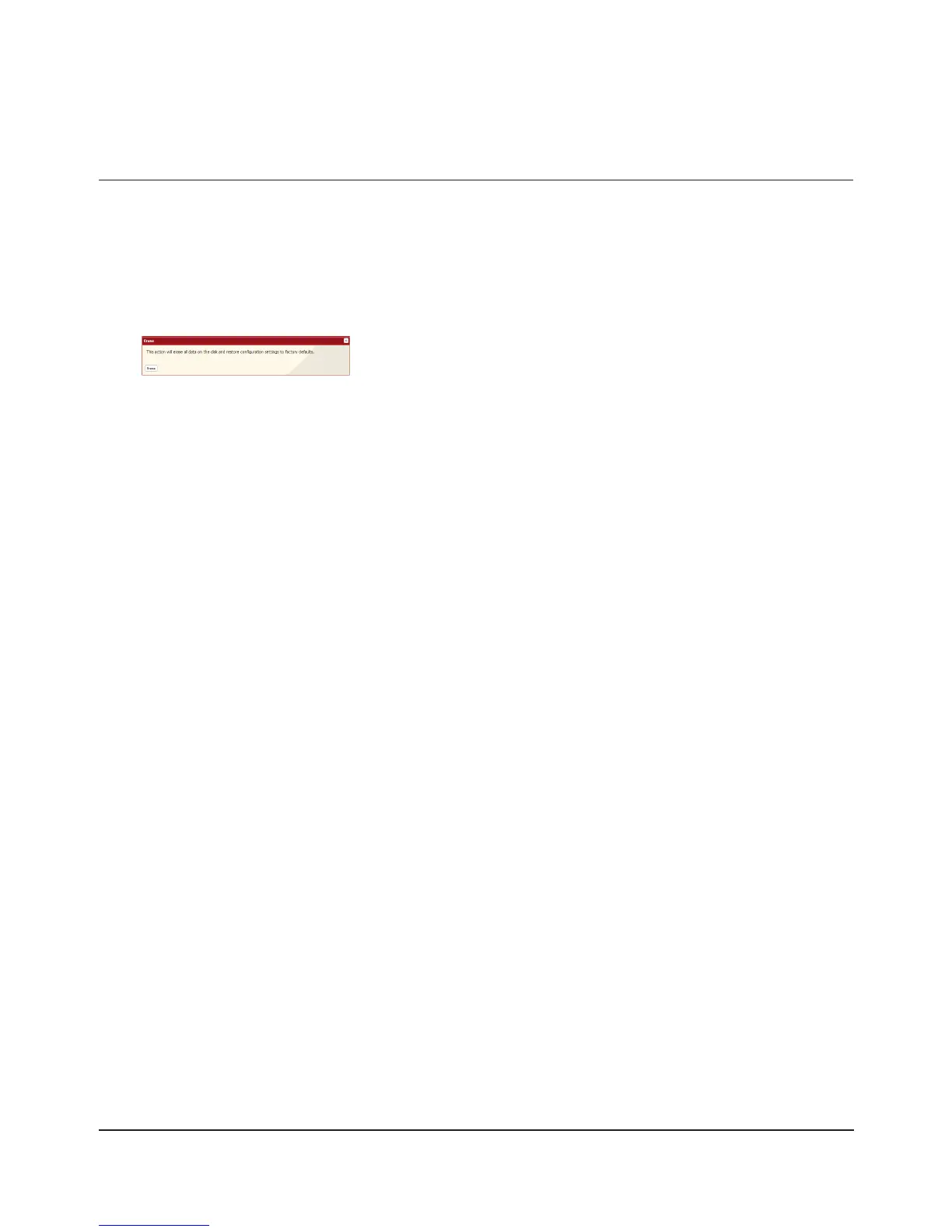
In the 1 Web Admin interface, select [System] - [Restore/Erase] - [Erase].
2
The [Conrm Operation] screen will appear. Enter the 3 number from the [Conrmation Number] eld within 60
seconds, then click [Apply].
Follow the instructions displayed on the screen. 4
Notes: This will erase all data on the TeraStation and replace it with zeros. When the process is complete, the
TeraStation will be congured as follows:
Hard drives in Normal mode
Shared folders (share 1 - 4 on TS-XL, TS-XEL, and TS-RXL; share 1 and 2 on TS-WXL) on each drive.
All settings to factory defaults
Logs: All deleted
Data: All deleted
If you remove a drive and then erase all data on the TeraStation, the LCD display will show the error “HDx Error
E22 HDx Can’t Mount” where x is the hard drive you removed. You can still use the TeraStation.
Click [Erase].













 To Next Page