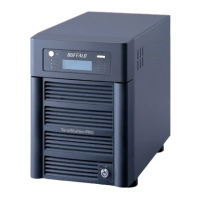
You can easily map the TeraStation’s shared folder as a network drive by using NAS Navigator2 included in the package
on Mac OS X 10.3.9 or later.
Click [NAS Navigator2] icon in the Dock. 1
NAS Navigator2 launches.
2
3
The following icon will be displayed on the Desktop after it is mounted. 4
Notes:
• The displayed characters are the shared folder name. The characters vary depending on the folder name
being congured.
• It may be displayed in the sidebar of the [Finder] on Mac OS X 10.5 or later.
• To unmount, drug and drop the icon to the Trash Can.
Now you have mapped the network drive.
If you want to assign a folder other than the shared folder as a network drive manually using the function built into your
OS, refer to OS’s help le.
Select a shared folder name you want to mount.1
Click [OK].2
Click TeraStation’s icon while holding on Control key button, and select
[Open Folder].
The example shows the display of TS-XL Series.
Mount as a Network Drive (Mac OS X 10.3.9 or later)













 To Next Page