TeraStation User Manual 115
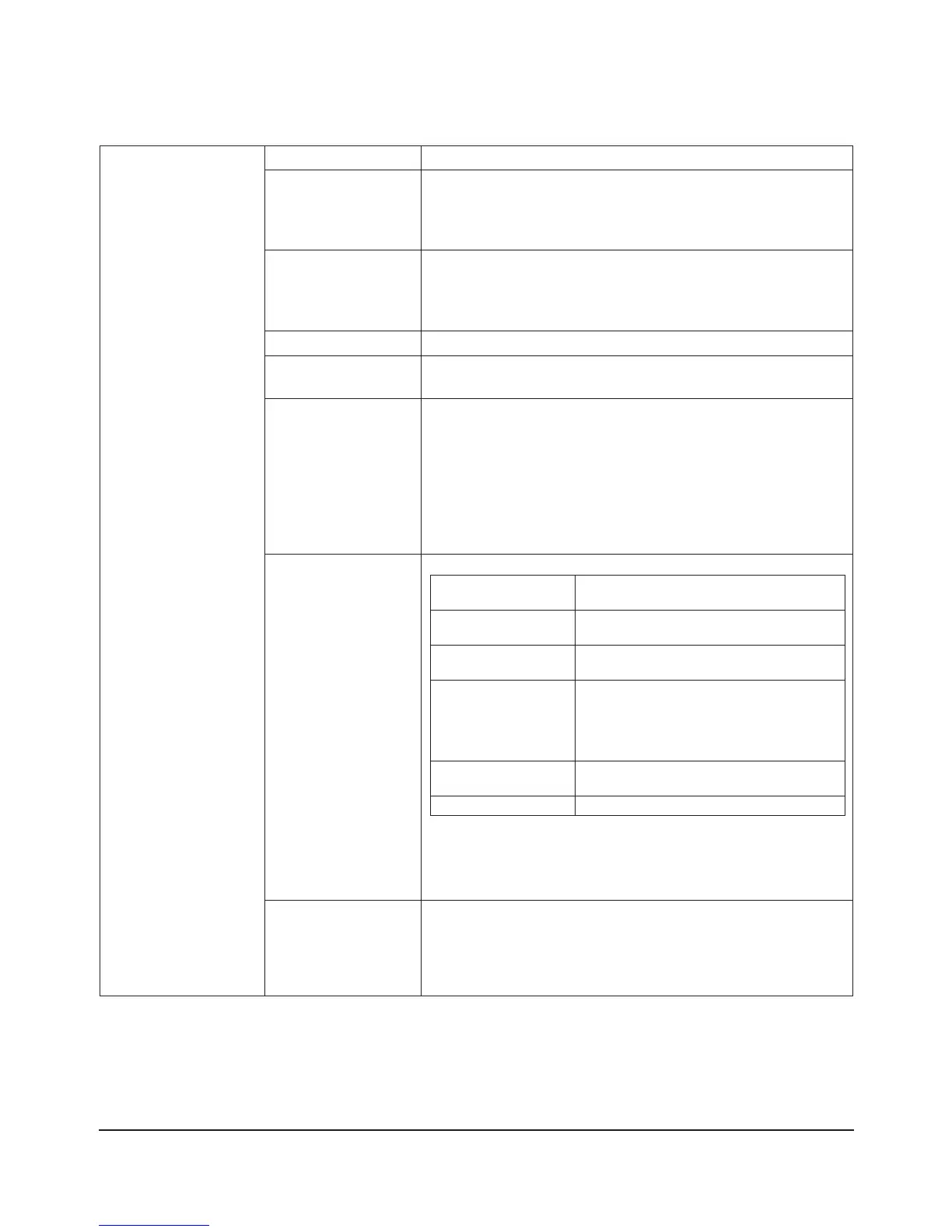
Folder Setup > New Folder
* Displayed when
clicking [Create Folder]
on the shared folder
conguration screen.
Copy Settings From Select the shared folder you want to copy settings from.
Name Enter a share folder’s name.
* You can enter up to 27 bytes(UTF-8).
* Alphanumeric characters, multi-byte characters, -(hyphen), and
_(underscore) may be used.
* Do not use a symbol as the rst character.
Description Enter a description for the shared folder
* You can enter up to 75 bytes(UTF-8).
* Alphanumeric characters, multi-byte characters, -(hyphen), _
(underscore), and spaces may be used.
* Do not use a symbol as the rst character.
Volume Select where to create a share folder.
Shared Folder Attributes Shared folders may be read-only or writable.
Recycle Bin If deleting les in the selected shared folder or [usbdisk], the [trashbox]
folder is automatically created in the shared folder and les will be
moved into this folder.
* Directory information will also be sustained in the [trashbox].
* One [trashbox] folder can be set per shared folder on the TeraStation
and per connected USB hard drive.
* The USB hard drives must be formatted as EXT3, XFS or FAT 32 in order
to use trashbox. Files in NTFS or HFS+ formats cannot be deleted.
* You cannot use this feature while connecting via AFP.
* You cannot use this feature while connecting via FTP.
Shared Folder Support Select which operating systems and features the share will support.
[Shared Folder Support] Descriptions
[Windows] Allow or reject connection via SMB from
Windows PC or Mac OS.
[Apple] Allow or reject the connection via Appletalk
(AFP) from MacOS.
[Ftp] Set to allow/disallow to manipulate folders
via FTP.
* It is required to congure to use FTP in
[Network] - [Settings] - [Network Services]
beforehand.
[Disk Backup] Set to enable/disable to use as a backup
destination.
[SFTP] Select when connecting by SFTP.
* If you uncheck [Windows], [Apple], [Ftp] and [SFTP] and only check
[Disk Backup], only TeraStation’s backup programs will be able to see
the share. If you want to be able to access TeraStation’s backup folders
from a computer, check the [ Windows] option.
Folder Mode (SMB Only) If you choose [Hide Share], the congured shared folder will be invisible.
* If [Apple], [Ftp], or [SFTP] are checked, you cannot select [Hide Share].
* To open the hidden shared folder, click [Start] - [Run], and enter \\
TeraStation Name\Shared Folder name\.
For example, if TeraStation name is “TS-XL001” and the shared folder
name is share, type “//TS-XL001/share$/”.













 To Next Page