System - Maintenance
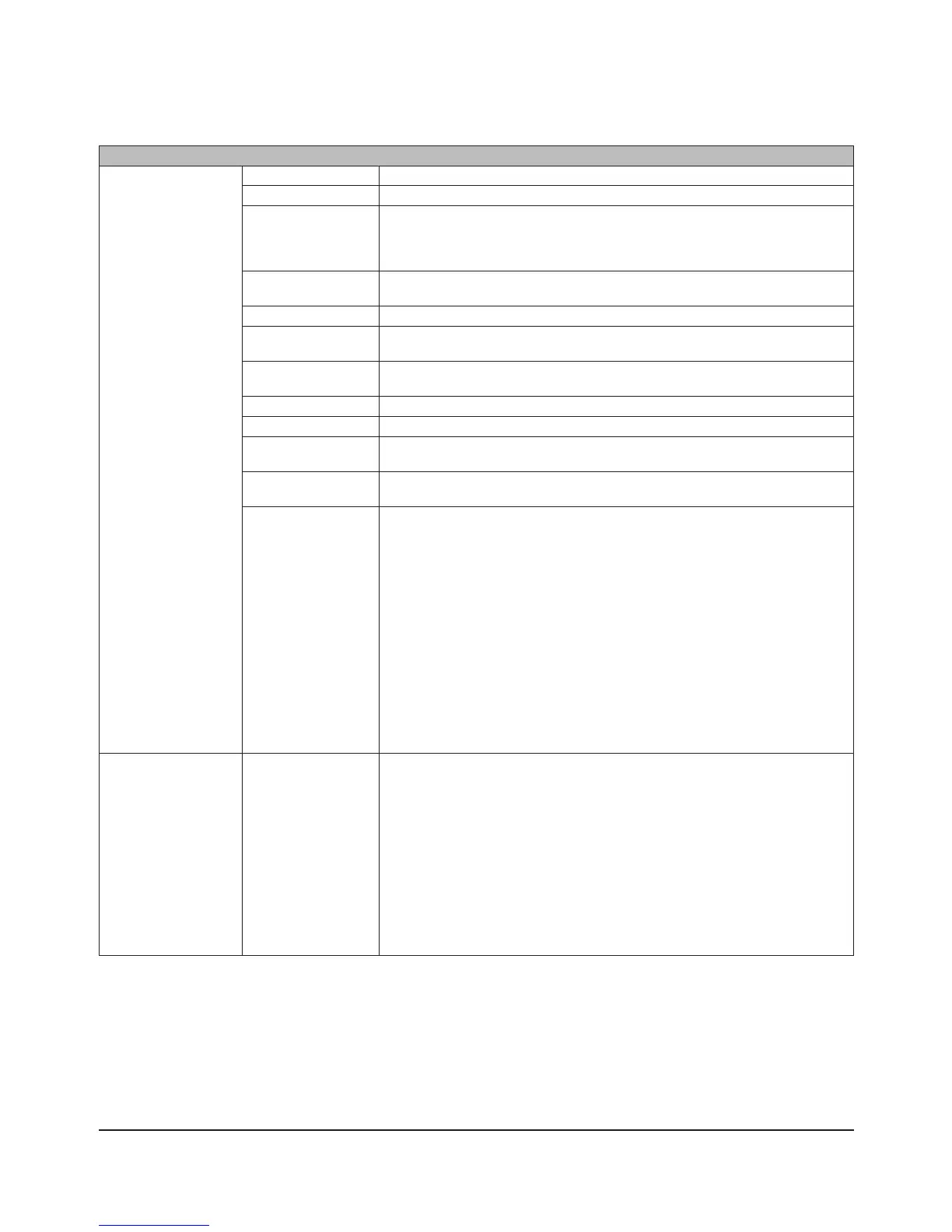
Email Notication
Click [Modify Settings]
to change settings.
Click [Send Test
Message] to send a
test email to the email
address which has
been set.
Notication Select whether using Email notication feature or not.
SMTP Server Address Enter [SMTP Server Address] (Mail Server Address).
SMTP Port No. Enter [SMTP Port No.].
* The standard port number (25) is used if not specied. Also, User
authentication method is set to [Disable] or [POP before SMTP], the standard
port number (25) is used regardless of the number you entered in this eld.
Authentication Type Select [Authentication Type] from [POP before SMTP], [LOGIN(SMTP-AUTH)], and
[CRAM-MD5(SMTP-AUTH/CRAM-MD5)].
POP3 Server Address Enter [POP3 Server Address] (Email server address).
POP3 Port No. Enter [POP3 Port No.].
* The standard port number (110) is used if not specied.
SSL/TLS When [LOGIN(SMTP-AUTH)] and [CRAM-MD5(SMTP-AUTH/CRAM-MD5)] are
selected for [Authentication Type], specify either using [SSL] or [TLS].
Username Enter a user name that will be used for authentication.
Password Enter a password that will be used to verify.
Subject Specify the subject of the email to be sent.
* Do not use multi-byte characters. It may cause the character corruption.
Recipient(s) Enter the email address of the receiver, and click [Add].
* You can register up to 5 email addresses as receivers.
Report Select the contents to send in the email notication.
• [HDD Status Report]
Sends the condition of the hard drives at the specied time on [HDD Status
Report].
• [System Alert]
Sends when system is rebooted or shut down, or RAID conguration is
changed.
• [Disk Error]
Sends when an hard drive error is recognized.
• [ Fan Failure]
Sends when the fan error is recognized.
• [ Backup Complete]
Sends when the backup is complete.
• [Quota Report]
Sends when the Quota Space Limitation is exceeded at the time which is
specied on HDD Status Report.
Syslog
Click [Modify Settings]
to change settings.
Syslog Select [Enabled] for [Syslog Transfer] and select [Save] to transmit the system
log.
To view a log, select [System Log], [File Log (SMB)], [FTP Log] for [Logs To
Transfer]. You can transmit the log by entering the IP address of the syslog server
in [Syslog Server IP Address] eld when you select [System Log], [File Log (SMB)].
* [FTP Log] does not support to output a log to the syslog server.
[Store Files Locally]
To store logs on the TeraStation, select [Enable] for [Store Files Locally]. Select
one of the TeraStation’s shared folders as the [Target Folder]. A subfolder
called “system_log” will be created in that folder, and logs will be saved to that
subfolder.
* If you select [File Log (SMB)] or [FTP Log], only le operations from internal hard
drives will be logged. File operations from USB drives will not be logged.













 To Next Page