41
EN
9.6 Remote operation
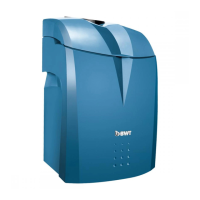
Remote operation can be used to retrieve the cur-
rent status of your product. After connecting, the
control panel of your BWT product is displayed in
the browser.
You can now operate your product remotely.
WLAN direct connection with mobile device
(Access point mode)
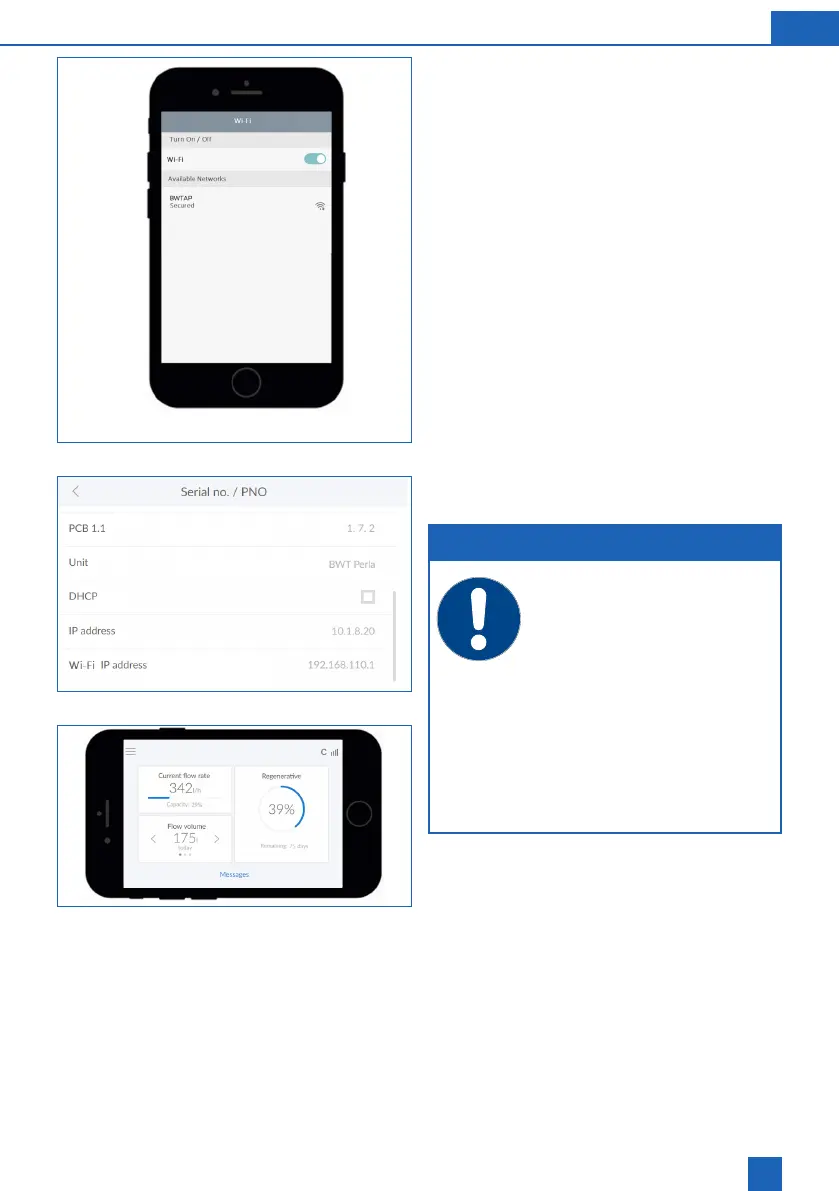
Select Settings / Wireless and networks / WLAN
settings on your mobile device.
The WLAN of the BWT product appears as BWTAP.
Select the
CONNECT
option and then enter the WLAN
key that you received during product registration.
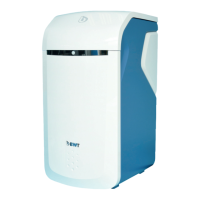
Open your browser and enter the WLAN IP ad-
dress (192.168.110.1) displayed under Info / Serial
no. / PNR in the address bar.
The login window of the BWT product appears.
Enter the login code that you received from BWT
by e-mail.
NOTE
If a eld opens with a security warning,
press
NEXT
or
CONTINUE
.
Use only the following browsers: Mozilla
Firefox (from version 38), Google Chrome
(from version 62), Internet Explorer (from
version 11), Opera (from version 49) or
Safari (from IOS version 9.3.5).
The maximum range for this type of con-
nection is around 5 m.
The WLAN connection can be used either
for integration into the home network or
for direct connection to a mobile termi-
nal. It is not possible to have two WLAN
connections at the same time.
Your BWT product is now connected to your mobile
device via WLAN and can be operated.


 To Next Page