31
Windows
E
8.
Double-click [Oem*].
• The asterisk (*) in the above stands for a value.
• The [Oem*] file is grouped with a file named [Oem*.pnf], which shares the
same number in the position of the asterisk.
• The [Inf] file may contain multiple [Oem*] file groups.
• Double-clicking [Oem*] opens Notepad and displays the file contents.
Repeat the above steps until you find the [Oem*] file with [;***Canon
Digital Video Camera USB Setup File****] in its first line.
After checking the content of the file, make a note of the file name and then
close Notepad.
9.
Delete the [Oem*] file.
• Making sure that you do not make a mistake and delete the wrong file,
delete the [Oem*] file and the [Oem*.pnf] file that corresponds to it.
Caution:
• The Inf folder contains numerous files that are critical to the computer’s
operation. Be extremely careful not to delete the wrong files. If you delete the
wrong file, you may be unable to restart Windows.
7.
From [Start] menu on the desktop, select [My Computer]. Double-
click q [C:], w the [WINDOWS] folder, and then e the [Inf] folder.
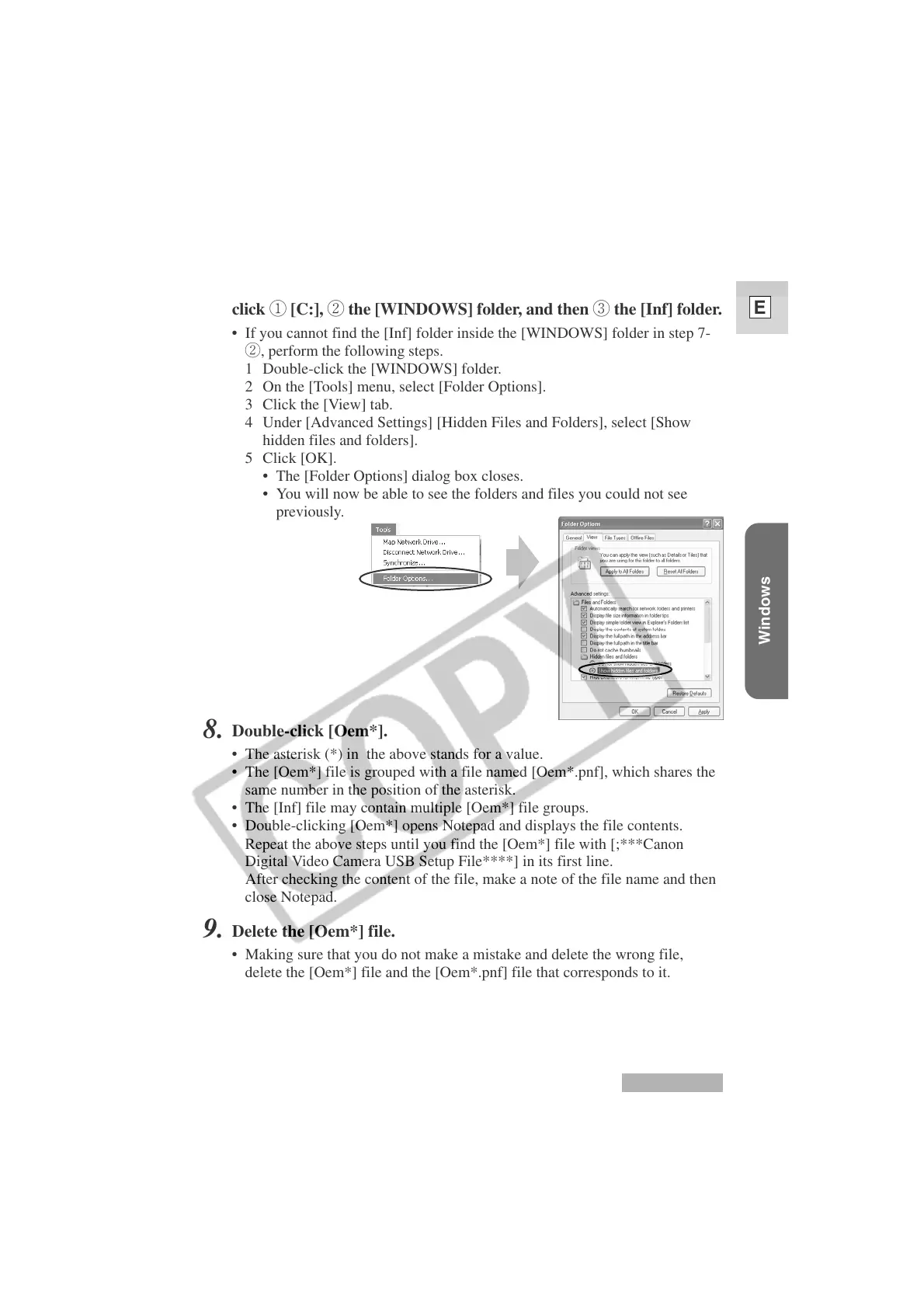
• If you cannot find the [Inf] folder inside the [WINDOWS] folder in step 7-
w, perform the following steps.
1 Double-click the [WINDOWS] folder.
2 On the [Tools] menu, select [Folder Options].
3 Click the [View] tab.
4 Under [Advanced Settings] [Hidden Files and Folders], select [Show
hidden files and folders].
5 Click [OK].
• The [Folder Options] dialog box closes.
• You will now be able to see the folders and files you could not see
previously.
Windows XP




 To Next Page