33
Windows
E
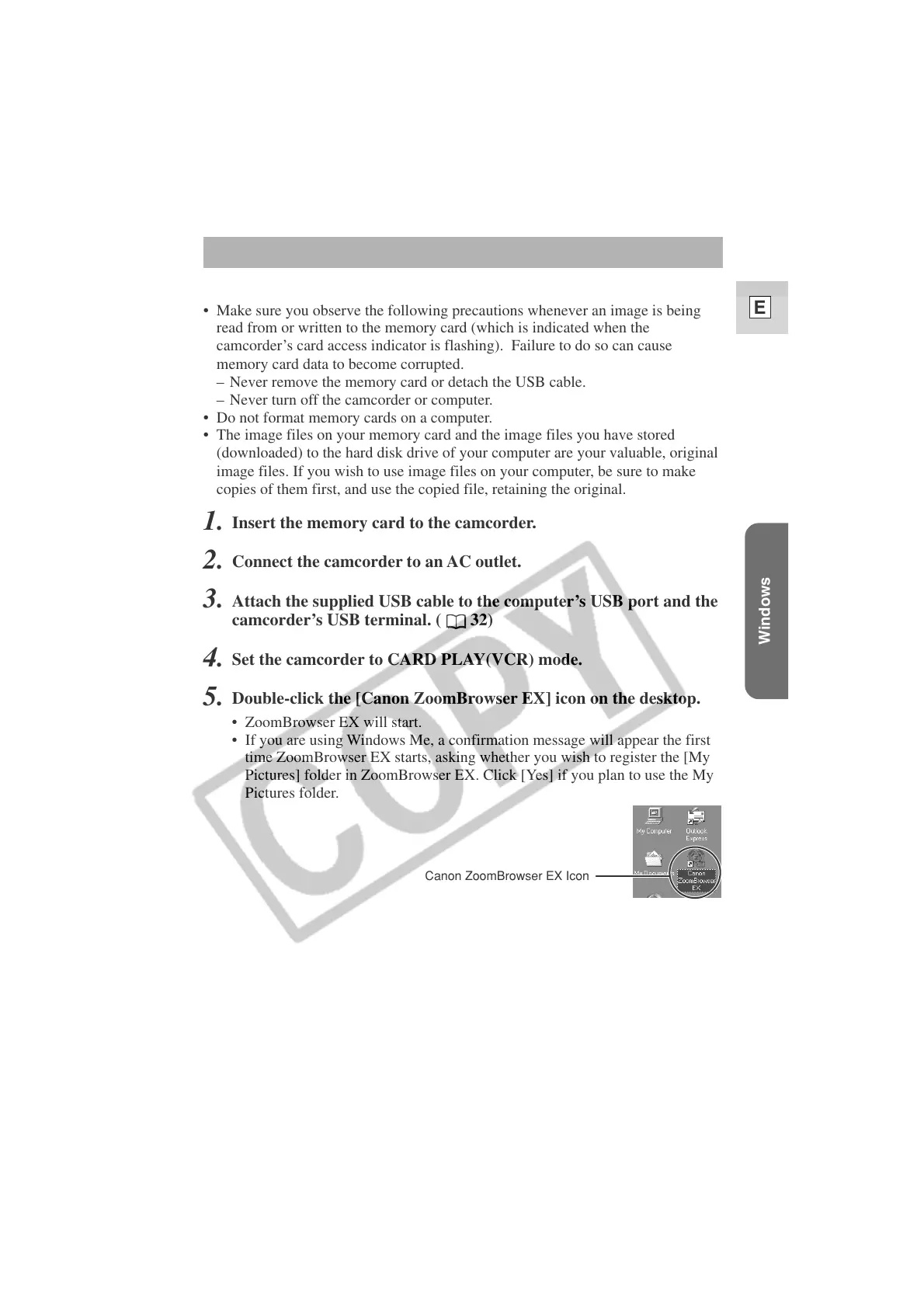
Canon ZoomBrowser EX Icon
Downloading Images to a Computer (ZoomBrowser EX)
Cautions:
• Make sure you observe the following precautions whenever an image is being
read from or written to the memory card (which is indicated when the
camcorder’s card access indicator is flashing). Failure to do so can cause
memory card data to become corrupted.
– Never remove the memory card or detach the USB cable.
– Never turn off the camcorder or computer.
• Do not format memory cards on a computer.
• The image files on your memory card and the image files you have stored
(downloaded) to the hard disk drive of your computer are your valuable, original
image files. If you wish to use image files on your computer, be sure to make
copies of them first, and use the copied file, retaining the original.
1.
Insert the memory card to the camcorder.
2.
Connect the camcorder to an AC outlet.
3.
Attach the supplied USB cable to the computer’s USB port and the
camcorder’s USB terminal. (
32)
4.
Set the camcorder to CARD PLAY(VCR) mode.
5.
Double-click the [Canon ZoomBrowser EX] icon on the desktop.
• ZoomBrowser EX will start.
• If you are using Windows Me, a confirmation message will appear the first
time ZoomBrowser EX starts, asking whether you wish to register the [My
Pictures] folder in ZoomBrowser EX. Click [Yes] if you plan to use the My
Pictures folder.




 To Next Page