32
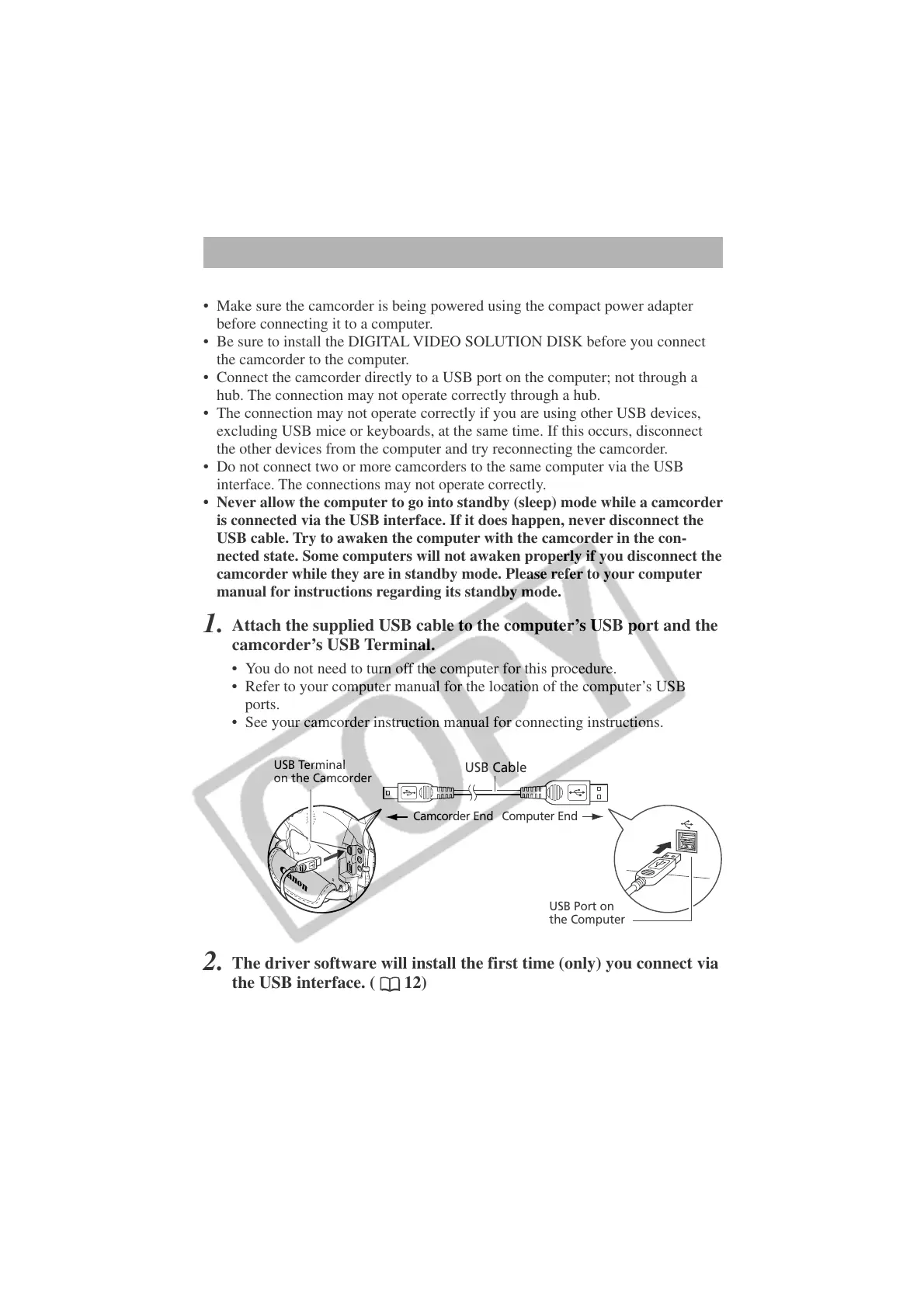
USB Cable
Camcorder End Computer End
USB Terminal
on the Camcorder
USB Port on
the Computer
2.
The driver software will install the first time (only) you connect via
the USB interface. (
12)
Connection Precautions
• Make sure the camcorder is being powered using the compact power adapter
before connecting it to a computer.
• Be sure to install the DIGITAL VIDEO SOLUTION DISK before you connect
the camcorder to the computer.
• Connect the camcorder directly to a USB port on the computer; not through a
hub. The connection may not operate correctly through a hub.
• The connection may not operate correctly if you are using other USB devices,
excluding USB mice or keyboards, at the same time. If this occurs, disconnect
the other devices from the computer and try reconnecting the camcorder.
• Do not connect two or more camcorders to the same computer via the USB
interface. The connections may not operate correctly.
• Never allow the computer to go into standby (sleep) mode while a camcorder
is connected via the USB interface. If it does happen, never disconnect the
USB cable. Try to awaken the computer with the camcorder in the con-
nected state. Some computers will not awaken properly if you disconnect the
camcorder while they are in standby mode. Please refer to your computer
manual for instructions regarding its standby mode.
1.
Attach the supplied USB cable to the computer’s USB port and the
camcorder’s USB Terminal.
• You do not need to turn off the computer for this procedure.
• Refer to your computer manual for the location of the computer’s USB
ports.
• See your camcorder instruction manual for connecting instructions.
Connecting the Camcorder to a Computer




 To Next Page