36
Downloading Images to a Computer (ZoomBrowser EX)
Understanding the Browser Window
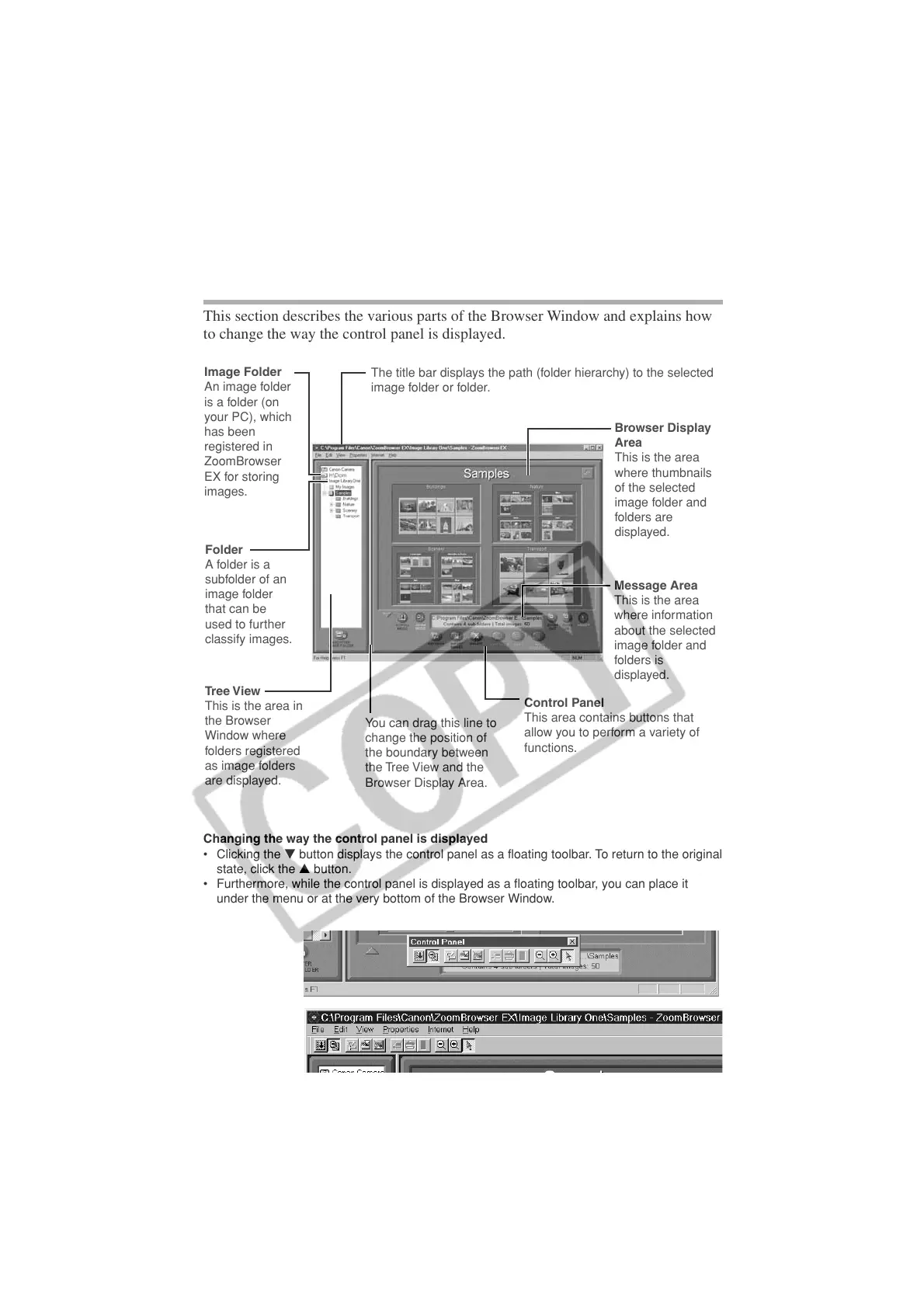
This section describes the various parts of the Browser Window and explains how
to change the way the control panel is displayed.
Changing the way the control panel is displayed
• Clicking the t button displays the control panel as a floating toolbar. To return to the original
state, click the r button.
• Furthermore, while the control panel is displayed as a floating toolbar, you can place it
under the menu or at the very bottom of the Browser Window.
Image Folder
An image folder
is a folder (on
your PC), which
has been
registered in
ZoomBrowser
EX for storing
images.
Folder
A folder is a
subfolder of an
image folder
that can be
used to further
classify images.
Tree View
This is the area in
the Browser
Window where
folders registered
as image folders
are displayed.
You can drag this line to
change the position of
the boundary between
the Tree View and the
Browser Display Area.
Browser Display
Area
This is the area
where thumbnails
of the selected
image folder and
folders are
displayed.
Message Area
This is the area
where information
about the selected
image folder and
folders is
displayed.
Control Panel
This area contains buttons that
allow you to perform a variety of
functions.
The title bar displays the path (folder hierarchy) to the selected
image folder or folder.





 To Next Page