15
Windows
E
Disconnecting the camcorder from the computer
1.
Turn off the camcorder and detach the USB cable.
● To detach the cable, always hold the connector by its sides to pull it out.
● Turn off the camcorder before inserting/removing the memory card.
● When Uninstalling the DVC Storage Driver
If DVC Storage Driver installation has not been done correctly, or when otherwise
necessary, uninstall the driver.
1.
Attach the supplied USB cable to the computer’s USB port and the
camcorder’s USB terminal. (
32)
2.
On the [Start] menu, select [Settings] > [Control Panel].
3.
Double-click the [System] icon.
4.
Click the [Device Manager] tab.
5.
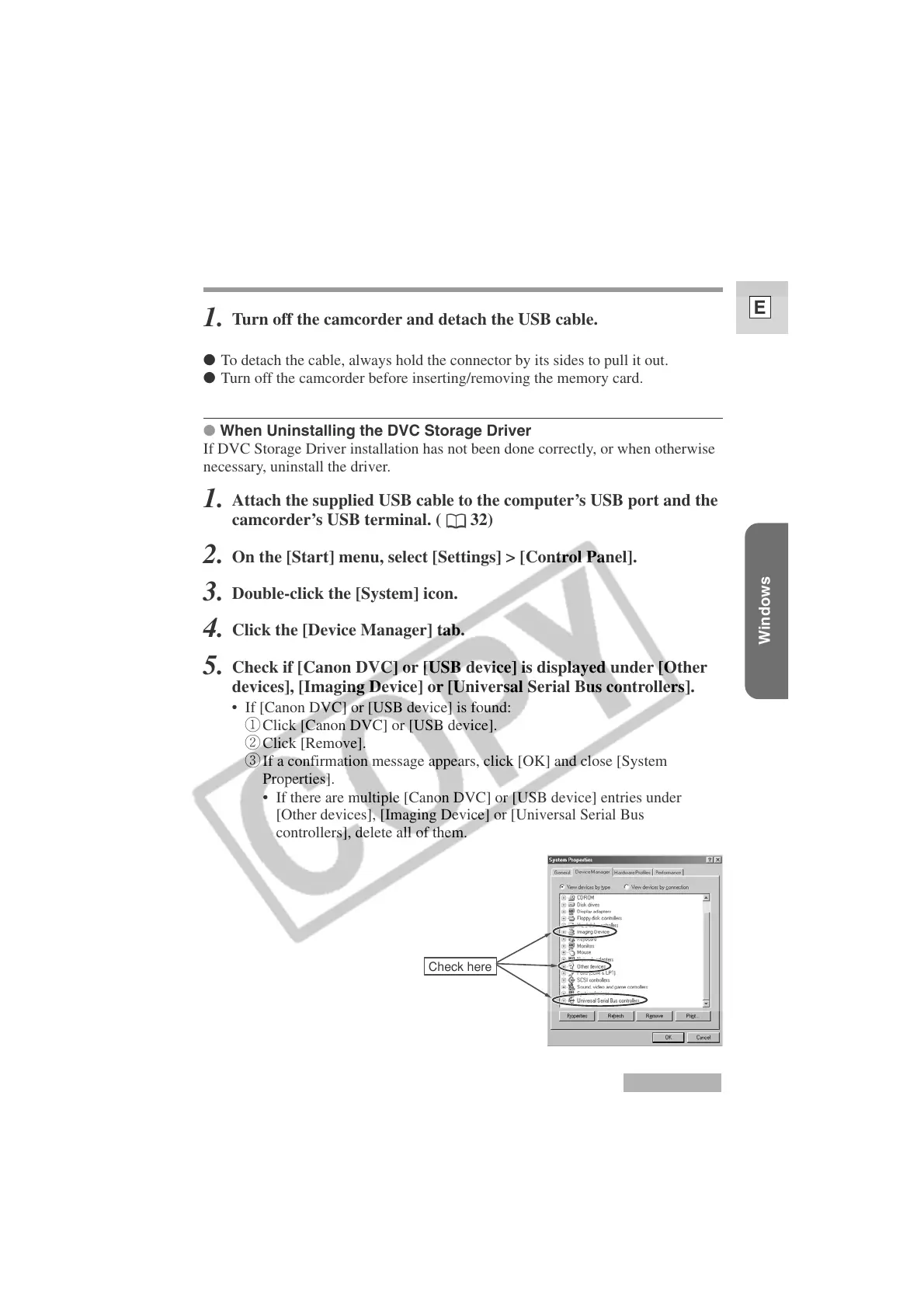
Check if [Canon DVC] or [USB device] is displayed under [Other
devices], [Imaging Device] or [Universal Serial Bus controllers].
• If [Canon DVC] or [USB device] is found:
q Click [Canon DVC] or [USB device].
w Click [Remove].
e If a confirmation message appears, click [OK] and close [System
Properties].
• If there are multiple [Canon DVC] or [USB device] entries under
[Other devices], [Imaging Device] or [Universal Serial Bus
controllers], delete all of them.
Windows 98
Check here




 To Next Page