EasyManua.ls Logo

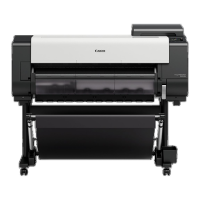
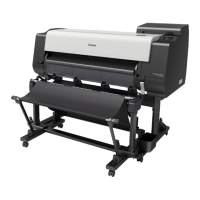
Canon TX-3000 - User Manual

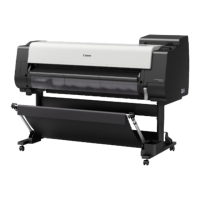
Canon TX-3000
1033 pages
Print Icon
To Next Page IconTo Next Page
Loading...
TX-3000
Online Manual
Using This Online Manual
Trademarks and Licenses
Handling and Use of Paper
Changing Settings from Operation Panel/Web Browser
Printer Parts
Network Setting
Adjustments for Better Print Quality
Color Management
Maintenance and Consumables
Specifications
Safety
Basic Printing Workflow
Enhanced Printing Options
Windows Software
Mac OS Software
Managing Print Jobs
Troubleshooting
List of Support Code for Error
English

Table of Contents

Questions and Answers

  • A
    Ashley BryantAug 5, 2025
    Why is my Canon TX-3000 Printer connected but not printing?
    • D
      Dominique RandolphAug 5, 2025
      If your Canon Printer is connected but not printing, check the following: * Ensure your computer is connected to the wireless LAN. * Verify that the firewall in your security software is not enabled. * Confirm that a privacy separator, SSID separator, or Network separation function is disabled on your wireless router. * Check if the printer's SSID matches that of the router. To change the network connection method (wired/wireless), do it on the printer's network setting screen.
  • A
    Amanda PerezAug 12, 2025
    What to do if my Canon TX-3000 Printer cannot connect to the specified network?
    • D
      David JohnsonAug 12, 2025
      If your Canon Printer can't connect to the specified network, check the status of the printer, network devices (like the wireless router), or your smartphone/tablet. Ensure the wireless signal is strong by monitoring the signal status and repositioning the printer and wireless router if needed. Also, the security key specified for the wireless router might not match what you entered.
  • F
    Frank CalhounAug 17, 2025
    How to fix IP address is not assigned on Canon TX-3000 Printer?
    • J
      James WilsonAug 17, 2025
      If the IP address is not assigned to your Canon Printer, enable DHCP on the router if you are specifying the printer's IP address automatically. If you are specifying the printer's IP address manually, make sure you specify a valid IP address.
  • X
    xjimenezAug 23, 2025
    What to do if the default gateway is not specified on Canon Printer?
    • D
      David Mitchell IIAug 25, 2025
      To communicate by hopping routers with your Canon Printer, check the following: * If you manually specify the printer's IP address, ensure the correct default gateway address is specified for the printer. * Make sure the device specified as the default gateway is turned on. * Specify the default gateway address correctly.
  • D
    Douglas GreenAug 29, 2025
    How to enable wired LAN connection on Canon TX-3000?
    • C
      Charles LoveAug 29, 2025
      To enable the wired LAN connection on your Canon Printer: * Ensure the printer is connected to the router with the LAN cable. If loose, connect it properly. * If the LAN cable is connected to the WAN side of the router, connect it to the LAN side. * Make sure the network devices (e.g., hub or router) are turned on.

Canon TX-3000 Specifications

General IconGeneral
Print Resolution2400 x 1200 dpi
Maximum Print Width36 inches
Ink TypePigment Ink
Number of Ink Colors5
ConnectivityUSB 2.0, Wi-Fi
Media HandlingRoll Feed, Cut Sheet
Display3.0" Color LCD
Media Thickness0.07 - 0.8 mm
Cut Sheet SizeA4

Related product manuals