Setting the Print Quality Level (Custom)
The print quality level can be set in the Custom.
The procedure for setting the print quality level is as follows:
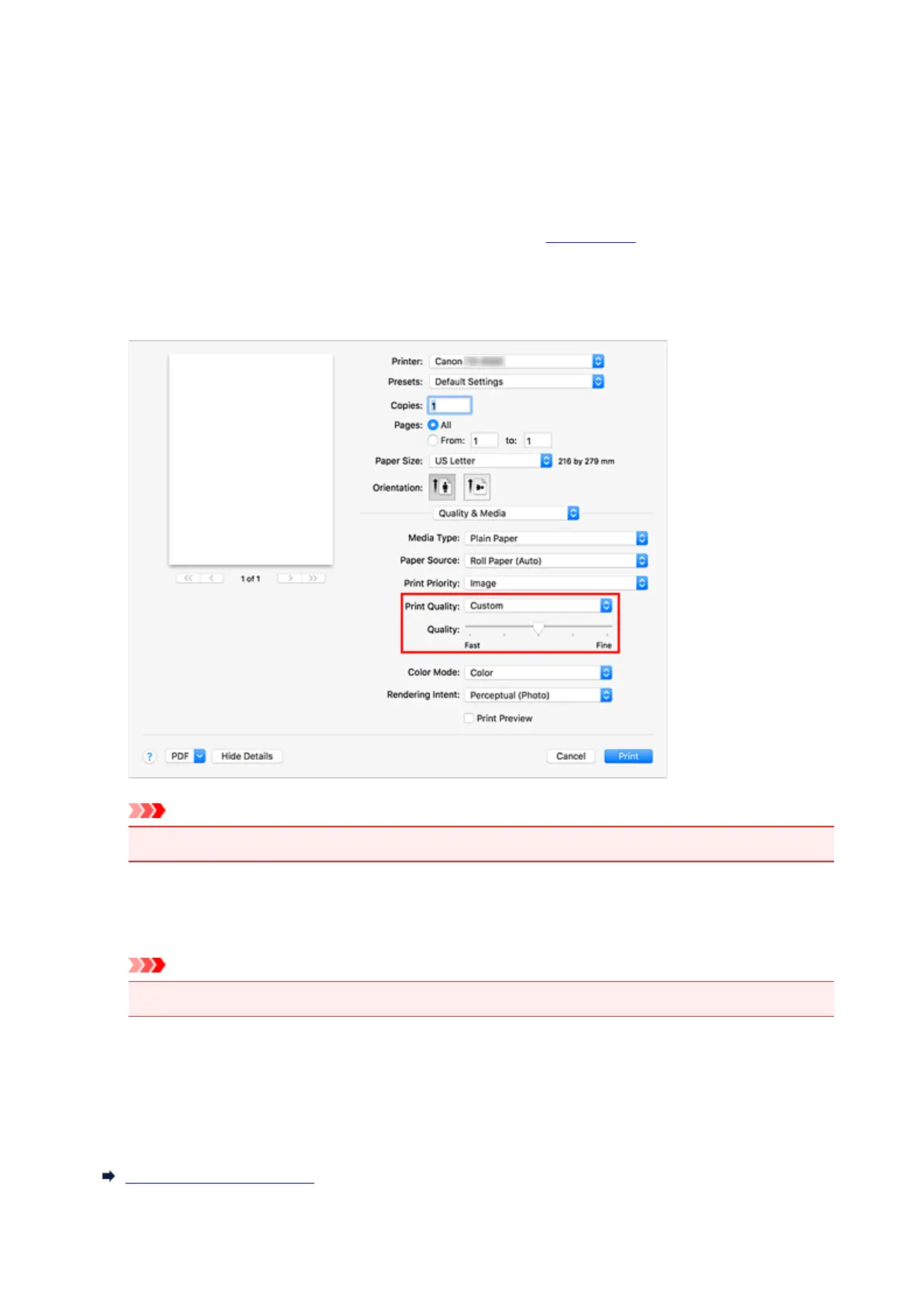
1. Select Quality & Media from the pop-up menu on the Print Dialog
2.
Select the print quality
Select Custom for Print Quality.
Important
• If Auto (Use Printer Settings) is selected for Media Type, Custom cannot be selected.
3. Setting the print quality level
Move the Quality slider to select the print quality level.
Important
•
Certain print quality levels cannot be selected depending on the settings of media type.
4. Complete the setup
Click Print.
When you execute print, the image data is printed with the selected print quality level.
Related Topics
Specifying Color Correction
563


 To Next Page