Managing Pending Jobs (Printing or Deleting Jobs on Hold)
If the type or size of paper loaded does not match the settings in the print job received when you have set
Detect paper setting mismatch to Hold job in the operation panel, the print job is held on the printer as a
pending job in the job queue.
Manage held jobs such as these as follows.
This operation is available using the operation panel or Remote UI.
Note
• As long as you do not manage held jobs from the operation panel, they will remain in the job queue. In
this case, the printer processes the next job in the queue without pausing.
• To print held jobs, replace the loaded paper with the paper specified in the print job.
Loading the Upper Roll on the Printer
Loading Sheets in the Printer
Using Operation Panel
Using Remote UI
Using Operation Panel
1.
Make sure printer is turned on.
2.
Flick HOME screen and tap Job management.
Menu Operations
3.
Tap Print job.
The print job list appears.
4.
Tap print job with icon on left.
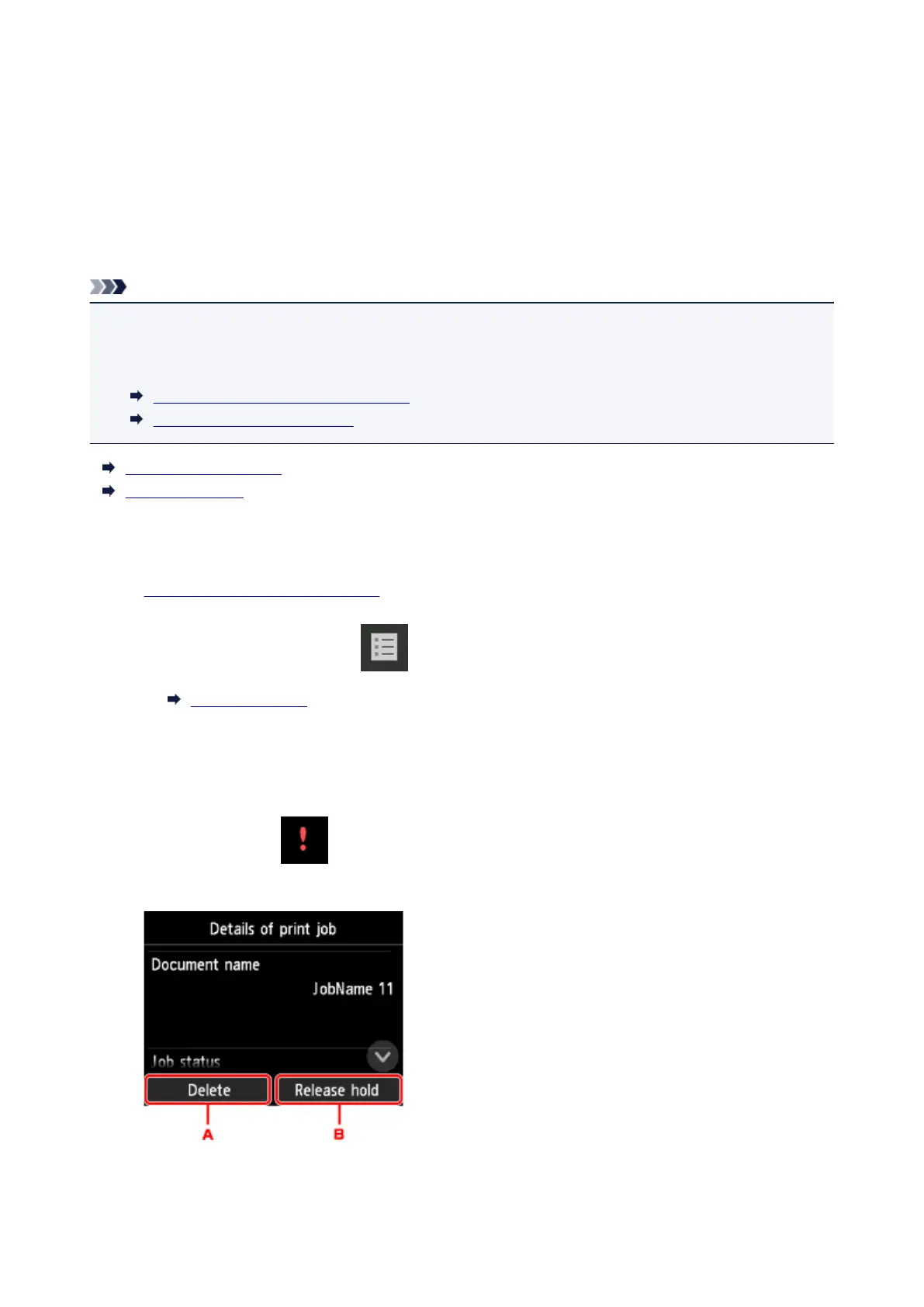
The screen below appears.
A.
Tap to delete data.
672


 To Next Page