B. Tap to release hold.
5. Check message that is displayed and tap Yes.
Note
• Select Delete all print jobs on Job management to delete all jobs in the job queue
Job management
Using Remote UI
1.
Display printer status on web browser.
2.
On Menu page, select Job management.
3.
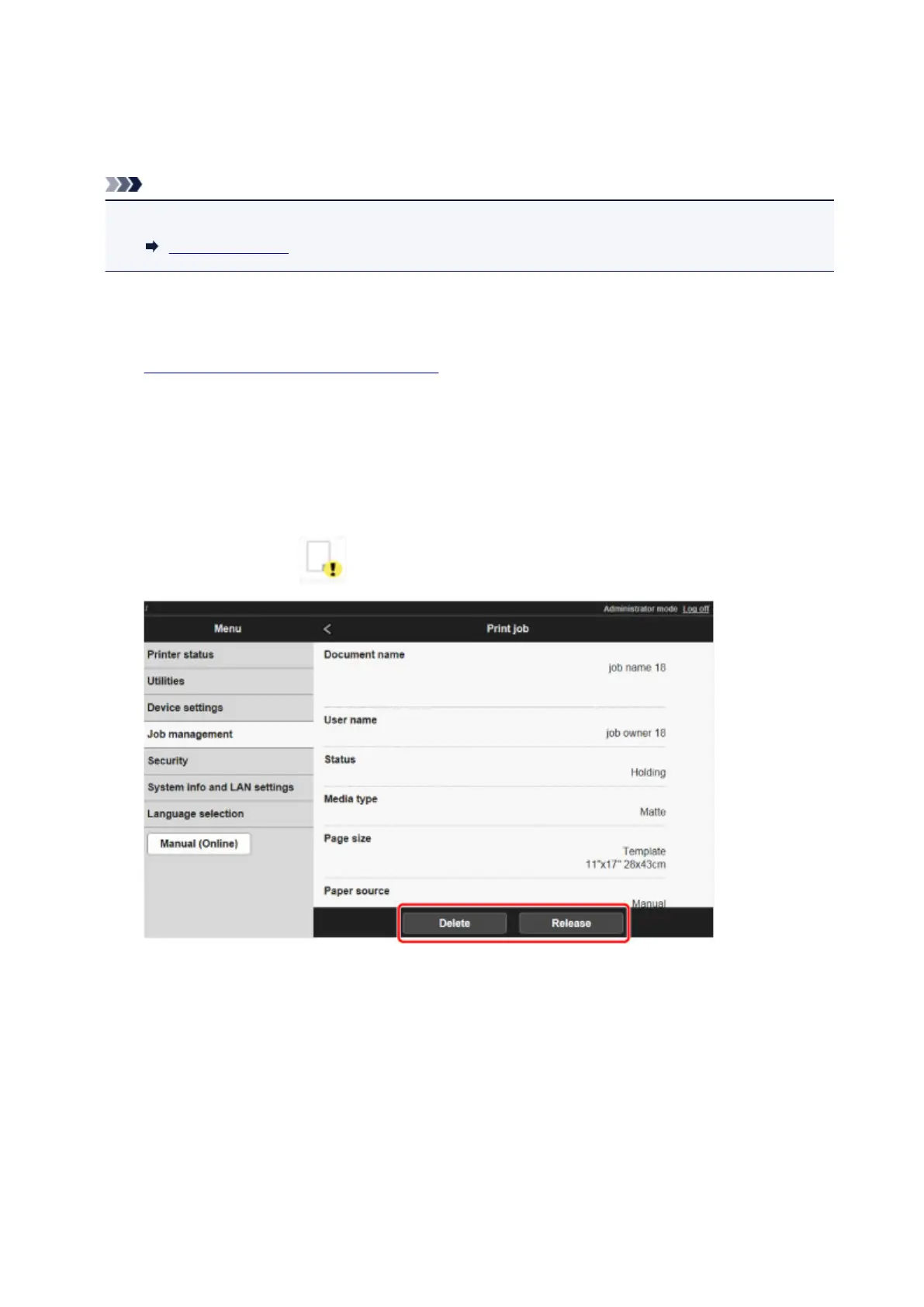
Select Print job.
The print job list appears.
4.
Select print job with icon on left and select Delete or Release.
673


 To Next Page