Applying
Image
Enhancing
Effects
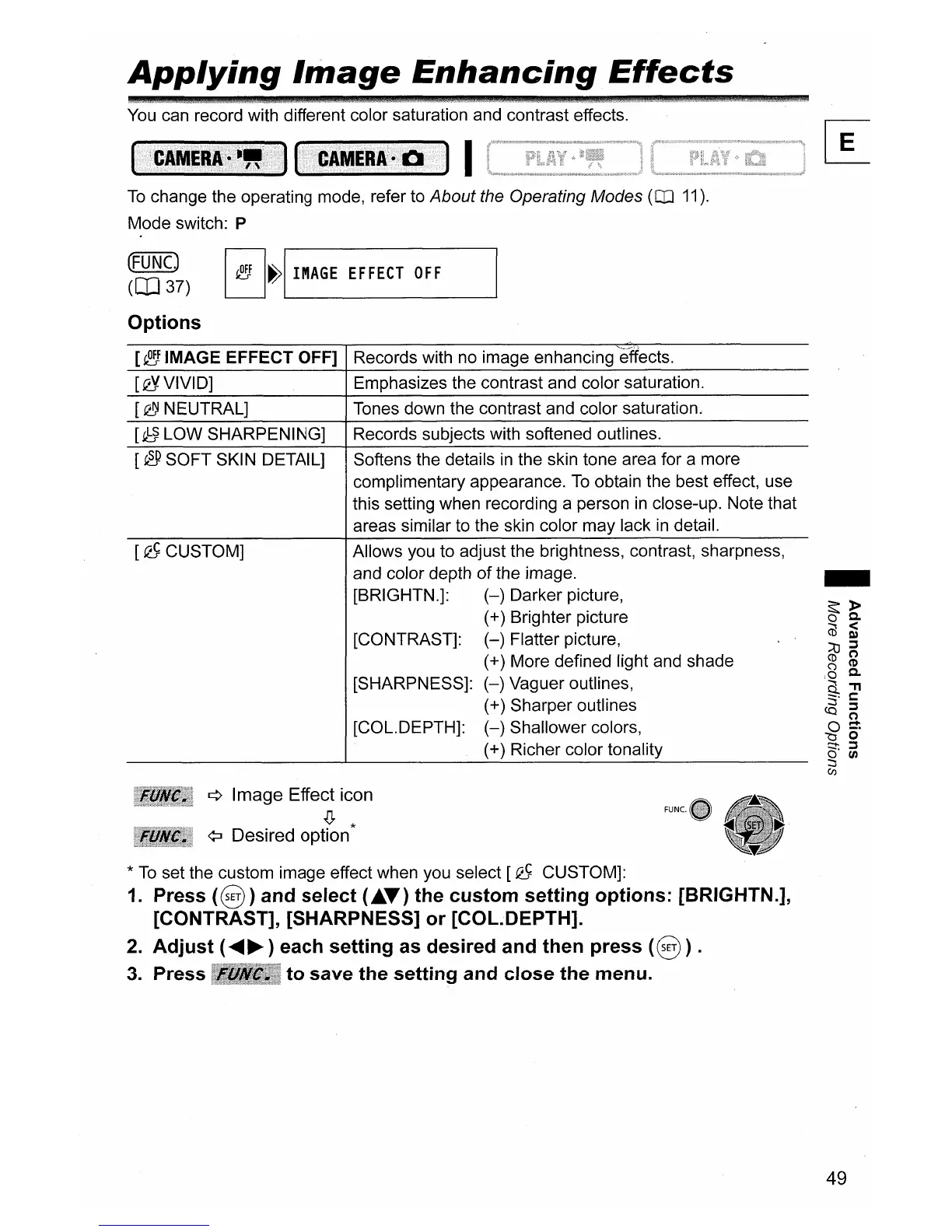
You can record with different color saturation and contrast effects.
I
To
change the operating mode, refer to About the Operating Modes
(CD
11).
Mode switch: P
(FUNC)
(OJ
37)
Options
I
~
I~I
IMAGE
EFFECT
OFF
[~
IMAGE EFFECT OFF]
[QJ.VIVID]
[~
NEUTRAL]
[~LOW
SHARPENING]
[@
SOFT SKIN DETAIL]
[Q}
CUSTOM]
Records with no image enhancing effects.
Emphasizes the contrast and color saturation.
Tones down the contrast and color saturation.
Records subjects with softened outlines.
Softens the details
in
the skin tone area for a more
complimentary appearance.
To
obtain the best effect, use
this setting when recording a person
in
close-up. Note that
areas similar to the skin color
may
lack
in
detail.
Allows you to adjust the brightness, contrast, sharpness,
and color depth
of
the image.
[BRIGHTN.]:
(-)
Darker picture,
(+) Brighter picture
[CONTRAST]:
(-)
Flatter picture,
(+) More defined light and shade
[SHARPNESS]:
(-)
Vaguer outlines,
(+) Sharper outlines
[COL.DEPTH]:
(-)
Shallower colors,
(+) Richer color tonality
¢ Image Effect icon
.(J,
*
¢:J Desired option
*
To
set the custom image effect when you select
[Q}
CUSTOM]:
1.
Press
(8)
and select
(~.)
the custom setting options: [BRIGHTN.],
[CONTRAST], [SHARPNESS] or [COL.DEPTH].
2.
Adjust (
......
~
) each setting
as
desired and then press
(8
).
3.
Press to save the setting and close the menu.
49



 To Next Page