Playing
Back
on
a
TV
Screen
I
To
change the operating mode, refer to About the Operating Modes
(CD
11).
Before connecting the camcorder, select the [TV TYPE] setting according to the
TV
set to
which you will connect the camcorder - [WIDE TV]:
TV
sets with 16:9 aspect ratio or
[NORMAL TV]:
TV
sets with 4:3 aspect ratio
(CD
37).
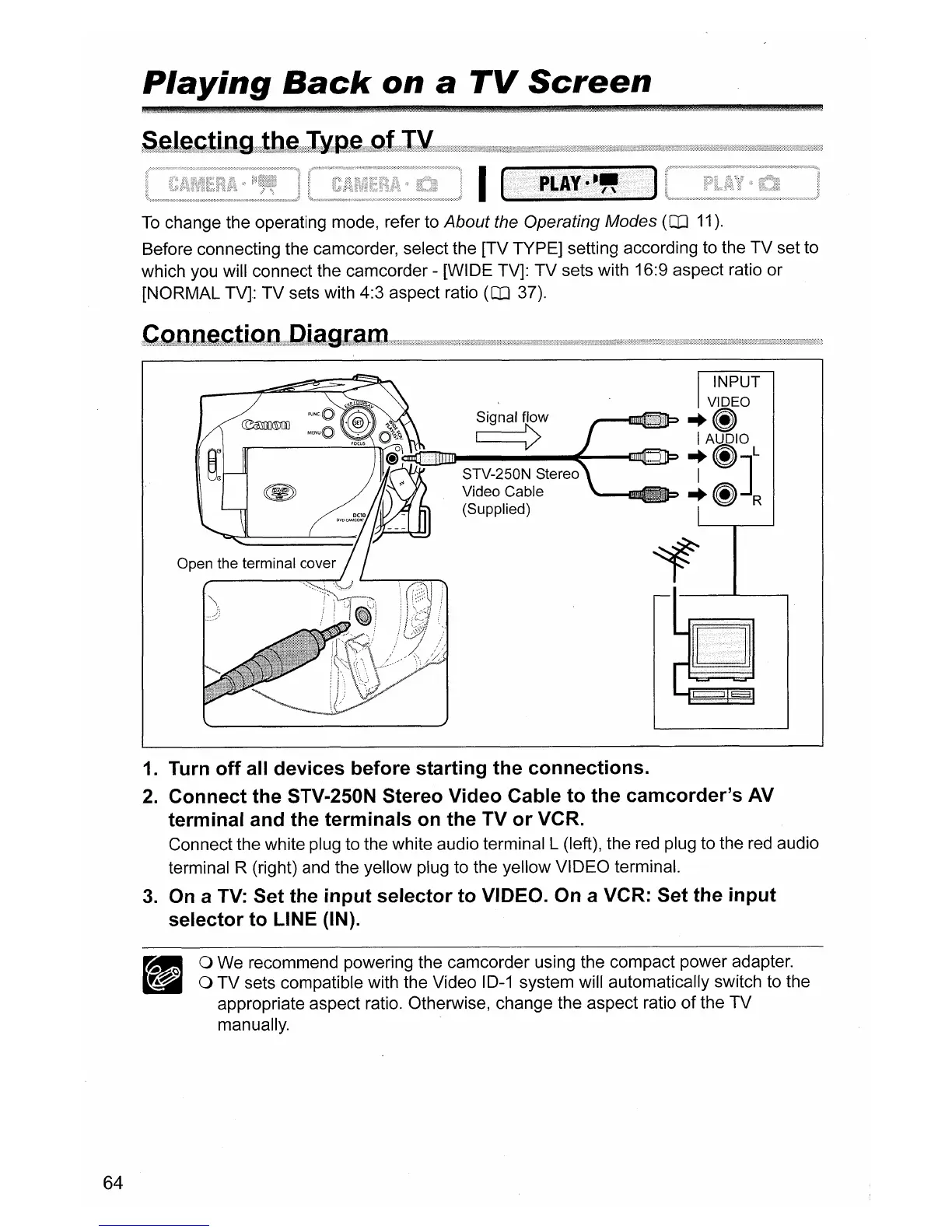
Signal flow
~
STV-250N Stereo
Video Cable
(Supplied)
INPUT
VIDEO
,..-@lITf@Dlb
~
f)
I AUDIO
if)JL
'--.....flmllEmmt:>~f)R
64
1.
Turn off all devices before starting the connections.
2.
Connect the STV-250N Stereo Video Cable to the camcorder's
AV
terminal and the terminals
on
the TV or VCR.
Connect the white plug to the white audio terminal L (left), the red plug to the red audio
terminal R (right) and the yellow plug to the yellow VIDEO terminal.
3.
On
a
TV:
Set the input selector to VIDEO. On a VCR: Set the input
selector to LINE (IN).
o We recommend powering the camcorder using the compact power adapter.
o
TV
sets compatible with the Video 10-1 system will automatically switch to the
appropriate aspect ratio. Otherwise, change the aspect ratio
of
the
TV
manually.



 To Next Page