246
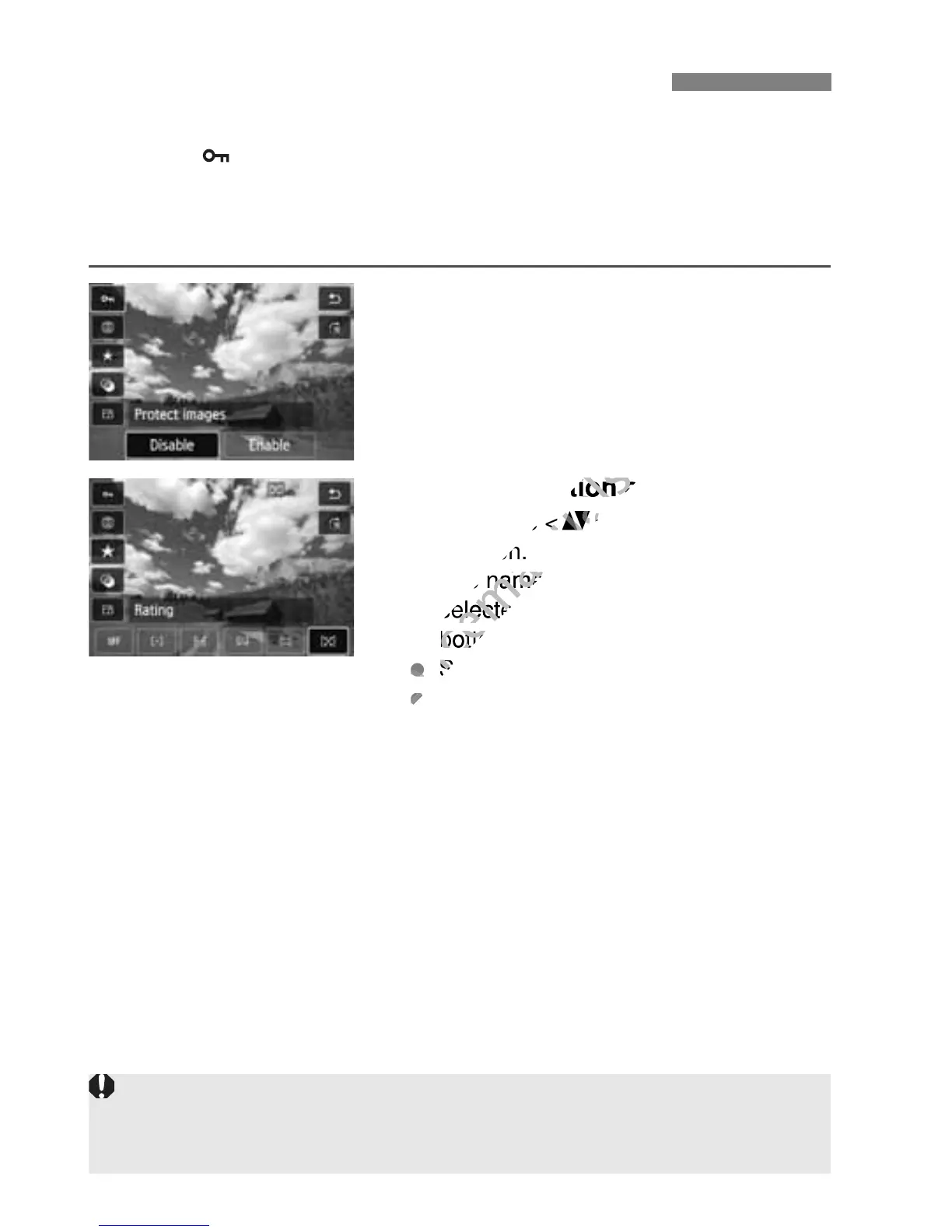
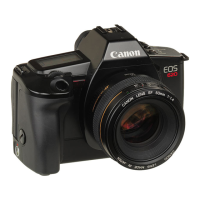
During playback, you can press the <Q> button to set any of the
following: [ : Protect images], [b: Rotate image], [9: Rating], [U:
Creative filters], [S: Resize] (JPEG images only), and [e: Image
jump w/6].
For movies, only the functions in bold above can be set.
1
Press the <Q> button.
During image playback, press the
<Q> button.
The Quick Control screen will appear.
2
Select a function and set it.
Press the <V> key to select a
function.
The name and current setting of the
selected function are displayed at the
bottom of the screen.
Set it by pressing the <U> key.
For Creative filters and Resize, press
<0> and set the function. For
details, see page 270 for Creative
filters and page 273 for Resize. To
cancel, press the <M> button.
3
Exit the setting.
Press the <Q> button to exit the
Quick Control screen.
Q Quick Control During Playback
To rotate an image, set [51: Auto rotate] to [OnzD]. If [51: Auto rotate]
is set to [OnD] or [Off], the [b Rotate image] setting will be recorded to
the image, but the camera will not rotate the image for display.


 To Next Page