EasyManua.ls Logo

Canon EOS 650D - Erasing Images; L Erasing Images

Canon EOS 650D
376 pages
Print Icon
To Next Page IconTo Next Page
To Previous Page IconTo Previous Page
Loading...
264
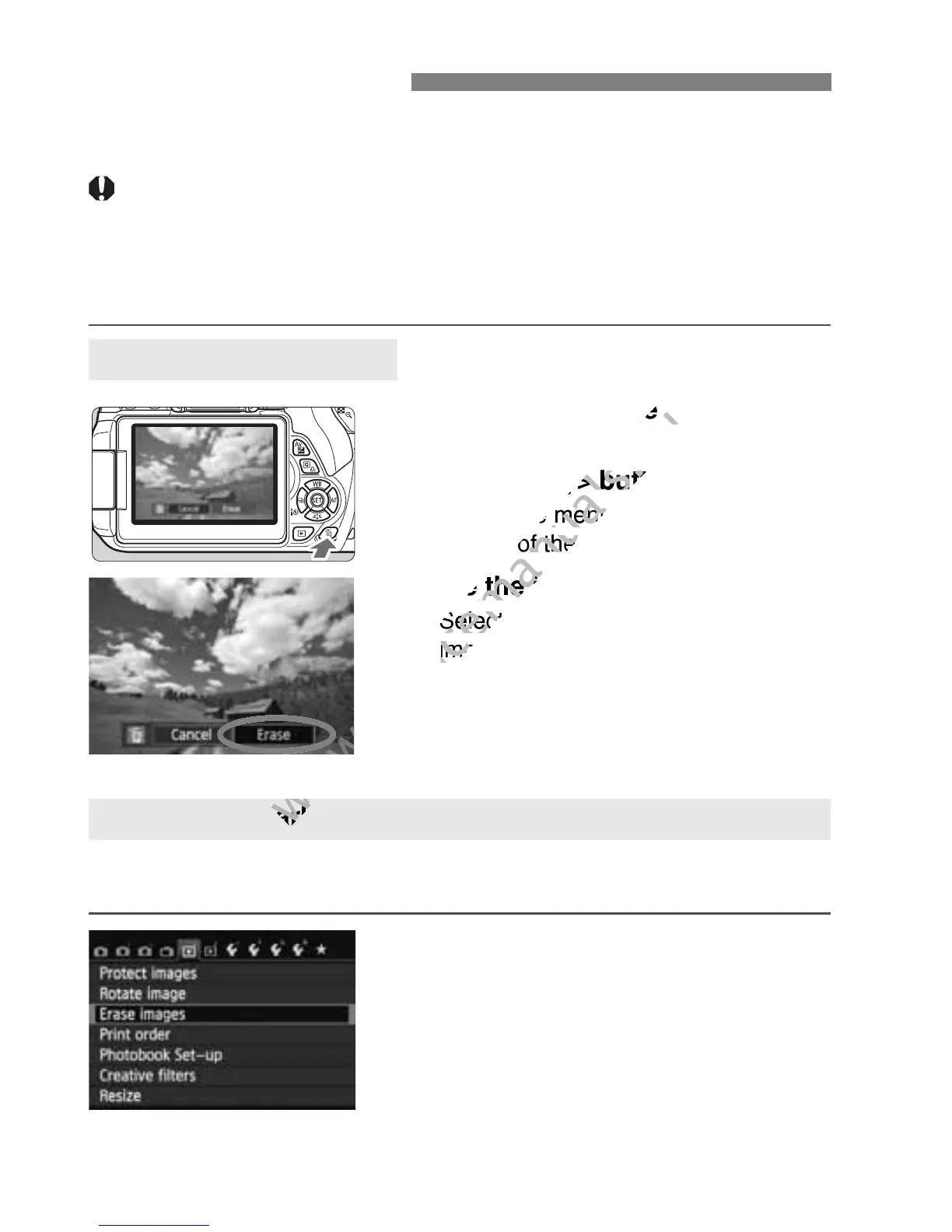
You can either select and erase images one by one or erase them in
one batch. Protected images (p.262) will not be erased.
Once an image is erased, it cannot be recovered. Make sure
you no longer need the image before erasing it. To prevent
important images from being erased accidentally, protect
them. Erasing a 1 +73 image will erase both the RAW and
JPEG images.
1
Play back the image to be erased.
2
Press the <L> button.
The Erase menu will appear at the
bottom of the screen.
3
Erase the image.
Select [Erase], then press <0>. The
image displayed will be erased.
By appending checkmarks <X> to the images to be erased, you can
erase multiple images at one time.
1
Select [Erase images].
Under the [x1] tab, select [Erase
images], then press <0>.
L Erasing Images
Erasing a Single Image
3 Checkmarking <X> Images to be Erased in a Batch

www.devicemanuals.eu
Play back the image to be erased.
www.devicemanuals.eu
Play back the image to be erased.
L
www.devicemanuals.eu
L
> button.
www.devicemanuals.eu
> button.
The Erase menu will appear at the
www.devicemanuals.eu
The Erase menu will appear at the
bottom of the screen.
www.devicemanuals.eu
bottom of the screen.
Erase the image.
www.devicemanuals.eu
Erase the image.
Select [
www.devicemanuals.eu
Select [
image displayed will be erased.
www.devicemanuals.eu
image displayed will be erased.
www.devicemanuals.eu
Checkmarking <
www.devicemanuals.eu
Checkmarking <

Table of Contents

Related product manuals