EasyManua.ls Logo

Canon EOS 650D - Touch Screen Operations

Canon EOS 650D
376 pages
Print Icon
To Next Page IconTo Next Page
To Previous Page IconTo Previous Page
Loading...
53
The LCD monitor is a touch-sensitive panel that you can operate with
your fingers.
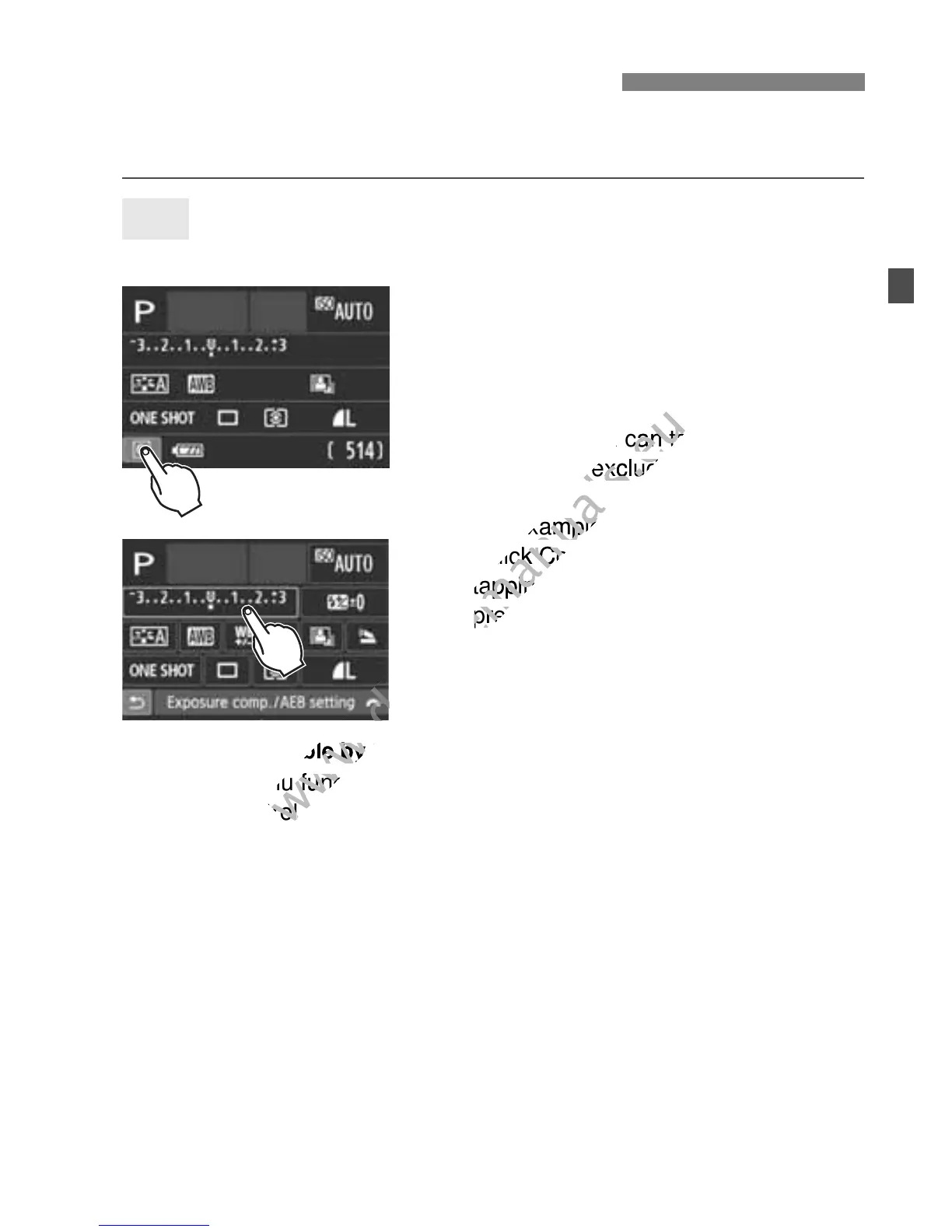
Quick Control (Sample display)
Use your finger to tap (touch and let
go) the LCD monitor.
By tapping, you can select menus,
icons, etc., displayed on the LCD
monitor.
Icons that you can tap are displayed
in a frame (excluding the menu
screen).
For example, when you tap [Q], the
Quick Control screen appears. By
tapping [2], you can return to the
preceding screen.
Operations possible by tapping the screen
Setting menu functions after pressing the <M> button
Quick Control
Setting functions after pressing the <i>, <S>, <WB>,
<XA>, <Yi/Q>, or <Zf> button
Setting functions during Live View shooting
Setting functions during movie shooting
Playback operations
d Touch Screen Operations
Tap
www.devicemanuals.eu
Icons that you can tap are displayed
www.devicemanuals.eu
Icons that you can tap are displayed
in a frame (excluding the menu
www.devicemanuals.eu
in a frame (excluding the menu
screen).
www.devicemanuals.eu
screen).
For example, when you tap [
www.devicemanuals.eu
For example, when you tap [

Quick Control screen appears. By
www.devicemanuals.eu
Quick Control screen appears. By
tapping [
www.devicemanuals.eu
tapping [
preceding screen.
www.devicemanuals.eu
preceding screen.
Operations possible by tapping the screen
www.devicemanuals.eu
Operations possible by tapping the screen
www.devicemanuals.eu
Setting menu functions after pressing the <
www.devicemanuals.eu
Setting menu functions after pressing the <
Quick Control
www.devicemanuals.eu
Quick Control
www.devicemanuals.eu

Table of Contents

Related product manuals