261
Viewing the Images on TV
1
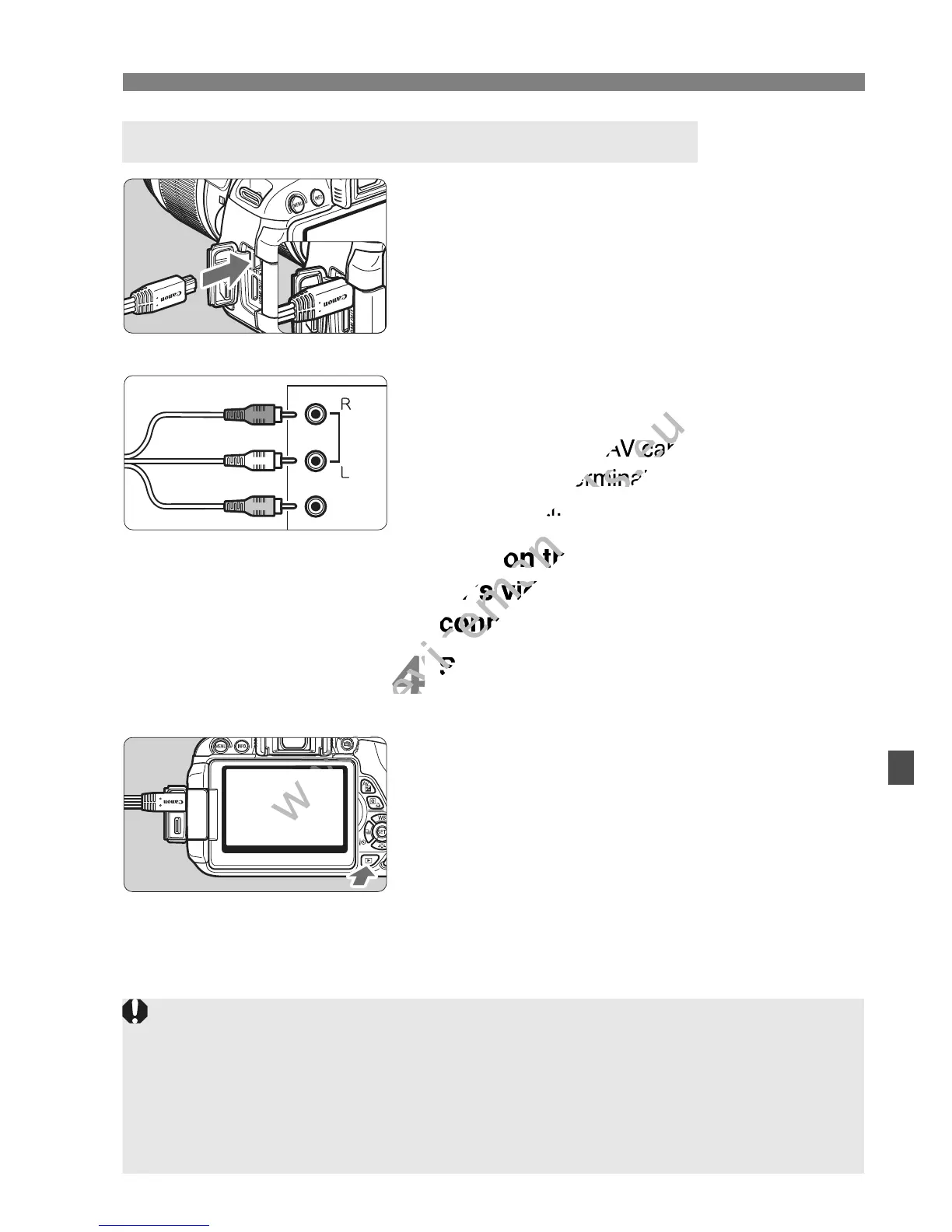
Connect the stereo AV cable AVC-
DC400ST (sold separately) to the
camera.
With the plug’s <Canon> logo facing
the back of the camera, insert it into
the <q
> terminal.
2
Connect the AV cable to the TV
set.
Connect the AV cable to the TV’s
video IN terminal and audio IN
terminal.
3
Turn on the TV and switch the
TV’s video input to select the
connected port.
4
Set the camera’s power switch to
<1>.
5
Press the <x> button.
The image will appear on the TV
screen. (Nothing will be displayed on
the camera’s LCD monitor.)
To play back movies, see page 250.
Viewing on Non High-Definition (HD) TV Sets
(Red)
(White)
(Yellow)
Do not use any AV cable other than the Stereo AV cable AVC-DC400ST
(sold separately). Images may not be displayed if you use a different
cable.
If the video system format does not match the TV’s, the images will not
be displayed properly. If this happens, switch to the proper video system
format with [52: Video system].
Connect the AV cable to the TV’s
www.devicemanuals.eu
Connect the AV cable to the TV’s
video IN terminal and audio IN
www.devicemanuals.eu
video IN terminal and audio IN
terminal.
www.devicemanuals.eu
terminal.
Turn on the TV and switch the
www.devicemanuals.eu
Turn on the TV and switch the
TV’s video input to select the
www.devicemanuals.eu
TV’s video input to select the
connected port.
www.devicemanuals.eu
connected port.
Set the camera’s power switch to
www.devicemanuals.eu
Set the camera’s power switch to


 To Next Page