wPrinting
282
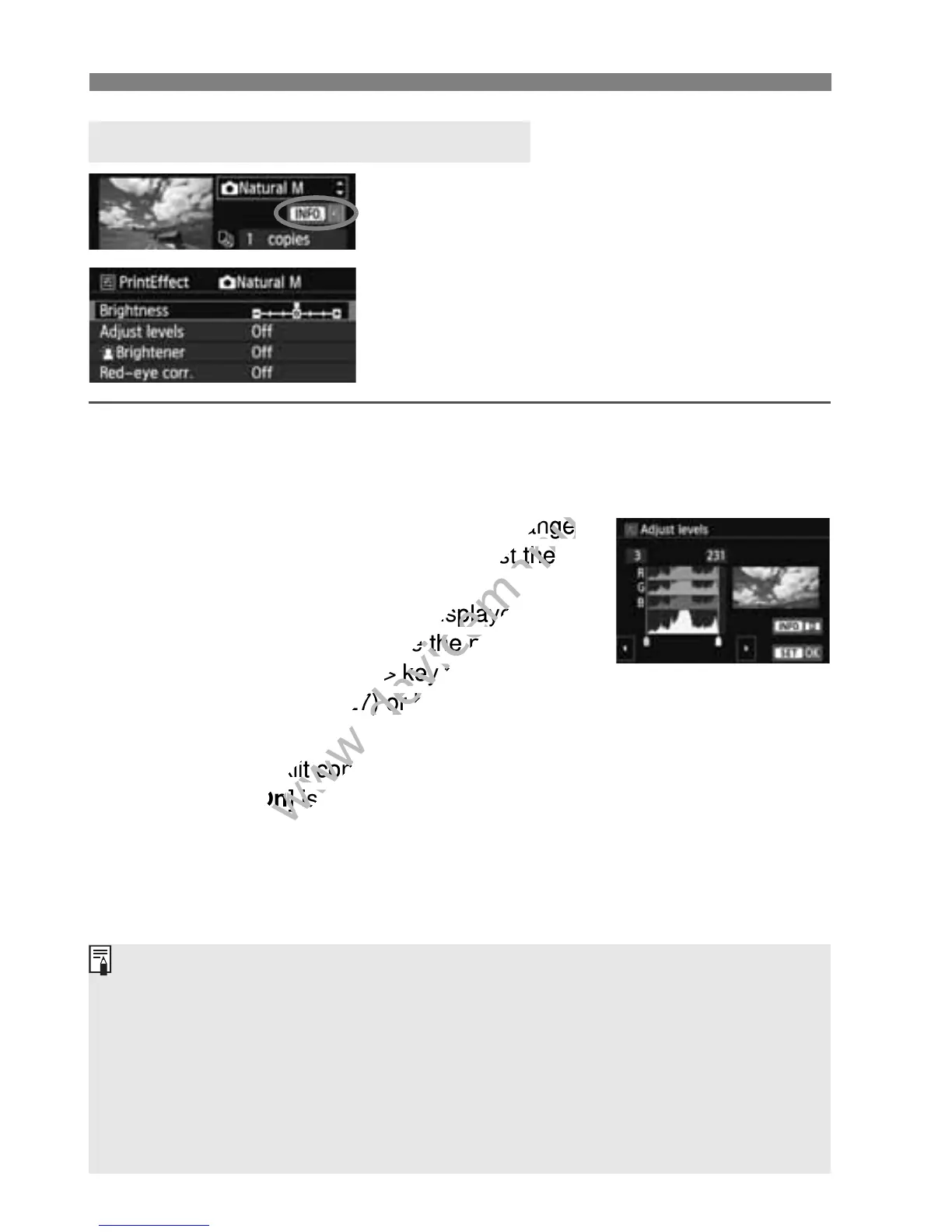
In step 4 on page 280, select the printing
effect. When the <e> icon is displayed
brightly next to <z>, you can press
the <B> button. You can then adjust
the printing effect. What can be adjusted
or what is displayed will depend on the
selection made in step 4.
Brightness
The image brightness can be adjusted.
Adjust levels
When you select [Manual], you can change
the histogram’s distribution and adjust the
image’s brightness and contrast.
With the Adjust levels screen displayed, press
the <B> button to change the position of
the <
h>. Press the <U> key to freely adjust
the shadow level (0-127) or highlight level (128-255).
kBrightener
Effective in backlit conditions that can make the subject’s face look
dark. When [On] is set, the face will be brightened for printing.
Red-eye corr.
Effective in flash images where the subject has red eye. When [On]
is set, the red eye will be corrected for printing.
e Adjustment of Printing Effects
The [kBrightener] and [Red-eye corr.] effects will not be reflected on
the screen.
When you select [
Detail set.
], you can adjust the [
Contrast
], [
Saturation
],
[
Color tone
], and [
Color balance
]. To adjust the [
Color balance
], use the
<
S
> keys. B is for blue, A for amber, M for magenta, and G for green.
The image’s color balance will be corrected towards the selected color.
If you select [Clear all], all the printing effect settings will be reverted to
their defaults.


 To Next Page