47
3 Menu Operations
1
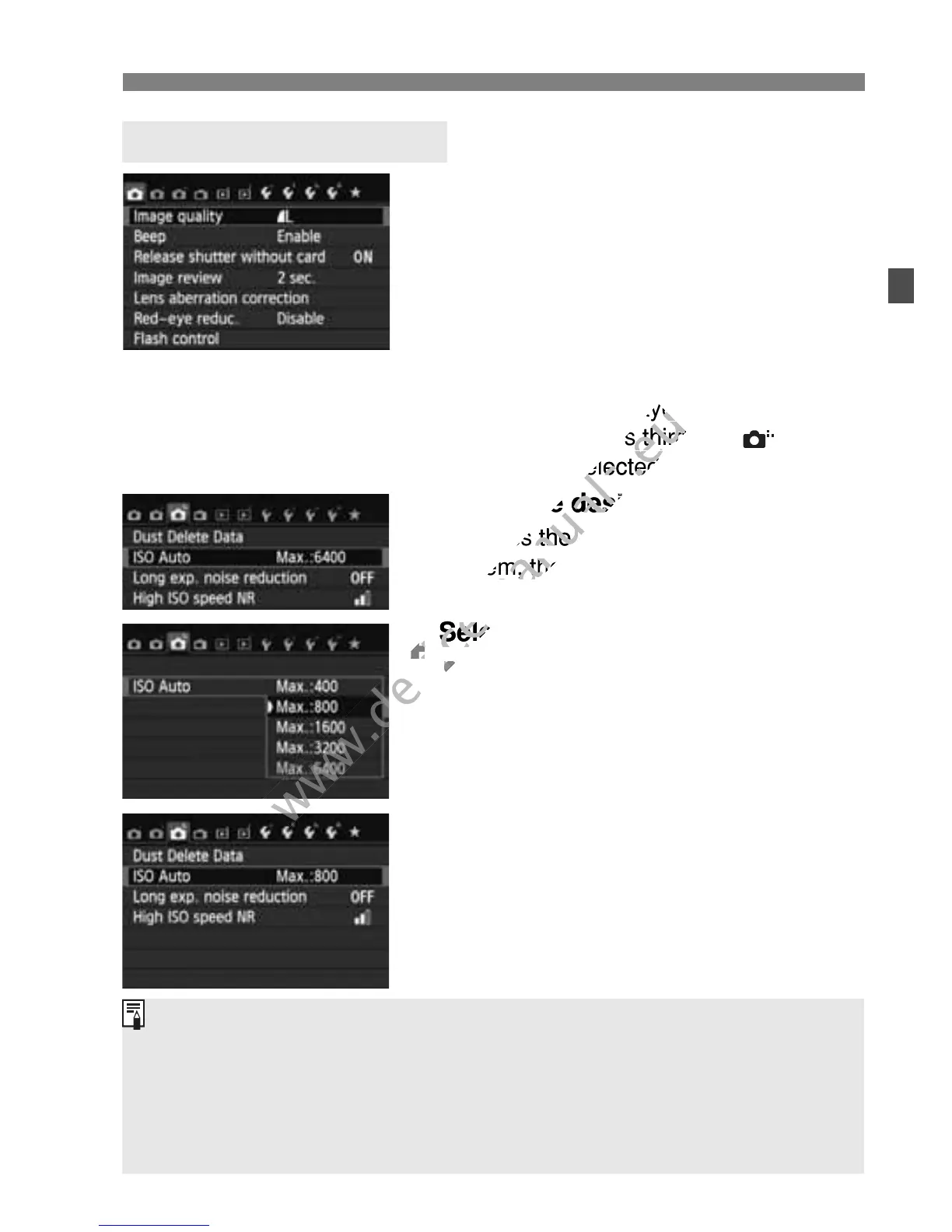
Display the menu screen.
Press the <M> button to display
the menu screen.
2
Select a tab.
Press the <U> key to select a
menu tab.
For example, the [z3] tab refers to
the screen displayed when the z
(Shooting) tab’s third dot [ ] from
the left is selected.
3
Select the desired item.
Press the <V> key to select the
item, then press <0>.
4
Select the setting.
Press the <V> or <U> key to
select the desired setting. (Some
settings require you to press either
the <V> or <U> key to select it.)
The current setting is indicated in blue.
5
Set the desired setting.
Press <0> to set it.
6
Exit the setting.
Press the <M> button to return to
the shooting settings display.
Menu Setting Procedure
In step 2, you can also turn the <6> dial to select a menu tab.
In steps 2 to 5, you can also use the LCD monitor’s
touch screen
(p.53).
The explanation of menu functions hereinafter assumes that you have
pressed the <M> button to display the menu screen.
To cancel, press the <M> button.
For details about each menu item, see page 314.


 To Next Page