106
Setting the Quantity
Printing
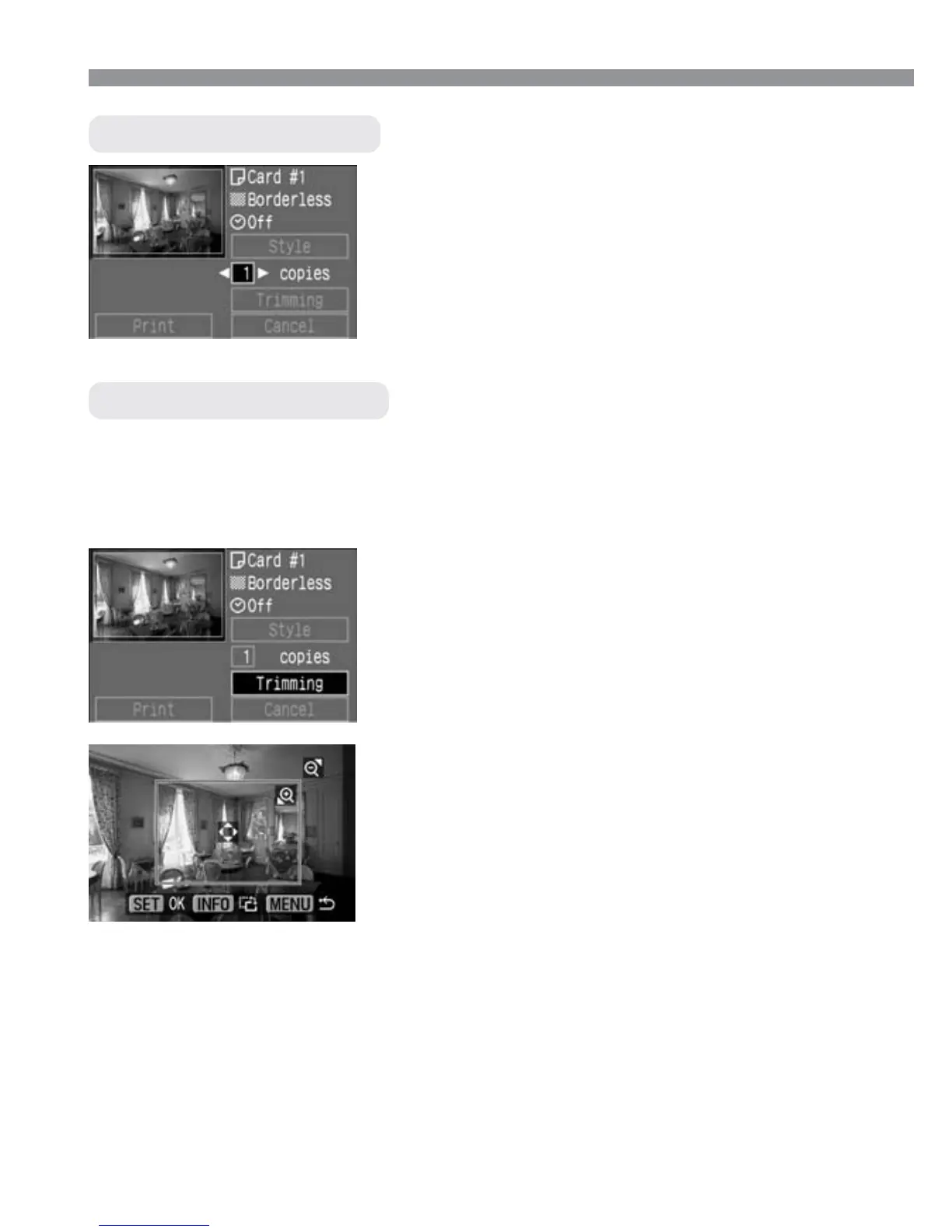
Set the number of copies.
•
Press the <å> keys to select
[copies].
•
Press the <µ> keys to set the
number of copies.
•
Set a number from 1 to 99.
You can trim the image and print only the trimmed portion.
Before starting, you must first set the [Style] settings. If you change the
[Style]/[Borders] after setting the trimming, the trimming setting will be
lost.
Setting the Trimming
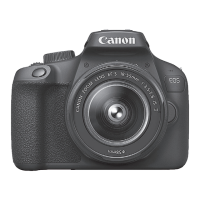
Trim the image.
•
The image area within the trimming
frame will be printed.
2
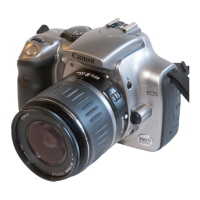
Select [Trimming].
•
Press the <å> keys to select
[Trimming], then press <p>.
s
The trimming screen will appear.
1
Changing the trimming frame size
Press the <7> or <8> button to change the size of the
trimming frame.
Moving the trimming frame
Press the cross keys to move the trimming frame in the respective
direction.





 To Next Page