107
Printing
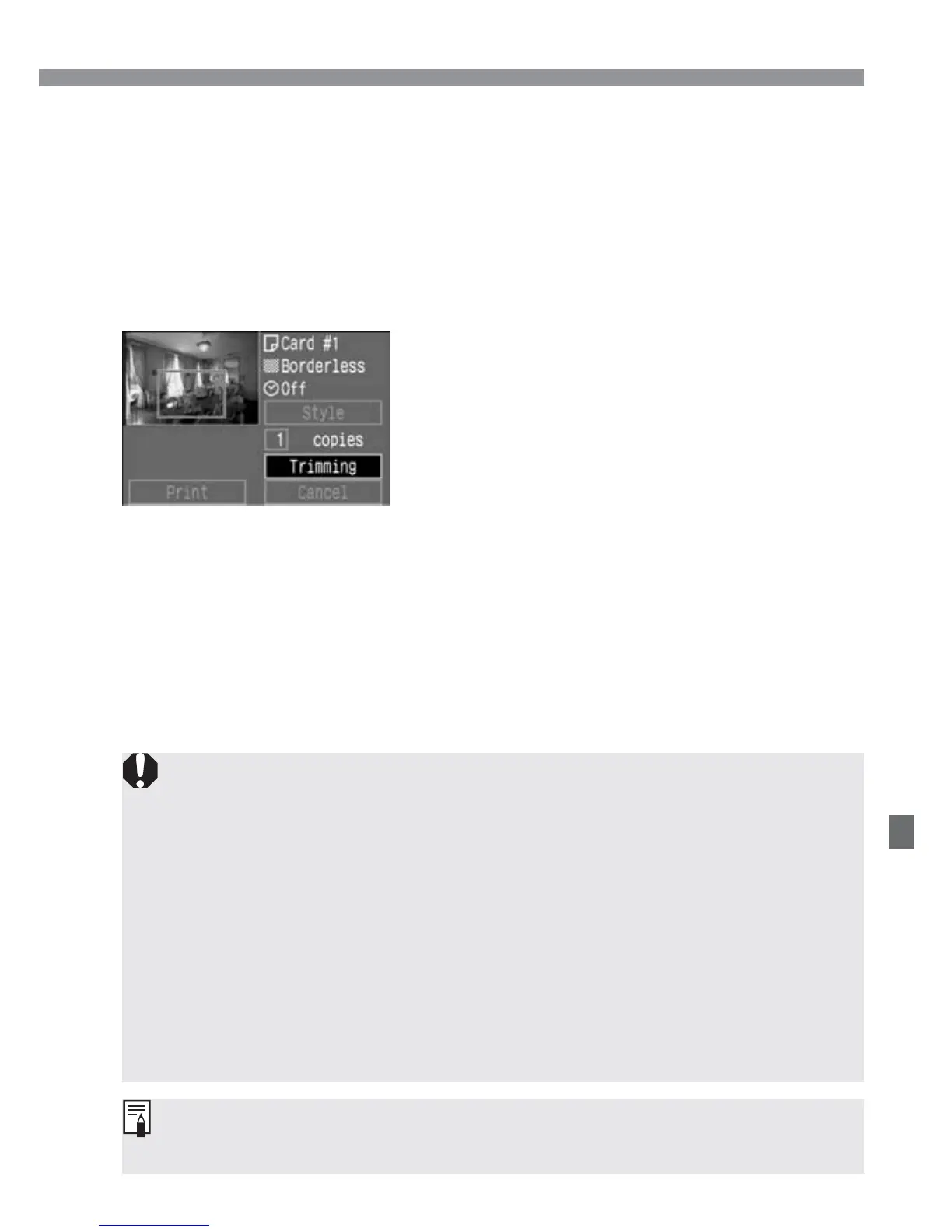
Rotating the trimming frame
Press the <4> button to rotate the trimming frame. The button
toggles between the vertical and horizontal image orientation.
For example, a horizontal shot can be printed as a vertical shot.
Exit the trimming.
•
Press <p> to return to the print
setting screen.
3
•
The operation guide disappears while
you trim the image. It will reappear
after 5 sec. of idle time.
•
If [Borderless] is set, certain printers might not print the trimmed image
correctly.
•
The smaller the trimming frame, the rougher the image quality will be. If
you use a card photo printer and the image quality would look rough due
to trimming, the trimming frame will turn red.
•
If you set [Trimming] and then change the [Style]/[Borders] setting, the
[Readjust trimming] message will appear. Set [Trimming] again or
change back the [Borders] setting. Otherwise, the trimming will not take
effect for the printed image.
•
When setting the [Trimming], look at the camera’s LCD monitor. If you
look at a TV monitor (p.93) while trimming the image, the trimming frame
may not appear correctly.
The [Trimming] setting will be canceled after the printing is completed or if
you execute [Cancel].






 To Next Page