Improving Eciency
1560-077
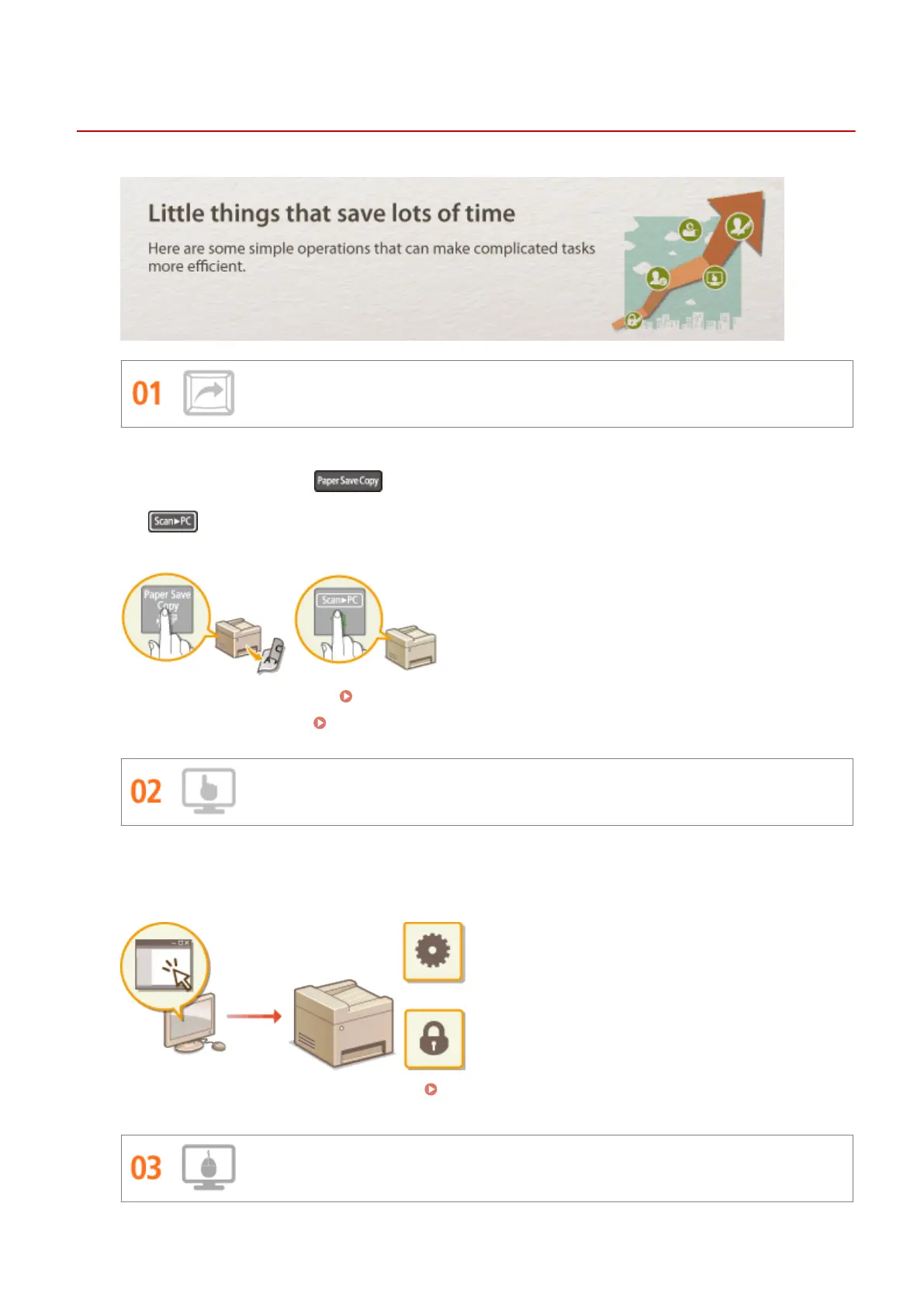
Shortcut Keys for Copying and Scanning
Take advantage of the shortcut keys on the operation panel so you don't have to recongure the same settings
over and over again. Use the
key to save paper by copying two or four pages onto one sheet. If you
are using a machine capable of 2-sided printing, you can also copy on both sides of the sheet. For scanning, use
the
key to preset your favorite save destinations, scan types, and le formats. Just place your document
and press the shortcut key to scan.
● To save paper when you copy: Using the [Paper Save Copy] Key (MF244dw / MF241d)(P. 78)
● To easily scan documents: Scanning Using the [Scan -> PC] Key(P. 132)
Remote Management with Remote UI (MF244dw / MF232w)
Remote UI lets you manage a lot from your computer, all without having to go over to the machine. Congure
settings and keep an eye on the machine's status with an intuitive, easy-to-understand Web browser interface
that you'll master immediately. Save your time and energy for things other than taking care of the machine.
For more information about this function, see Using Remote UI (MF244dw / MF232w)(P. 271) .
Make Print Settings Quickly with Intuitive Operation
Appendix
407











 To Next Page