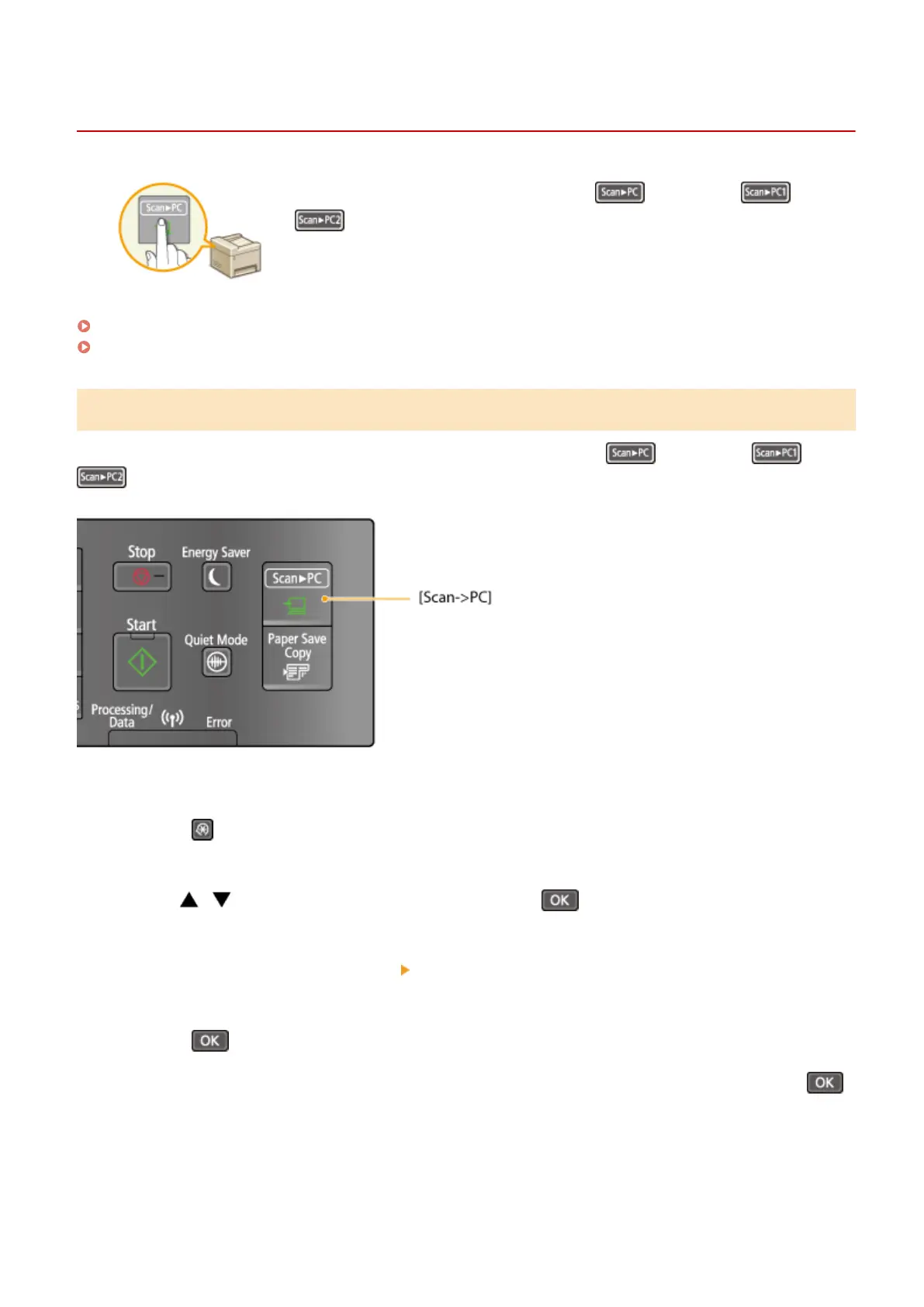
Scanning Using the [Scan -> PC] Key
1560-02L
Place a document on the machine, and press (for MF232w, or
), and scanning starts immediately. The type of scan (color or black and
white), the save destination for the document, and other settings can be registered
to a button, and documents can be scanned using those settings. This section
describes how to register settings in a button and scan with it.
Registering Your Settings in the [Scan -> PC] Key(P. 132)
Using the [Scan -> PC] Key(P. 134)
Registering Your Settings in the [Scan -> PC] Key
Register the computer that scanned images are saved in and the type of scan to
(for MF232w, or
).
1
Press .
2
Use / to select <Scan Settings>, and press .
3
Select <Shortcut Key Settings> <Register>.
4
Press .
● If you are using the MF232w, select the shortcut key to which you want to register settings, and press .
Using the Machine as a Scanner
132











 To Next Page