Note
• Either A:High or B:Standard/Draft in the Adjust Length menu is applied, depending on printer driver set-
tings at the time of printing.
• If you have selected Easy Settings in the printer driver, follow these steps to confirm the Print Priority
setting.
• Windows: Click View Settings on the Main tab to display the View Settings dialog box.
• Mac OS X: Click View set. on the Main pane to display the View settings dialog box.
Follow these steps to configure the settings.
1. Load the paper.
• Attaching the Roll Holder to Rolls →P.633
• Loading Rolls in the Printer →P.637
• Loading Sheets in the Printer →P.660
2.
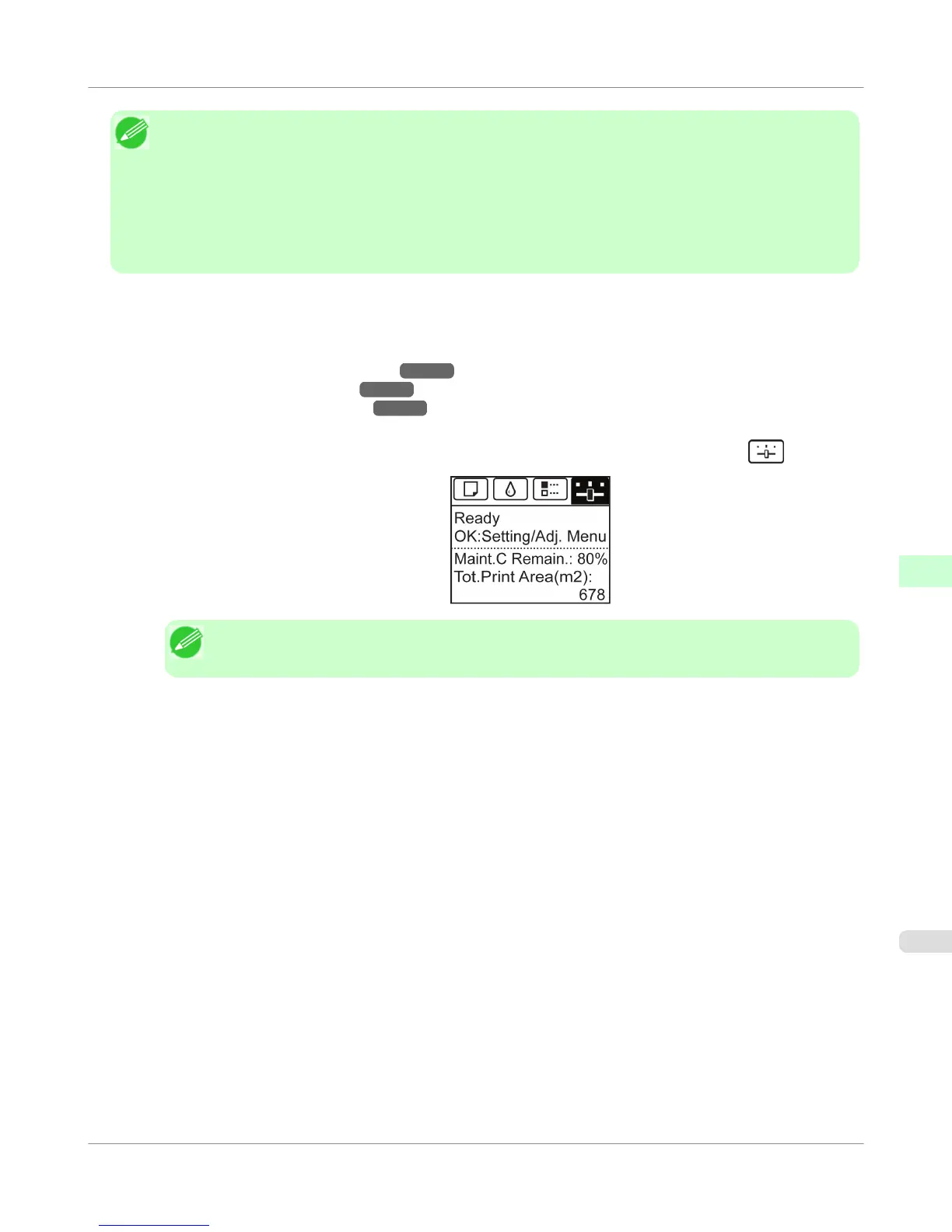
On the Tab Selection screen of the Control Panel, press ◀ or ▶ to select the Settings/Adj. tab (
).
Note
• If the Tab Selection screen is not displayed, press the Menu button.
3. Press the OK button.
The Set./Adj. Menu is displayed.
4. Press ▲ or ▼ to select Adjust Printer, and then press the OK button.
5. Press ▲ or ▼ to select Feed Priority, and then press the OK button.
6. Press ▲ or ▼ to select Adj. Priority, and then press the OK button.
7. Press ▲ or ▼ to select Automatic, Print Quality, or Print Length, and then press the OK button.
Adjustments for Better Print Quality
>
Adjusting the feed amount
>
iPF755
Selecting a Feed Amount Adjustment Method (Feed Priority)
7
687













 To Next Page