EasyManua.ls Logo

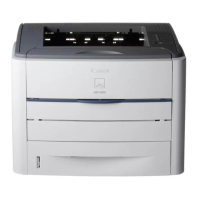
Canon LBP3360 - User Manual

Canon LBP3360
338 pages
Print Icon
To Next Page IconTo Next Page
Loading...
ENG
IMPORTANT:
Read this manual carefully before using your printer.
Save this manual for future reference.
User's Guide
User's Guide

Table of Contents

Question and Answer IconNeed help?

Do you have a question about the Canon LBP3360 and is the answer not in the manual?

Summary

Preface

How To Use This Manual

Information on how to effectively use the user manual and its components.

Symbols Used in This Manual

Explains the meaning of symbols used to denote warnings, cautions, and important notes.

Keys and Buttons Used in This Manual

Details how keys and buttons are referred to in the manual for user interaction.

Legal Notices

EMC Directive (220 - 240 V model)

Compliance statement and requirements related to the EMC Directive for the specified voltage model.

Laser Safety (220 - 240 V model)

Classification and safety information regarding laser radiation for the specified voltage model.

International Energy Star-Program

Details about the printer's compliance with ENERGY STAR for energy efficiency.

WEEE Directive

Information on the disposal of waste electrical and electronic equipment according to EU regulations.

License Notice

Information about the software license used in the product.

Trademarks

Lists registered trademarks of Canon and other companies.

Disclaimers

Statements regarding manual information accuracy and warranty limitations.

Legal Limitations on Product and Image Usage

Information on legal restrictions concerning the reproduction of documents and images.

Important Safety Instructions

Installation Warnings

Critical safety warnings and precautions related to the installation of the printer.

Power Supply Safety

Essential safety guidelines and warnings for connecting and using the printer's power supply.

Handling Precautions

Safety instructions and warnings for safely handling the printer during operation and movement.

Maintenance and Inspections Warnings

Safety warnings and precautions to be followed during printer maintenance and inspection procedures.

Consumables Safety

Safety warnings and precautions related to the handling and storage of consumables like toner cartridges.

Other Safety Notes

Additional safety notes, including precautions for users with pacemakers and general handling advice.

Chapter 1 Before You Start

Features and Benefits

Overview of the printer's key features, capabilities, and advantages for users.

User Manual CD-ROM Menu

Guide to navigating and using the software included on the User Manual CD-ROM.

Parts and Their Functions

Identifies and explains the purpose of various physical components of the printer.

Optional Accessories

Information on available optional accessories to enhance printer functionality.

Chapter 2 Installing the Printer

Installation Procedure Overview

Outlines the step-by-step process for installing the printer unit and its components.

Environments and Conditions

Specifies the recommended environmental conditions and requirements for printer installation.

Power Supply and Installation Requirements

Details power supply requirements and essential conditions for a safe and proper installation location.

Required Peripheral Space

Specifies the necessary clearance and dimensions for printer installation, including peripheral space.

Confirming Package Contents

Lists all items expected to be in the printer package to ensure completeness before installation.

Carrying the Printer to the Installation Site

Provides instructions and precautions for safely transporting the printer unit to its designated installation location.

Removing the Packing Materials

Step-by-step guide on how to remove protective tapes and packing materials from the printer.

Installing the Toner Cartridge

Instructions for correctly installing the toner cartridge into the printer unit.

Loading Paper

Guidance on how to load paper into the printer's paper cassette and manual feed slot.

Connecting the Power Cord

Step-by-step instructions for connecting the printer's power cord to the power source.

Connecting to a Computer via LAN

Instructions for connecting the printer to a network using a LAN cable for shared printing.

Connecting to a Computer via USB

Step-by-step instructions for connecting the printer to a computer using a USB cable.

Turning the Printer ON and Checking Operation

Procedures for powering on the printer and verifying its basic operational status after installation.

Registering a Paper Size

Instructions on how to register the loaded paper size in the printer's settings for accurate paper handling.

Checking Operations with Configuration Page Print

Guides users on printing a configuration page to verify printer settings and basic functionality.

When the Printer Does Not Operate Properly

Troubleshooting guide that lists common symptoms, causes, and remedies for printer operational issues.

Changing the Display Language

Instructions on how to change the language displayed on the printer's control panel.

Turning the Printer OFF

Safe procedures for powering down the printer, including important considerations for network connections.

Chapter 3 Using the Printer

Power Saving Features

Explains the printer's power saving modes to reduce energy consumption when idle.

Online and Offline Printer Status

Details on how to set the printer's online or offline status for proper communication and settings access.

Canceling Print Jobs

Procedures for canceling print jobs, including forced output and soft/hard resets.

Chapter 4 Loading and Outputting Paper

Paper Requirements

Details on paper specifications, including usable sizes, types, and storage recommendations.

Paper Source Management

Information on selecting and managing the printer's paper sources (cassette, manual feed).

Output Tray Configuration

Describes the available output trays and how to configure them for paper output.

Printing from the Paper Cassette

Instructions for loading paper into and printing from the printer's paper cassette.

Loading Standard Size Paper

Step-by-step guide for loading standard-sized paper into the printer's paper cassette.

Loading Custom Size Paper

Instructions for loading custom-sized paper into the paper cassette, including setting specifications.

Specifying Paper Size in Cassette

Guide on how to register the loaded paper size in the paper cassette settings via the control panel.

Printing from the Manual Feed Slot

Instructions for loading and printing using the printer's manual feed slot for single sheets.

Specifying Paper Settings in Printer Driver

Guidance on setting paper parameters within the printer driver for manual feed printing.

Loading Envelopes

Specific procedures and precautions for loading envelopes into the manual feed slot.

Specifying Manual Feed Slot Paper Size

Instructions on how to set the paper size for the manual feed slot using the control panel.

2-sided Printing Capabilities

Information on performing automatic 2-sided printing with the printer's standard equipment.

Loading Paper for Automatic 2-sided Printing

Guidance on paper orientation and loading when performing automatic 2-sided printing.

Chapter 5 The Printing Environment

Menu Functions Overview

Describes the printer's menu functions, their categories, and procedures for setting them.

Operation Key Functions

Explains the functionality of each key on the printer's control panel for menu operations.

Display Screen Navigation

Details how to view and interpret information displayed on the printer's control panel screen.

SETUP Menu Operation

Step-by-step guide on how to navigate and use the printer's SETUP menu for configuration.

UTILITY Menu Operation

Instructions for using the UTILITY menu to print printer information and perform maintenance tasks.

JOB Menu Operation

Guide on how to use the JOB menu to print various log lists for job history.

RESET Menu Operation

Procedures for using the RESET menu to reset the printer or clear print data.

CANCEL JOB Menu Operation

Steps to cancel a currently processed job using the CANCEL JOB menu.

SELECT FEEDER Menu Operation

Instructions for using the SELECT FEEDER menu to choose paper sources and sizes.

Initializing the SETUP Menu

Process for resetting all SETUP menu settings to their default values.

Chapter 6 Printing Environment Settings

Setting Items Overview

Lists and categorizes the various settings available for configuring the printer's environment.

CONTROL MENU Options

Configuration options within the CONTROL MENU, including power saving and panel language.

FEEDER MENU Options

Configuration options related to paper handling, including slot and cassette paper size and type.

LAYOUT MENU Options

Settings for print layout, such as number of copies, offset, and binding location.

QUALITY MENU Options

Settings related to print quality, including image refinement, gradation, and toner density.

INTERFACE MENU Options

Settings for managing printer interfaces (USB, Network) and communication modes.

NETWORK MENU Options

Comprehensive network configuration settings for TCP/IP, AppleTalk, SMB, and SNMP protocols.

USER MAIN. Options

User-specific settings, including print position adjustment and recovery printing options.

PCL SETUP Options

Printer setup options specific to the PCL command language, including paper save and orientation.

UFR II SETUP Options

Printer setup options specific to the UFR II command language, primarily related to paper save functionality.

CONTROL MENU - POWER SAVE MODE

Configuration options for the printer's power save modes, including panel off and deep sleep settings.

SLOT PAPER SIZE

Specifies the paper size loaded in the manual feed slot, supporting various standard and custom dimensions.

CASSETTE1 SIZE

Defines the paper size loaded in the first paper cassette, supporting standard and custom paper types.

CASSETTE2 SIZE

Specifies the paper size for the optional paper feeder's cassette, supporting standard and custom sizes.

STD PAPER SIZE, SLOT PRIORITY

Sets default paper sizes and controls the priority for paper source detection when AUTO is selected.

INVLDPAPER SLOT, AUTO SELECTION

Manages behavior for invalid paper sizes and configures automatic paper source selection.

STD PAPER TYPE

Specifies the default paper type to optimize print settings for various media like plain paper and transparencies.

2-SIDED PRINT.

Enables or disables the automatic 2-sided printing feature for efficient paper usage.

COPIES, OFFSET Y;OFFSET X

Settings to control the number of copies and adjust print position offsets for layout customization.

BIND.LOCATION

Specifies the edge (long or short) of the paper for binding when performing 2-sided printing.

GUTTER

Defines the width of the gutter margin used for binding, shifting the image as needed.

ALT.METHOD

Controls the printing side of the last page for odd-numbered jobs in 2-sided printing.

IMGE REFINEMENT, GRADATION LEVEL

Options to enhance image clarity by smoothing jagged outlines and adjusting gradation levels for better print detail.

TONER SAVE, DENSITY, HALFTONES

Settings for toner saving, adjusting print density, and controlling halftone processing for black and white output.

QUALITY CHANGE

Options to manage print quality during low memory conditions or when stopping printing.

INTERFACE MENU Options

Settings for managing printer interfaces (USB, Network) and communication modes.

MODE TIMEOUT

Configures the time interval for automatically finishing a job or outputting paper when no data is sent.

NETWORK MENU - TCP;IP SETTINGS

Detailed configuration for network settings, including IP mode, protocols, addresses, and security options.

APPLETALK, SMB, SNMP, START WAIT TIME

Settings for network protocols like AppleTalk, SMB, SNMP, and the startup wait time for network communication.

REMOTE UI SET., ETHERNET DRIVER, INIT.N;W SET., CONNECT.RECOG.

Options for remote UI access, Ethernet driver configuration, network initialization, and connection recognition.

USER MAIN. Options

User-specific settings, including print position adjustment and recovery printing options.

SPECIAL MODE J, SUBSTITUTE SIZE

Special modes for handling paper size mismatches and substituting paper sizes when the selected one is unavailable.

PCL SETUP Options

Printer setup options specific to the PCL command language, including paper save and orientation.

UFR II SETUP Options

Printer setup options specific to the UFR II command language, primarily related to paper save functionality.

UTILITY Menu - CONFIG.PAGE, PCL UTILITY, CLEANING

Utility functions including printing configuration pages, accessing PCL utilities, and performing cleaning cycles.

NW STATUS PRINT, PRNTPOSNPRINT

Utility functions for printing network status and confirming print position adjustments.

JOB Menu Settings

Settings for printing job logs and report logs, providing job history and status information.

RESET Menu Settings

Options for resetting the printer or outputting remaining print data from memory.

PAPER SOURCE

Configuration for selecting the paper source (cassette, manual feed, or automatic) for paper feeding.

SLOT PAPER SIZE, CASSETTE1 SIZE, CASSETTE2 SIZE, 2-SIDED PRINT.

Settings for paper size in manual slot and cassettes, and enabling/disabling 2-sided printing.

Chapter 7 Routine Maintenance

Replacing the Toner Cartridge

Detailed instructions on how to replace the toner cartridge and handle it safely.

Adjusting Print Density and Cleaning

Procedures for adjusting print density and cleaning the fixing roller for optimal print quality.

Printer Handling and Moving

Guidelines for proper printer handling, cleaning the exterior, and safely moving the device.

Chapter 8 Troubleshooting

When You Have Trouble Printing

A flowchart to diagnose and resolve common printing issues and error messages.

Paper Jam Resolution

Detailed procedures for identifying and clearing paper jams from various printer locations.

Message List and Error Codes

Explains printer error messages, their causes, and recommended remedies for troubleshooting.

Service Call Display Information

Explains service call messages, their causes, and the procedure to contact customer support.

Problems with Power or Printer Operation

Troubleshooting steps for issues related to printer power, operation, and connectivity.

Problems with Printout Results

Solutions for common print quality issues like unreadable characters and blank pages.

Print Quality Problems

Troubleshooting guide for specific print quality issues such as white streaks, specks, and uneven printing.

Chapter 9 Installing the Optional Accessories

Installing the Paper Feeder

Instructions for installing the optional paper feeder unit to increase paper capacity.

Moving the Printer with Paper Feeder

Procedures and precautions for moving the printer to install the paper feeder.

Chapter 10 Appendix

Lists Common to Operation Mode Settings

Provides common lists and samples related to printer operation mode settings.

Typeface Samples

Lists and displays samples of scalable and bitmapped fonts available for printing.

Symbol Sets Supported

Provides character code tables for various symbol sets supported by the printer.

Printer Specifications

Technical details including hardware, software, and controller specifications for the printer.

Dimensions of Each Part

Provides detailed dimensional drawings and measurements for the printer unit and optional accessories.

Summary

Preface

How To Use This Manual

Information on how to effectively use the user manual and its components.

Symbols Used in This Manual

Explains the meaning of symbols used to denote warnings, cautions, and important notes.

Keys and Buttons Used in This Manual

Details how keys and buttons are referred to in the manual for user interaction.

Legal Notices

EMC Directive (220 - 240 V model)

Compliance statement and requirements related to the EMC Directive for the specified voltage model.

Laser Safety (220 - 240 V model)

Classification and safety information regarding laser radiation for the specified voltage model.

International Energy Star-Program

Details about the printer's compliance with ENERGY STAR for energy efficiency.

WEEE Directive

Information on the disposal of waste electrical and electronic equipment according to EU regulations.

License Notice

Information about the software license used in the product.

Trademarks

Lists registered trademarks of Canon and other companies.

Disclaimers

Statements regarding manual information accuracy and warranty limitations.

Legal Limitations on Product and Image Usage

Information on legal restrictions concerning the reproduction of documents and images.

Important Safety Instructions

Installation Warnings

Critical safety warnings and precautions related to the installation of the printer.

Power Supply Safety

Essential safety guidelines and warnings for connecting and using the printer's power supply.

Handling Precautions

Safety instructions and warnings for safely handling the printer during operation and movement.

Maintenance and Inspections Warnings

Safety warnings and precautions to be followed during printer maintenance and inspection procedures.

Consumables Safety

Safety warnings and precautions related to the handling and storage of consumables like toner cartridges.

Other Safety Notes

Additional safety notes, including precautions for users with pacemakers and general handling advice.

Chapter 1 Before You Start

Features and Benefits

Overview of the printer's key features, capabilities, and advantages for users.

User Manual CD-ROM Menu

Guide to navigating and using the software included on the User Manual CD-ROM.

Parts and Their Functions

Identifies and explains the purpose of various physical components of the printer.

Optional Accessories

Information on available optional accessories to enhance printer functionality.

Chapter 2 Installing the Printer

Installation Procedure Overview

Outlines the step-by-step process for installing the printer unit and its components.

Environments and Conditions

Specifies the recommended environmental conditions and requirements for printer installation.

Power Supply and Installation Requirements

Details power supply requirements and essential conditions for a safe and proper installation location.

Required Peripheral Space

Specifies the necessary clearance and dimensions for printer installation, including peripheral space.

Confirming Package Contents

Lists all items expected to be in the printer package to ensure completeness before installation.

Carrying the Printer to the Installation Site

Provides instructions and precautions for safely transporting the printer unit to its designated installation location.

Removing the Packing Materials

Step-by-step guide on how to remove protective tapes and packing materials from the printer.

Installing the Toner Cartridge

Instructions for correctly installing the toner cartridge into the printer unit.

Loading Paper

Guidance on how to load paper into the printer's paper cassette and manual feed slot.

Connecting the Power Cord

Step-by-step instructions for connecting the printer's power cord to the power source.

Connecting to a Computer via LAN

Instructions for connecting the printer to a network using a LAN cable for shared printing.

Connecting to a Computer via USB

Step-by-step instructions for connecting the printer to a computer using a USB cable.

Turning the Printer ON and Checking Operation

Procedures for powering on the printer and verifying its basic operational status after installation.

Registering a Paper Size

Instructions on how to register the loaded paper size in the printer's settings for accurate paper handling.

Checking Operations with Configuration Page Print

Guides users on printing a configuration page to verify printer settings and basic functionality.

When the Printer Does Not Operate Properly

Troubleshooting guide that lists common symptoms, causes, and remedies for printer operational issues.

Changing the Display Language

Instructions on how to change the language displayed on the printer's control panel.

Turning the Printer OFF

Safe procedures for powering down the printer, including important considerations for network connections.

Chapter 3 Using the Printer

Power Saving Features

Explains the printer's power saving modes to reduce energy consumption when idle.

Online and Offline Printer Status

Details on how to set the printer's online or offline status for proper communication and settings access.

Canceling Print Jobs

Procedures for canceling print jobs, including forced output and soft/hard resets.

Chapter 4 Loading and Outputting Paper

Paper Requirements

Details on paper specifications, including usable sizes, types, and storage recommendations.

Paper Source Management

Information on selecting and managing the printer's paper sources (cassette, manual feed).

Output Tray Configuration

Describes the available output trays and how to configure them for paper output.

Printing from the Paper Cassette

Instructions for loading paper into and printing from the printer's paper cassette.

Loading Standard Size Paper

Step-by-step guide for loading standard-sized paper into the printer's paper cassette.

Loading Custom Size Paper

Instructions for loading custom-sized paper into the paper cassette, including setting specifications.

Specifying Paper Size in Cassette

Guide on how to register the loaded paper size in the paper cassette settings via the control panel.

Printing from the Manual Feed Slot

Instructions for loading and printing using the printer's manual feed slot for single sheets.

Specifying Paper Settings in Printer Driver

Guidance on setting paper parameters within the printer driver for manual feed printing.

Loading Envelopes

Specific procedures and precautions for loading envelopes into the manual feed slot.

Specifying Manual Feed Slot Paper Size

Instructions on how to set the paper size for the manual feed slot using the control panel.

2-sided Printing Capabilities

Information on performing automatic 2-sided printing with the printer's standard equipment.

Loading Paper for Automatic 2-sided Printing

Guidance on paper orientation and loading when performing automatic 2-sided printing.

Chapter 5 The Printing Environment

Menu Functions Overview

Describes the printer's menu functions, their categories, and procedures for setting them.

Operation Key Functions

Explains the functionality of each key on the printer's control panel for menu operations.

Display Screen Navigation

Details how to view and interpret information displayed on the printer's control panel screen.

SETUP Menu Operation

Step-by-step guide on how to navigate and use the printer's SETUP menu for configuration.

UTILITY Menu Operation

Instructions for using the UTILITY menu to print printer information and perform maintenance tasks.

JOB Menu Operation

Guide on how to use the JOB menu to print various log lists for job history.

RESET Menu Operation

Procedures for using the RESET menu to reset the printer or clear print data.

CANCEL JOB Menu Operation

Steps to cancel a currently processed job using the CANCEL JOB menu.

SELECT FEEDER Menu Operation

Instructions for using the SELECT FEEDER menu to choose paper sources and sizes.

Initializing the SETUP Menu

Process for resetting all SETUP menu settings to their default values.

Chapter 6 Printing Environment Settings

Setting Items Overview

Lists and categorizes the various settings available for configuring the printer's environment.

CONTROL MENU Options

Configuration options within the CONTROL MENU, including power saving and panel language.

FEEDER MENU Options

Configuration options related to paper handling, including slot and cassette paper size and type.

LAYOUT MENU Options

Settings for print layout, such as number of copies, offset, and binding location.

QUALITY MENU Options

Settings related to print quality, including image refinement, gradation, and toner density.

INTERFACE MENU Options

Settings for managing printer interfaces (USB, Network) and communication modes.

NETWORK MENU Options

Comprehensive network configuration settings for TCP/IP, AppleTalk, SMB, and SNMP protocols.

USER MAIN. Options

User-specific settings, including print position adjustment and recovery printing options.

PCL SETUP Options

Printer setup options specific to the PCL command language, including paper save and orientation.

UFR II SETUP Options

Printer setup options specific to the UFR II command language, primarily related to paper save functionality.

CONTROL MENU - POWER SAVE MODE

Configuration options for the printer's power save modes, including panel off and deep sleep settings.

SLOT PAPER SIZE

Specifies the paper size loaded in the manual feed slot, supporting various standard and custom dimensions.

CASSETTE1 SIZE

Defines the paper size loaded in the first paper cassette, supporting standard and custom paper types.

CASSETTE2 SIZE

Specifies the paper size for the optional paper feeder's cassette, supporting standard and custom sizes.

STD PAPER SIZE, SLOT PRIORITY

Sets default paper sizes and controls the priority for paper source detection when AUTO is selected.

INVLDPAPER SLOT, AUTO SELECTION

Manages behavior for invalid paper sizes and configures automatic paper source selection.

STD PAPER TYPE

Specifies the default paper type to optimize print settings for various media like plain paper and transparencies.

2-SIDED PRINT.

Enables or disables the automatic 2-sided printing feature for efficient paper usage.

COPIES, OFFSET Y;OFFSET X

Settings to control the number of copies and adjust print position offsets for layout customization.

BIND.LOCATION

Specifies the edge (long or short) of the paper for binding when performing 2-sided printing.

GUTTER

Defines the width of the gutter margin used for binding, shifting the image as needed.

ALT.METHOD

Controls the printing side of the last page for odd-numbered jobs in 2-sided printing.

IMGE REFINEMENT, GRADATION LEVEL

Options to enhance image clarity by smoothing jagged outlines and adjusting gradation levels for better print detail.

TONER SAVE, DENSITY, HALFTONES

Settings for toner saving, adjusting print density, and controlling halftone processing for black and white output.

QUALITY CHANGE

Options to manage print quality during low memory conditions or when stopping printing.

INTERFACE MENU Options

Settings for managing printer interfaces (USB, Network) and communication modes.

MODE TIMEOUT

Configures the time interval for automatically finishing a job or outputting paper when no data is sent.

NETWORK MENU - TCP;IP SETTINGS

Detailed configuration for network settings, including IP mode, protocols, addresses, and security options.

APPLETALK, SMB, SNMP, START WAIT TIME

Settings for network protocols like AppleTalk, SMB, SNMP, and the startup wait time for network communication.

REMOTE UI SET., ETHERNET DRIVER, INIT.N;W SET., CONNECT.RECOG.

Options for remote UI access, Ethernet driver configuration, network initialization, and connection recognition.

USER MAIN. Options

User-specific settings, including print position adjustment and recovery printing options.

SPECIAL MODE J, SUBSTITUTE SIZE

Special modes for handling paper size mismatches and substituting paper sizes when the selected one is unavailable.

PCL SETUP Options

Printer setup options specific to the PCL command language, including paper save and orientation.

UFR II SETUP Options

Printer setup options specific to the UFR II command language, primarily related to paper save functionality.

UTILITY Menu - CONFIG.PAGE, PCL UTILITY, CLEANING

Utility functions including printing configuration pages, accessing PCL utilities, and performing cleaning cycles.

NW STATUS PRINT, PRNTPOSNPRINT

Utility functions for printing network status and confirming print position adjustments.

JOB Menu Settings

Settings for printing job logs and report logs, providing job history and status information.

RESET Menu Settings

Options for resetting the printer or outputting remaining print data from memory.

PAPER SOURCE

Configuration for selecting the paper source (cassette, manual feed, or automatic) for paper feeding.

SLOT PAPER SIZE, CASSETTE1 SIZE, CASSETTE2 SIZE, 2-SIDED PRINT.

Settings for paper size in manual slot and cassettes, and enabling/disabling 2-sided printing.

Chapter 7 Routine Maintenance

Replacing the Toner Cartridge

Detailed instructions on how to replace the toner cartridge and handle it safely.

Adjusting Print Density and Cleaning

Procedures for adjusting print density and cleaning the fixing roller for optimal print quality.

Printer Handling and Moving

Guidelines for proper printer handling, cleaning the exterior, and safely moving the device.

Chapter 8 Troubleshooting

When You Have Trouble Printing

A flowchart to diagnose and resolve common printing issues and error messages.

Paper Jam Resolution

Detailed procedures for identifying and clearing paper jams from various printer locations.

Message List and Error Codes

Explains printer error messages, their causes, and recommended remedies for troubleshooting.

Service Call Display Information

Explains service call messages, their causes, and the procedure to contact customer support.

Problems with Power or Printer Operation

Troubleshooting steps for issues related to printer power, operation, and connectivity.

Problems with Printout Results

Solutions for common print quality issues like unreadable characters and blank pages.

Print Quality Problems

Troubleshooting guide for specific print quality issues such as white streaks, specks, and uneven printing.

Chapter 9 Installing the Optional Accessories

Installing the Paper Feeder

Instructions for installing the optional paper feeder unit to increase paper capacity.

Moving the Printer with Paper Feeder

Procedures and precautions for moving the printer to install the paper feeder.

Chapter 10 Appendix

Lists Common to Operation Mode Settings

Provides common lists and samples related to printer operation mode settings.

Typeface Samples

Lists and displays samples of scalable and bitmapped fonts available for printing.

Symbol Sets Supported

Provides character code tables for various symbol sets supported by the printer.

Printer Specifications

Technical details including hardware, software, and controller specifications for the printer.

Dimensions of Each Part

Provides detailed dimensional drawings and measurements for the printer unit and optional accessories.

Canon LBP3360 Specifications

General IconGeneral
ModelLBP3360
CategoryPrinter
Printer TypeLaser Printer
Print TechnologyLaser
ConnectivityUSB 2.0
Supported Media TypesPlain Paper, Heavy Paper, Transparency, Label, Envelope
Print Resolution600 x 600 dpi
Duplex PrintingYes
Operating System CompatibilityWindows, Mac
Paper Capacity250 sheets
Supported Paper SizesA4, Letter, Legal
First Print Out Time8.5 seconds
Media SizeA4, Letter, Legal

Related product manuals