4-48
2-sided Printing
Loading and Outputting Paper
4
2-sided Printing
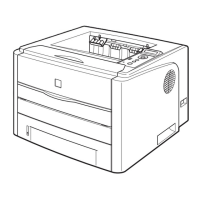
You can perform 2-sided printing with the standard equipment of this printer. Plain
paper (60 to 90 g/m
2
) and heavy paper (91 to 120 g/m
2
) at sizes of A4, Legal, and
Letter can be used for automatic 2-sided printing.
IMPORTANT
•
You cannot perform automatic 2-sided printing on heavy paper (121 to 163 g/m
2
),
transparencies, labels, and envelopes.
•
When 2-sided printing is specified, and a job with odd number of pages is printed, the
printing surface of the last page are as follows according to the setting for ALT.METHOD
(See p. 6-22) or the paper source.
-When printing from the paper cassette
If ALT.METHOD is set to ON, the printer prints on the underside of the loaded paper.
If ALT.METHOD is set to OFF, the printer prints on the upper side of the loaded paper.
-When printing from the manual feed slot
If ALT.METHOD is set to ON, the printer prints on the upper side of the loaded paper.
If ALT.METHOD is set to OFF, the printer prints on the underside of the loaded paper.
•
Do not touch the paper during automatic 2-sided printing until it is completely output to
the face-down output tray. In automatic 2-sided printing, the paper is partially output once
after printed on its surface and is fed again to be printed on its reverse side.
•
Be sure to close the output selection cover before performing automatic 2-sided printing.
•
When performing automatic 2-sided printing, be sure to confirm the paper size switch
lever is set to the appropriate position. When the paper size switch lever is not set to the
appropriate position, this may result in paper jams. For details on the procedure for
setting the paper size switch lever, see "Setting the Paper Size Switch Lever," on p. 4-49.
Switching Between Automatic 2-sided Printing and
1-sided Printing
Perform automatic 2-sided printing using the following procedure.
■ When printing from Windows
When performing automatic 2-sided printing, set [Print Style] in the [Finishing] sheet in the
printer driver to [2-sided Printing]. For more details on using the printer driver, see Help of
the printer driver.
■ When printing from Macintosh
When performing automatic 2-sided printing, specify the settings for 2-sided printing in the
printer driver. For more details on using the printer driver, see Help of the printer driver.




 To Next Page