20 Chapter 5 Getting Started
Using the Imaging Software with TWAIN
Starting the Imaging Software
To acquire an image using imaging software via TWAIN, follow these steps:
1 From your imaging software, such as Photoshop, open the TWAIN interface.
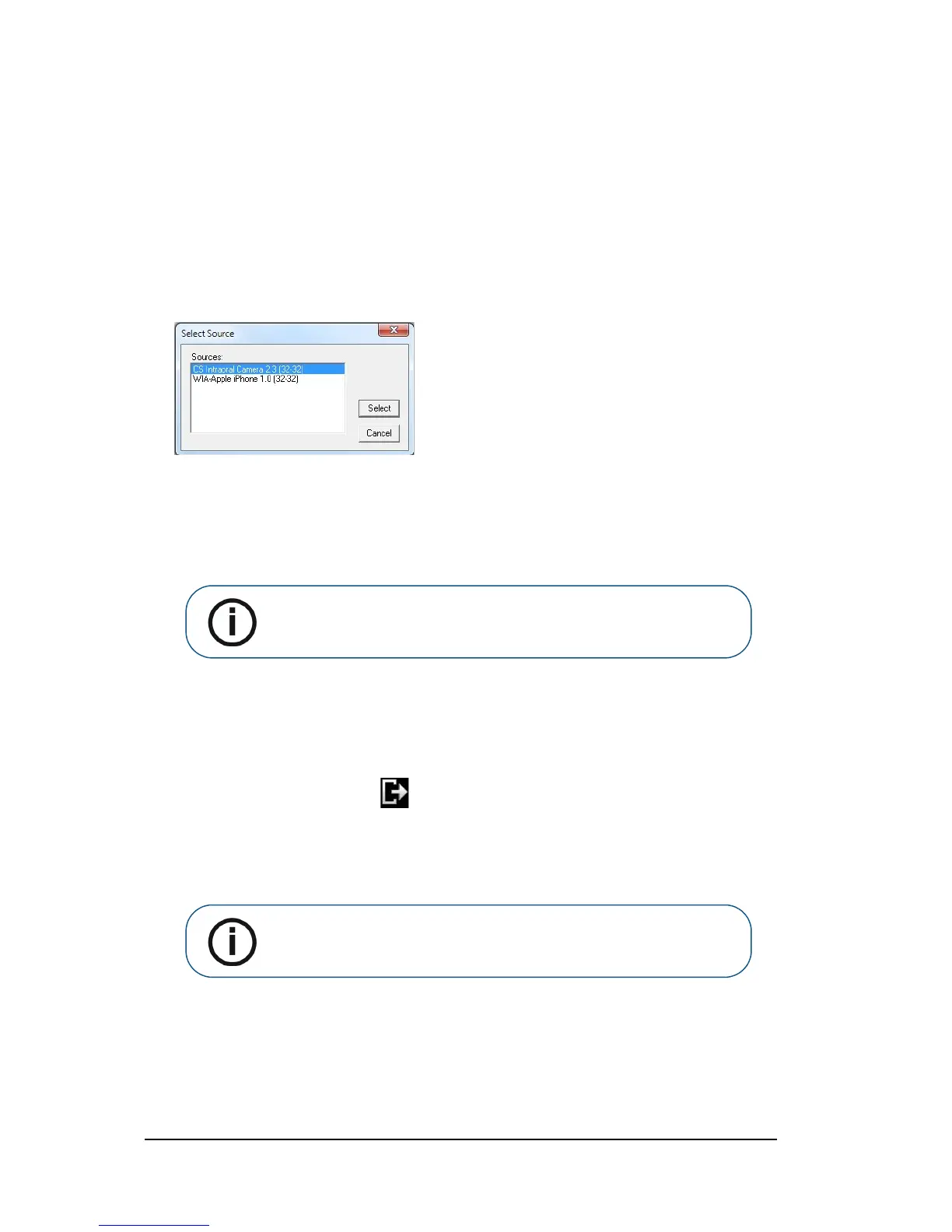
For example, in Photoshop, go to Import > Select Source.
The Select Source window is displayed.
2Select CS Intraoral Camera 2.3 (32-32), and click Select.
3Open the Acquisition interface using the TWAIN interface; see the user guide for your
imaging software.
TWAIN has the following limitations:
TWAIN does not support the video file or tooth comment within the Acquisition interface. The
video file or tooth comment feature is disabled.
After capturing images, click , to return to the imaging software interface. If the imaging
software supports multiple image transfers, all images will be transferred. If the imaging
software supports only one single image transfer, either the first or the last acquired image will
be transferred.
Setting Up Preferences
Set up your preferences before using the camera. To set up the preferences, see“Setting up
Preferences” on page 19.
You can now capture images.
Note: If the message Camera setting changed, please restart your
third party software is displayed, you must restart the software, then
reopen the Acquisition interface.


 To Next Page