22 Chapter 6 Recording Video and Capturing Images on a Computer
Acquiring Live Video or Images
Accessing the Acquisition Interface
To access the Acquisition interface,
If you use the Imaging Software, click or in the Imaging Window and select your
camera.
If you use imaging software via TWAIN interface, see the user guide of your imaging software
to open Acquisition interface.
Recording or Viewing a Video
To record or view a video, follow these steps:
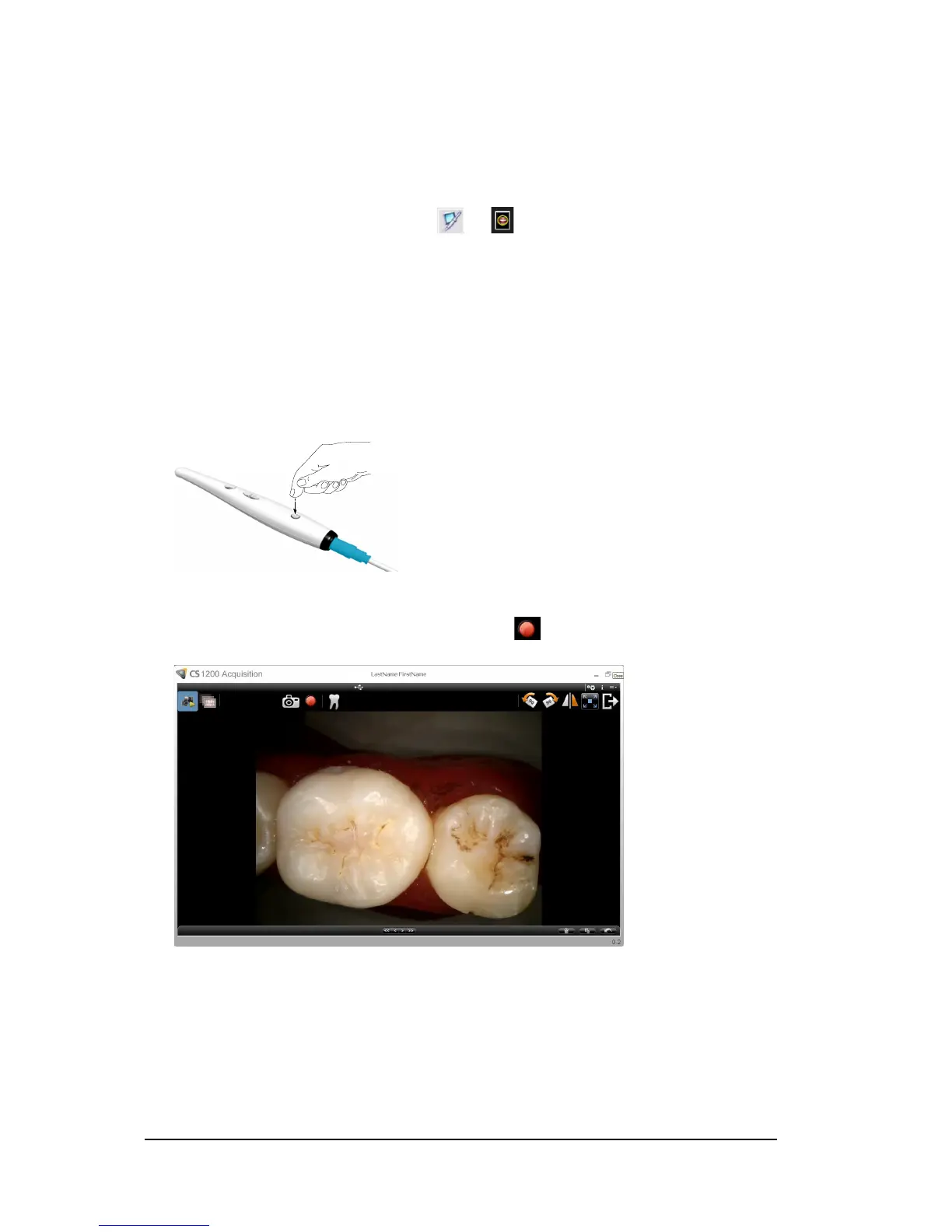
1 Press the ON/OFF button 3 seconds to power on the camera.
2 Hold the camera over the area you want to view. Live video appears on the Preview screen.
3 To record the video, on the Acquisition interface, click to record and click again to stop the
recording
.
The Preview screen of the Acquisition interface shows the video recording.
4 Use the video toolbar to view the recorded video (see “Video Toolbar” on page 6).
5 Use the image gallery toolbar to navigate, save, or delete the recorded video (see“Image Gallery
Toolbar” on page 7).


 To Next Page