2010080120100801
ε-25
Using Setup Memory
k Using and Managing Setups in Setup Memory
All of the setups you save are shown in the setup memory list. After selecting a setup in the
list, you can use it to sample data or you can edit it.
• To preview saved setup data
You can use the following procedure to check the contents of a setup before you use it for
sampling.
1. On the E-Con2 main menu (page
ε-1), press 2(MEMORY) to display the setup memory
list.
2. Use the f and c cursor keys to highlight the name of the setup you want.
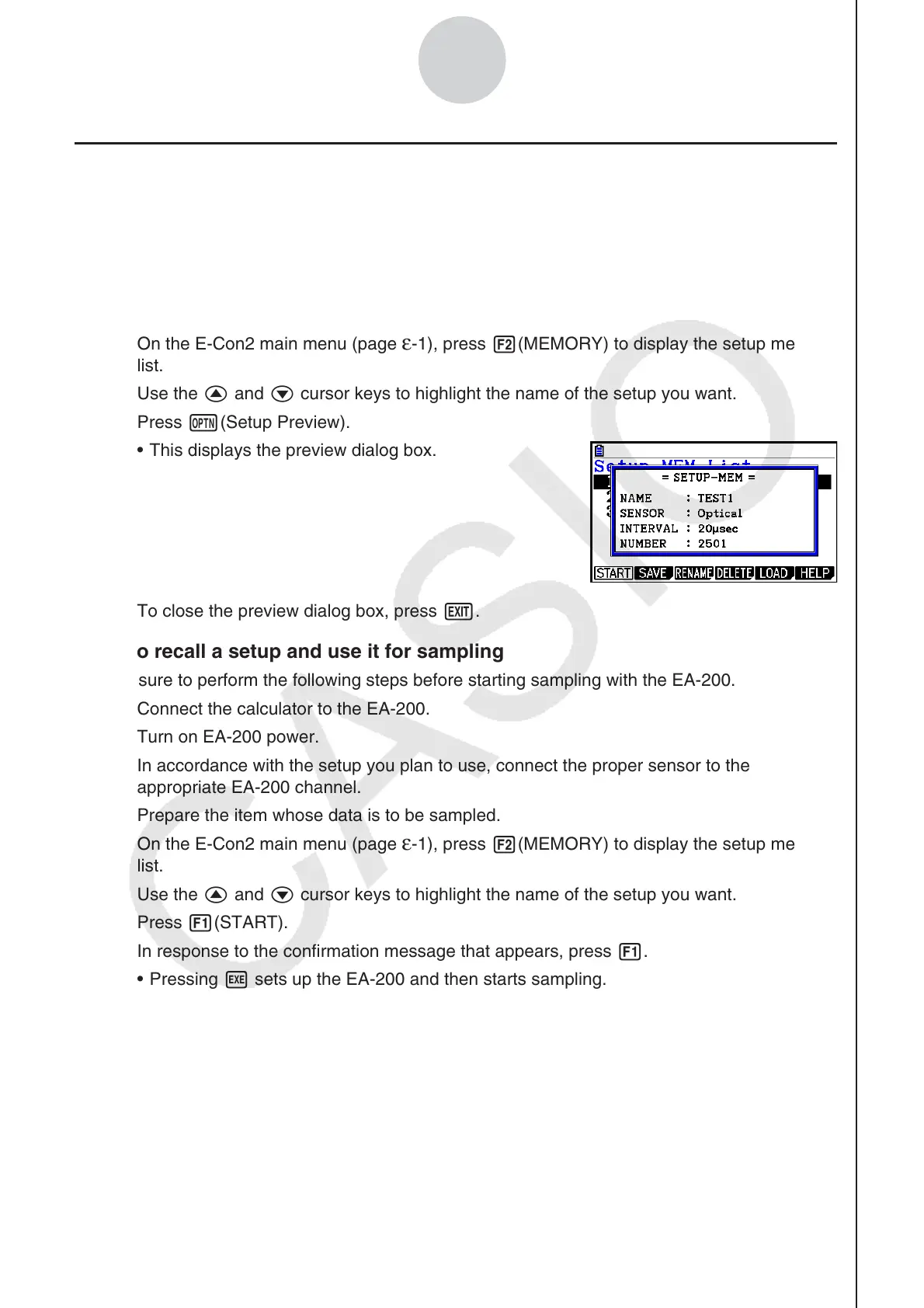
3. Press K(Setup Preview).
• This displays the preview dialog box.
4. To close the preview dialog box, press J.
• To recall a setup and use it for sampling
Be sure to perform the following steps before starting sampling with the EA-200.
1. Connect the calculator to the EA-200.
2. Turn on EA-200 power.
3. In accordance with the setup you plan to use, connect the proper sensor to the
appropriate EA-200 channel.
4. Prepare the item whose data is to be sampled.
5. On the E-Con2 main menu (page
ε-1), press 2(MEMORY) to display the setup memory
list.
6. Use the f and c cursor keys to highlight the name of the setup you want.
7. Press 1(START).
8. In response to the confirmation message that appears, press 1.
• Pressing w sets up the EA-200 and then starts sampling.
• To clear the confirmation message without sampling, press 6.
Note
• See “Operations during a sampling operation” on page
ε-31 for information about
operations you can perform while a sampling operation is in progress.













 To Next Page