4.6.
Connecting the Gateway to AC
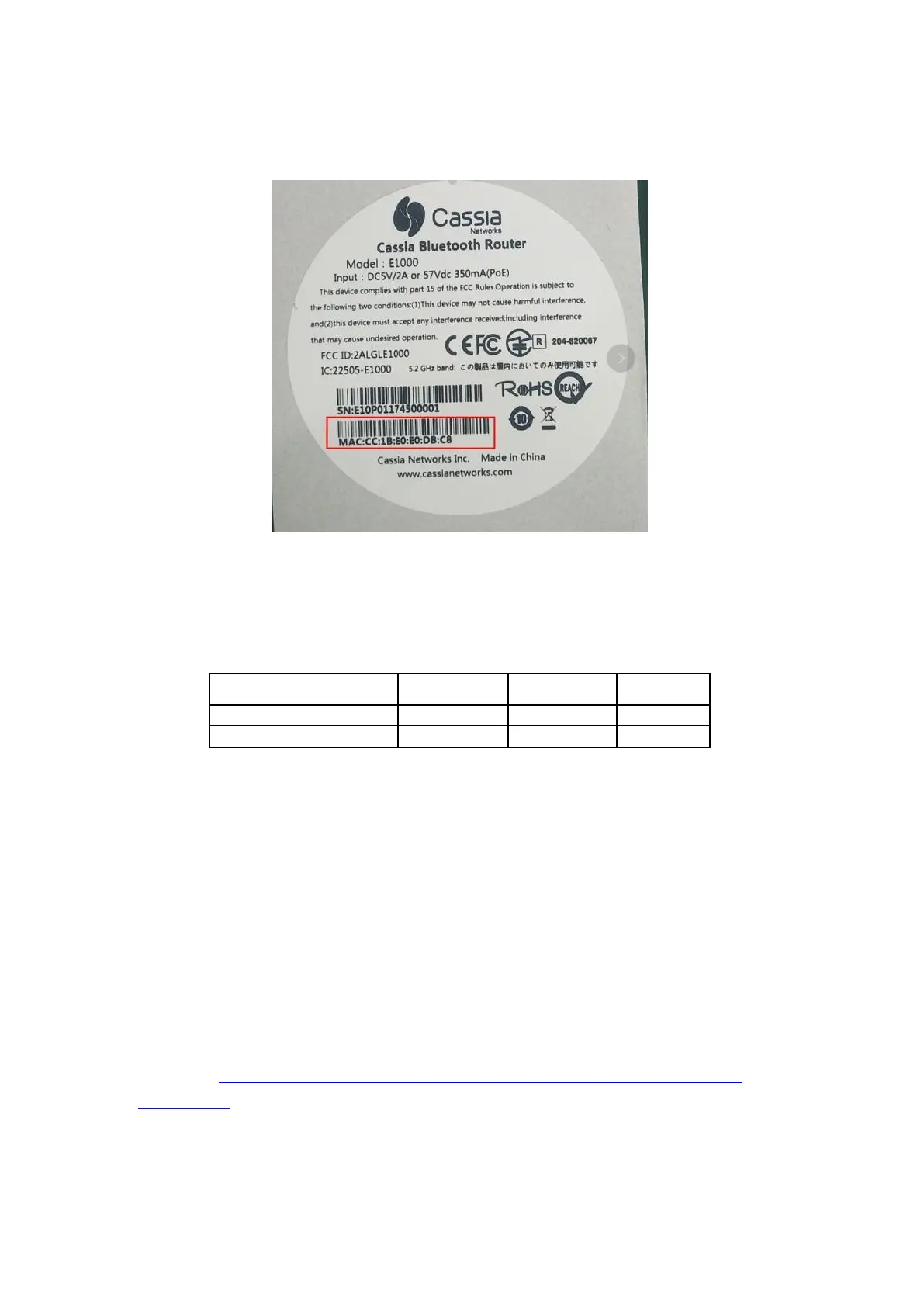
You will find your Cassia Bluetooth gateway’s MAC address located at the bottom of the
gateway.
Cassia Bluetooth gateway’s MAC address
If you are filtering MAC addresses in your security policy, please make sure to input the
active MAC addresses. For example, if you are using Wi-Fi for an uplink connection, your
active MAC will be Label_ MAC+1. See the table below for further details.
For firmware 1.2 or above, a Cassia Bluetooth gateway comes with a Wi-Fi hotspot
function (2.4GHz only). The SSID is cassia-xxxxxx (the “x’s” corresponds to the last 6 digits
of the gateway’s MAC address). The default password of the Wi-Fi hotspot is the same as
the SSID.
For example, if the Cassia Bluetooth gateway MAC address is “CC:1B:E0:E0:96:DC”, the
SSID and its default password will be “cassia-E096DC”. The gateway’s default IP address is
192.168.40.1. The gateway’s console default username is admin.
Please follow the Gateway Installation Guide to connect your laptop to the Wi-Fi hotspot
and to configure the gateway and connect it to the AC. For detailed instructions, please
click here: https://www.cassianetworks.com/support/knowledge-base/general-
documents/
If you can’t find the Wi-Fi hotspot (2.4GHz only) or forget the gateway’s login password,
and your firmware is 1.2 or above, you can press and hold the reset button located at the
bottom of the gateway for 10 to 15 seconds while the gateway is powered on. Once reset,


 To Next Page