The network uplink traffic in the production environment depends on the configuration,
Bluetooth Low Energy device, etc, and should be evaluated on a case-by-case basis. It is
recommended to use scan filter API to reduce Bluetooth Low Energy uplink traffic. Please
refer to SDK Implementation Guide for details.
5.2.1.
Wired Settings
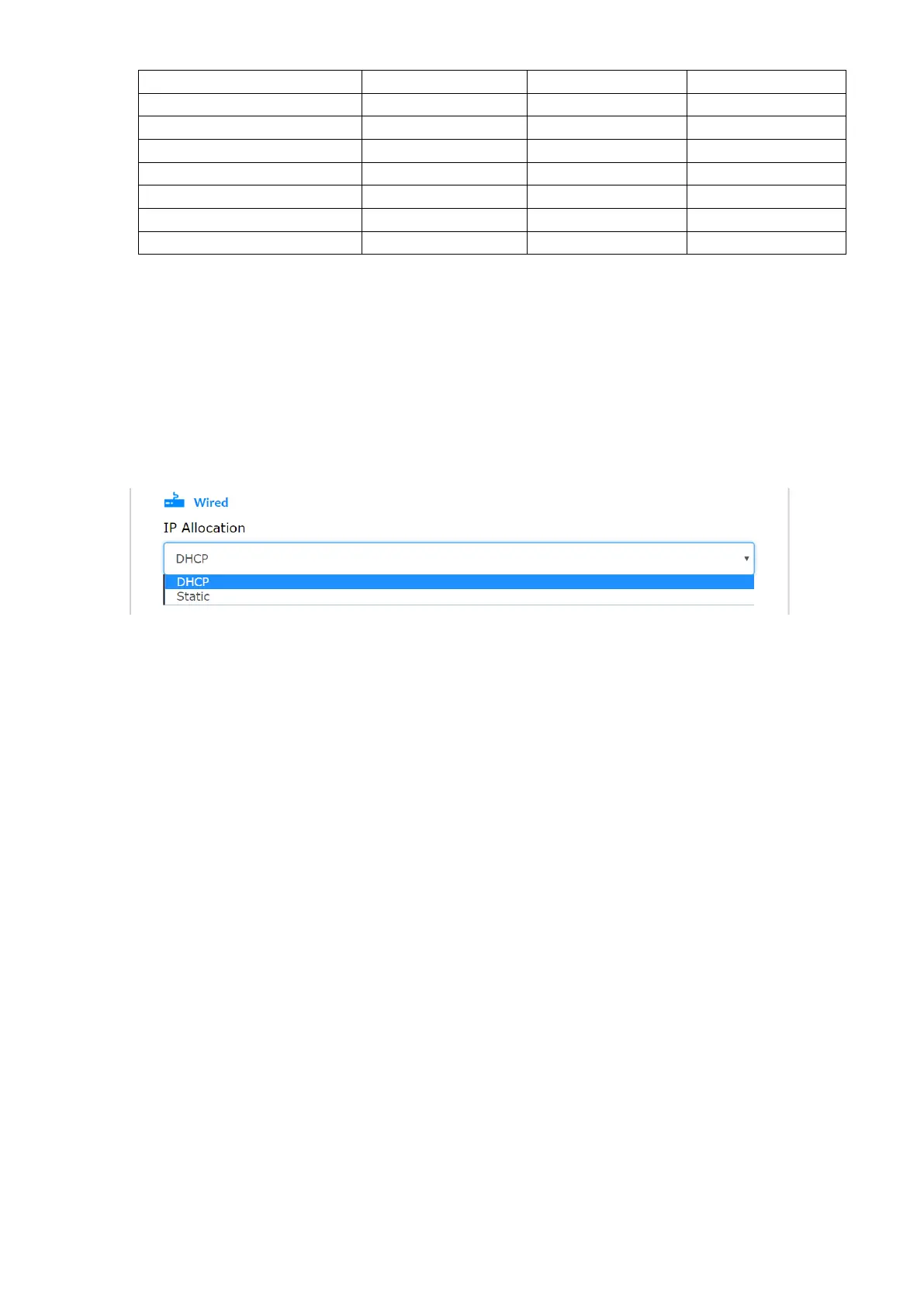
For a wired connection, please select DHCP (default) or Static IP.
Cassia gateway configuration page – Wired Connection
In Static IP allocation, please enter your network information, including IP, netmask,
gateway, and DNS.
For your network setting information, please contact your IT administrator.
5.2.2.
Wi-Fi Settings
Cassia’s Bluetooth gateway supports Wi-Fi Client mode and Wi-Fi Hotspot mode
(2.4GHz only). For the initial deployment, the gateway operates in Hotspot mode by
default. This allows the user to connect to the gateway via Wi-Fi using a laptop or
mobile device for configuration purposes. The Cassia Bluetooth gateway will advertise
an SSID: cassia-xxxxxx (the “x’s” correspond to the last 6-digit of the gateway’s MAC
address). For additional details, see section 4.6.
To use the Wi-Fi as your uplink, please switch the Operating Mode to the Client mode.
Please complete the rest of the configuration fields. For details on your Wi-Fi settings,
please contact your IT administrator.
From firmware 2.0.3, the user can enable “Verify before saving” before switching to
Client mode. If the gateway can’t connect to Wi-Fi AP within 30 seconds, it will switch
back to Hotspot mode automatically. This function will avoid an un-necessary gateway
reset if the user sets the wrong Wi-Fi configuration. If the Wi-Fi client is set to static IP,
after the gateway fail to connect to Wi-Fi AP and fall back to Wi-Fi hotspot mode, the
hotspot IP address will be changed from 192.168.40.1 to the new static IP.


 To Next Page