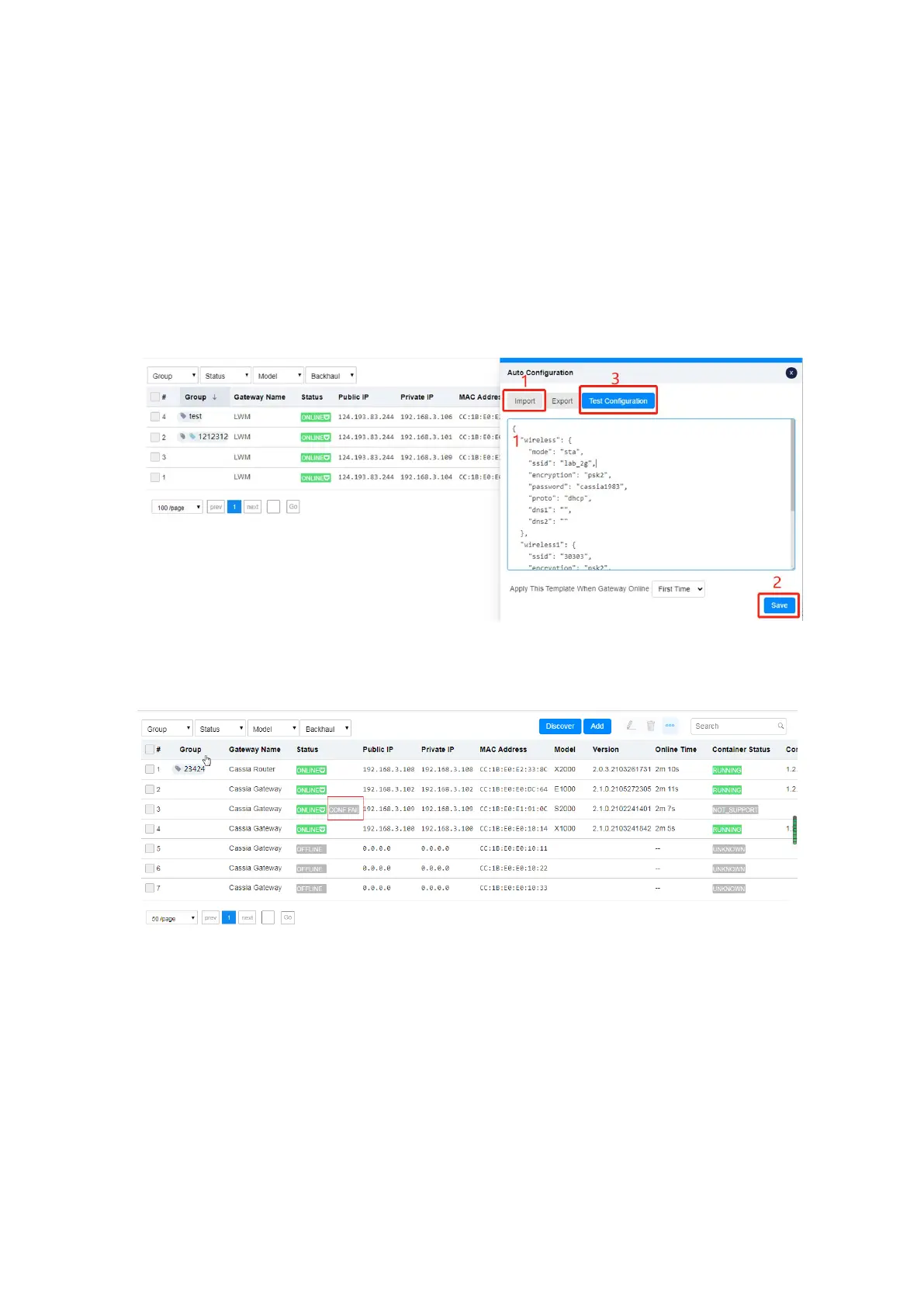
First, please input or import the gateway configuration into AC, select when the
configuration should be sent (first time online or each time online), and then save the
configuration. The current configuration can be exported into a file.
The format of the configuration complies with JSON format of Cassia RESTful API “Obtain
Cassia Router’s Configuration”. Please check below link for more information about this
API (https://github.com/CassiaNetworks/CassiaSDKGuide/wiki/RESTful-API#obtain-cassia-
routers-configuration).
After the configuration is saved, it is suggested to check if the configuration is correct
(avoid typo). Please press button “Test Configuration” and select one on-line gateway.
After that, when the new gateway is online, AC will send the configuration to the new
gateways automatically. You can check the configuration result in the event log. If the
configuration failed, you can find “CONF FAIL” on gateway console too.
Only the admin AC account can enable this feature. The read only AC account can’t enable
this feature.
6.7.
Gateway Batch Configuration
The user can select multiple gateways that belong to the same type (e.g. E1000) and
configure them in batch. Batch configuration can speed up the configuration and avoid the
error of human operation.
First, please select all the gateways that need to be configured in batches, or select the
gateways one by one. After that, please click the edit button in the upper right corner.
Then, the batch configuration page will show up.


 To Next Page