20
LE-3xx/LE-4xx Hardware Installation & User Guide
INSTALLING THE SCS/SDS DEVICE
Installing the SCS/SDS Device
The SCS/SDS device can be mounted in a standard equipment rack that has been properly
mounted to the building infrastructure or it can be placed on a desktop.
WARNING:
Read all installation instructions before connecting LightningEdge
devices to a power source.
WARNUNG:
Lesen Sie alle Installationsanweisungen, bevor Sie LightningEdge-
Geräte an eine Stromquelle anschließen.
AVERTISSEMENT:
Lisez toutes les consignes d’installation avant de brancher
les dispositifs LightningEdge à une source d’alimentation électrique.
VARNING:
Läs alla installationsanvisningar innan du kopplar en LightningEdge-
enhet till elnätet.
DUTCH:
Lees alle installatie-instructies voordat u een
ADVARSEL:
LightningEdge-apparaat op een voedingsbron aansluit.
ADVARSEL:
Les alle installasjonsinstruksjonene før du kobler LighteningEdge-
innretninger til en strømkilde.
Italian:
leggere le istruzioni di installazione prima di collegare i dispositivi
LightningEdge alla fonte di alimentazione.
UPOZORNENIE:
Pred pripojením zariadení LightningEdge k zdroju napájania si
preèítajte všetky inštal aèné pokyny.
Portuguese:
Leia todas as instruções de instalação antes de conectar os
dispositivos LightningEdge a uma fonte de alimentação.
警告:LightningEdge デバイスを電源に接続する前にインストール手順をお
読みください。
Rack Installation
1.
Install rack ears on both sides of the SCS/SDS using a #2 Phillips screwdriver.
2.
Position the device in the desired location in the rack. Use standard racking
practice to determine location.
3.
Secure the device to the rack with customer provided rack screws.
4.
For AC devices, connect the AC power cord to the device, then plug it into a power
source. Verify that the PWR LED on the front of the device is green.
For DC
devices
, see the the
DC Power Connections
section on page 21.
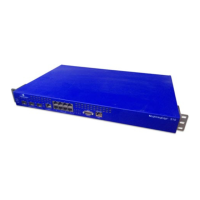
Desktop Installation


 To Next Page