36-71
Cisco Catalyst Blade Switch 3130 and 3032 for Dell Software Configuration Guide
OL-12247-04
Chapter 36 Configuring QoS
Configuring Standard QoS
Configuring the DSCP-to-CoS Map
You use the DSCP-to-CoS map to generate a CoS value, which is used to select one of the four egress
queues.
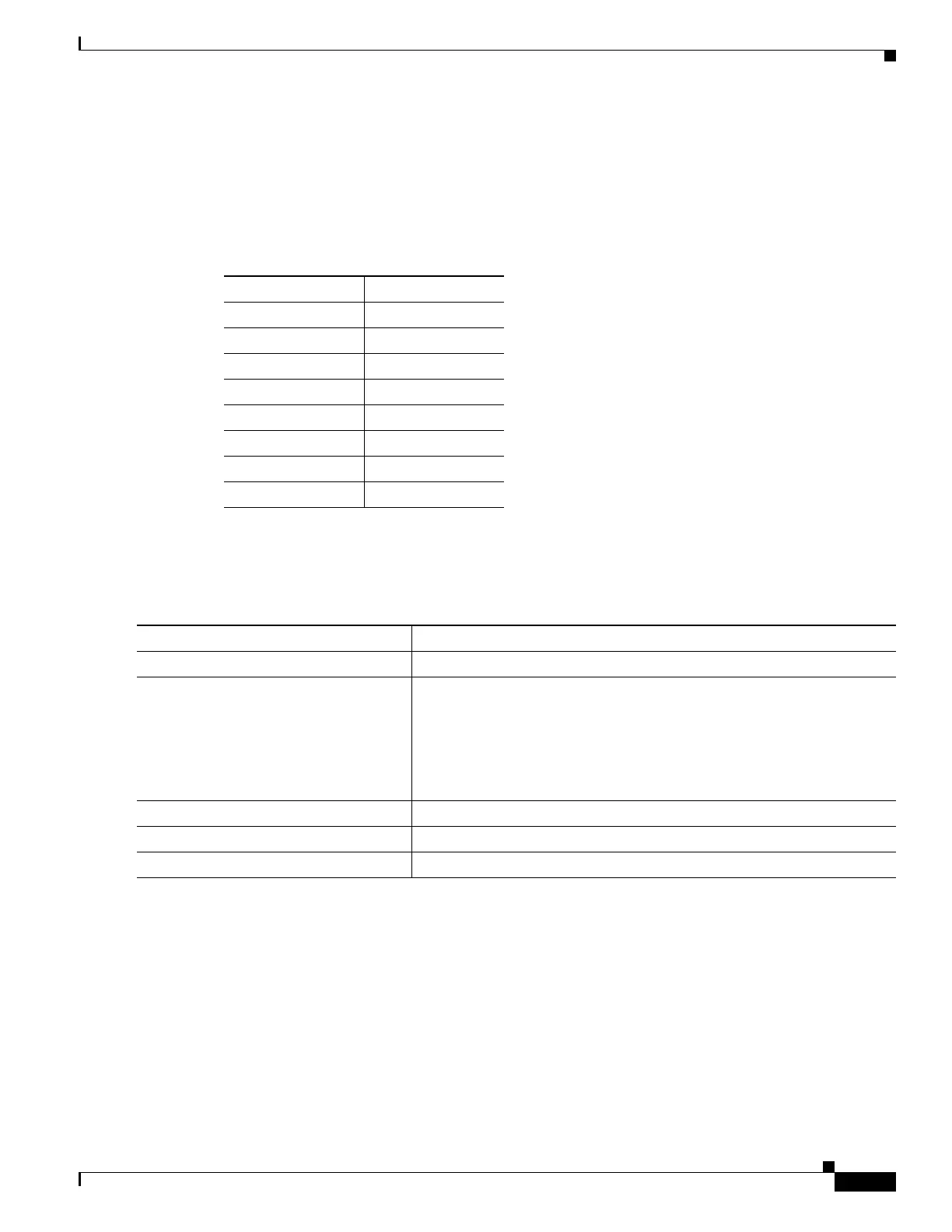
Table 36-14 shows the default DSCP-to-CoS map.
If these values are not appropriate for your network, you need to modify them.
Beginning in privileged EXEC mode, follow these steps to modify the DSCP-to-CoS map. This
procedure is optional.
To return to the default map, use the no mls qos dscp-cos global configuration command.
This example shows how to map DSCP values 0, 8, 16, 24, 32, 40, 48, and 50 to CoS value 0 and to
display the map:
Switch(config)# mls qos map dscp-cos 0 8 16 24 32 40 48 50 to 0
Switch(config)# end
Switch# show mls qos maps dscp-cos
Dscp-cos map:
d1 : d2 0 1 2 3 4 5 6 7 8 9
---------------------------------------
0 : 00 00 00 00 00 00 00 00 00 01
1 : 01 01 01 01 01 01 00 02 02 02
2 : 02 02 02 02 00 03 03 03 03 03
Table 36-14 Default DSCP-to-CoS Map
DSCP Value CoS Value
0–7 0
8–15 1
16–23 2
24–31 3
32–39 4
40–47 5
48–55 6
56–63 7
Command Purpose
Step 1
configure terminal Enter global configuration mode.
Step 2
mls qos map dscp-cos dscp-list to cos Modify the DSCP-to-CoS map.
• For dscp-list, enter up to eight DSCP values separated by spaces.
Then enter the to keyword.
• For cos, enter the CoS value to which the DSCP values correspond.
The DSCP range is 0 to 63; the CoS range is 0 to 7.
Step 3
end Return to privileged EXEC mode.
Step 4
show mls qos maps dscp-to-cos Verify your entries.
Step 5
copy running-config startup-config (Optional) Save your entries in the configuration file.


 To Next Page