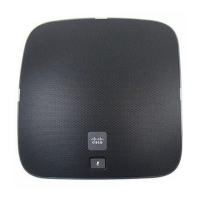
You can move the microphone and attached table mount to a different location on the table surface as needed.
Use care when moving to protect the unit.
Related Topics
Wireless Expansion Microphone, on page 20
Install the Wireless Expansion Microphones, on page 11
Pair a Wireless Microphone
Before you begin
Unplug any wired microphones.
Procedure
Step 1 Press Settings.
Step 2 Select Device administration > Microphones > Wireless microphones.
Step 3 Select either Microphone 1 or Microphone 2 and press Pair.
If a microphone is already linked to a particular channel, the phone screen shows that the microphone is paired.
Step 4 Press Mute on the wireless microphone until the microphone LED blinks white.
If the pairing succeeds, the phone screen displays a success message.
Step 5 (Optional) Press Cancel to revert to the Wireless microphones menu.
Related Topics
Wireless Expansion Microphone, on page 20
Unpair a Wireless Microphone
Procedure
Step 1 Press Settings.
Step 2 Select Device administration > Microphones > Wireless microphones.
Step 3 Select either Microphone 1 or Microphone 2.
If the selected channel is paired, the Unpair softkey displays on the phone screen.
Step 4 Press Unpair.
Related Topics
Wireless Expansion Microphone, on page 20
Cisco IP Conference Phone 8832 Multiplatform Phone User Guide
12
Your Phone
Pair a Wireless Microphone








 To Next Page